EasyManua.ls Logo

Foscam FI8910E - Page 65

Foscam FI8910E
75 pages
Print Icon
To Next Page IconTo Next Page
To Previous Page IconTo Previous Page
Loading...
64
w
w
w
w
w
w
w
w
.
.
f
f
o
o
s
s
c
c
a
a
m
m
.
.
c
c
o
o
m
m
S
S
h
h
e
e
n
n
z
z
h
h
e
e
n
n
F
F
o
o
s
s
c
c
a
a
m
m
I
I
n
n
t
t
e
e
l
l
l
l
i
i
g
g
e
e
n
n
t
t
T
T
e
e
c
c
h
h
n
n
o
o
l
l
o
o
g
g
y
y
C
C
o
o
.
.
,
,
L
L
i
i
m
m
i
i
t
t
e
e
d
d
T
T
e
e
l
l
:
:
8
8
6
6
7
7
5
5
5
5
2
2
6
6
7
7
4
4
5
5
6
6
6
6
8
8
F
F
a
a
x
x
:
:
8
8
6
6
7
7
5
5
5
5
2
2
6
6
7
7
4
4
5
5
1
1
6
6
8
8
64
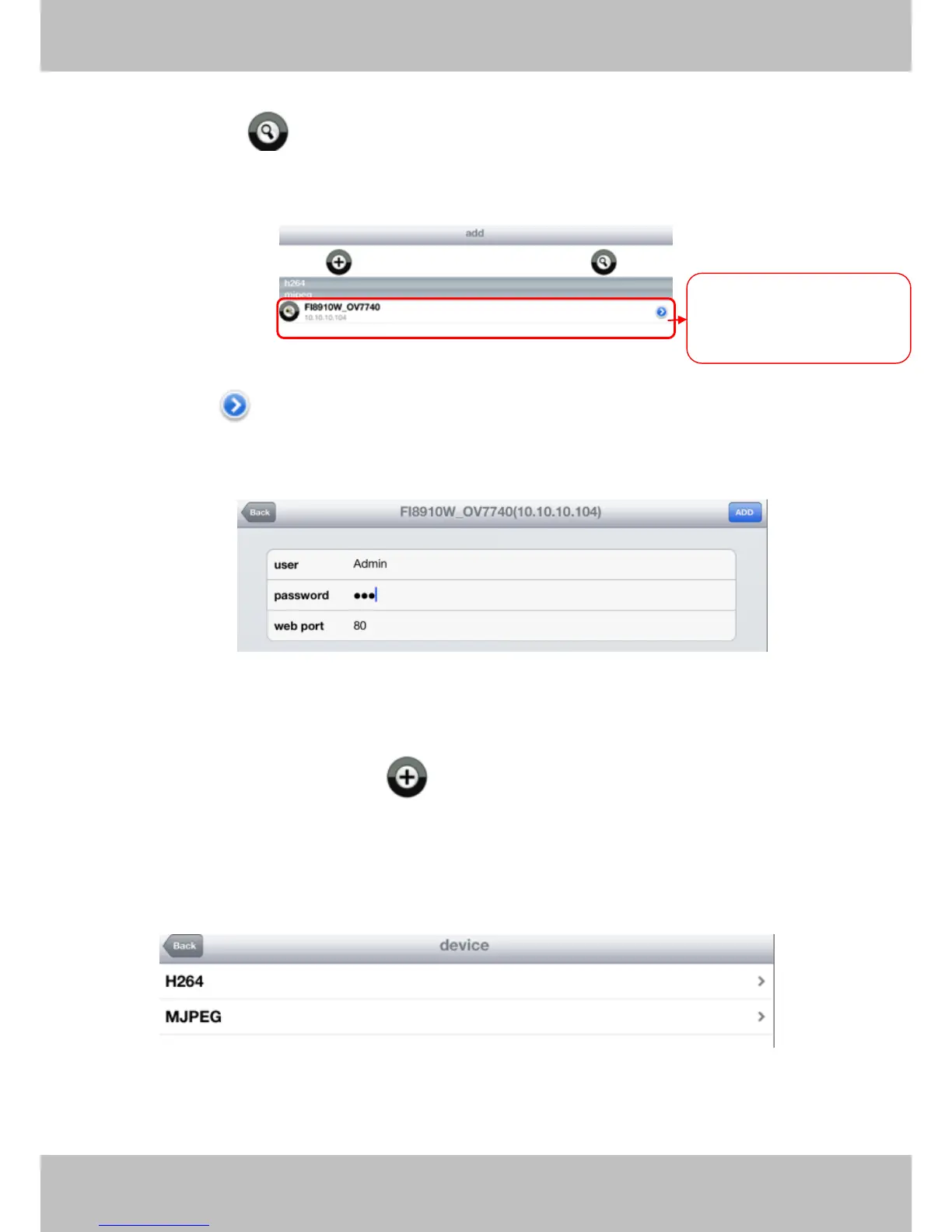
Add device in LAN
Click this button and the APP will search all cameras in LAN, then add it to APP
automatically .
Figure 4.11
There is a icon after the camera name, click it and you can enter the user name, password
and web port to login the camera.
Figure 4.12
Add device in WAN
Step 1: Click the Add Camera icon to add cameras manually.
Step 2: Select the camera type: mjpeg or h.284 (Figure 4.13), then enter the cameras basic
information like camera name , ip , http/media port, user name, password and so on(Figure
4.14).
Figure 4.13

The cameras in LAN can
be searched and added to
APP automatically

Related product manuals