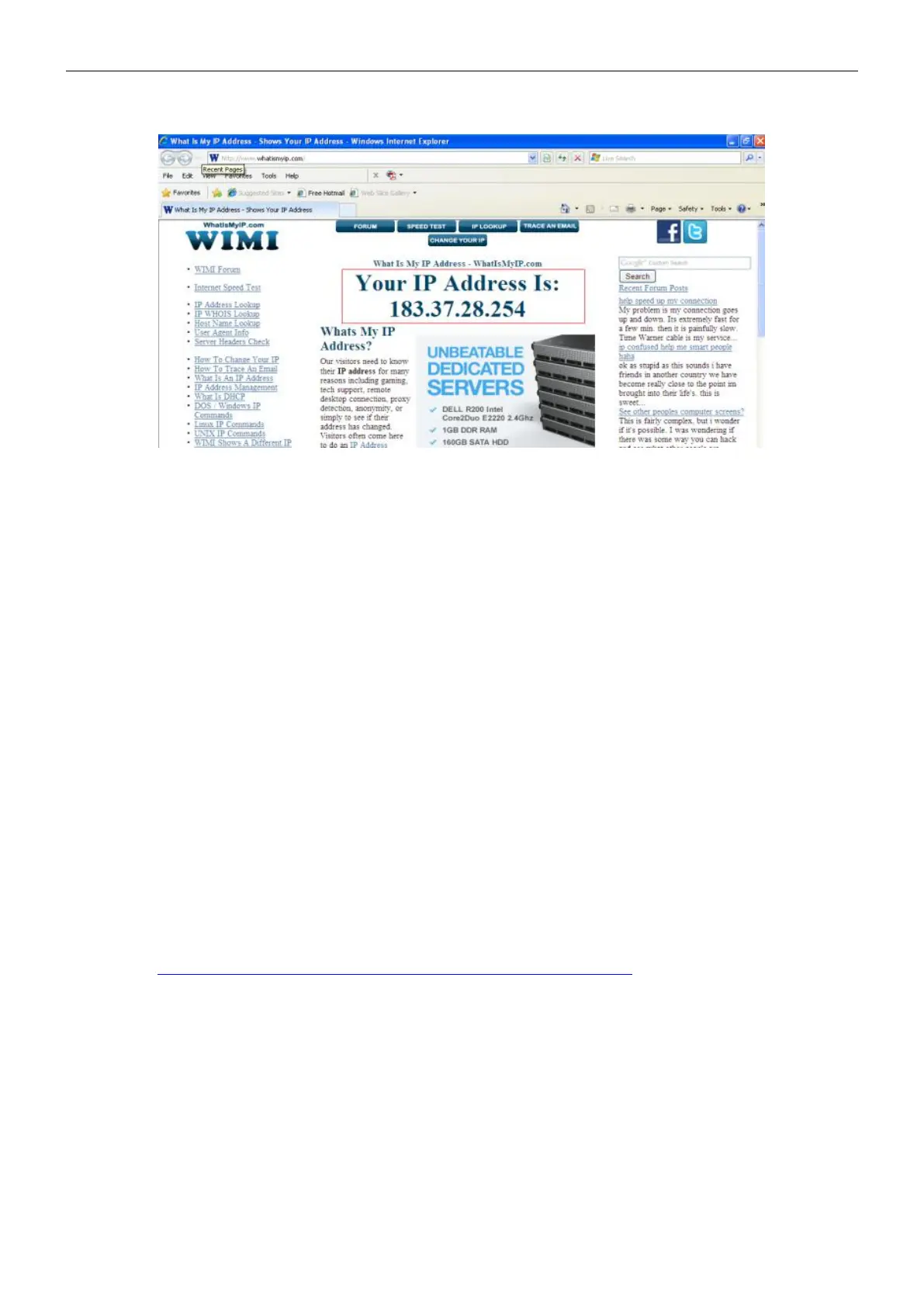
webpage at this address will show you the current WAN IP.
Access your IP Camera from the Internet
You can access the IP camera from the Internet (remote access). Enter the WAN IP address and port number
in your standard browser. For example, you would enter http:// 183.37.28.254:85
NOTE:
Make sure port forwarding is successful. You can do port forwarding two ways.
1. Login to your router to enable the "UPNP" function. You can then login to the camera as administrator,
choose Network, and then choose UPnP to enable UPnP. Make sure that the status of UPnP reads "UPnP
Successful" on the Device Status page.
2. Do port (HTTP port) forwarding manually.
If your router has a Virtual Server, it can do port forwarding. Add the camera's LAN IP and port which you had
set earlier to your router's port forwarding settings.
2.3 Using the VLC Player
This camera supports RTSP streaming, here you can view the camera using VLC player.
RTSP URL rtsp:// [user name][:password]@IP:HTTP port number/videosream
The part in the square brackets may be omitted.
user name & password: The user name and password to access the camera. This part can be omitted.
IP: WAN or LAN IP address.
Video stream: Here support three mode: videoMain, videoSub and audio. When the network speed is bad,
here you had better select videoSub. If you select audio, you can only hear the sound but cannot see the
video.
For example:
IP: 192.168.1.11


 To Next Page