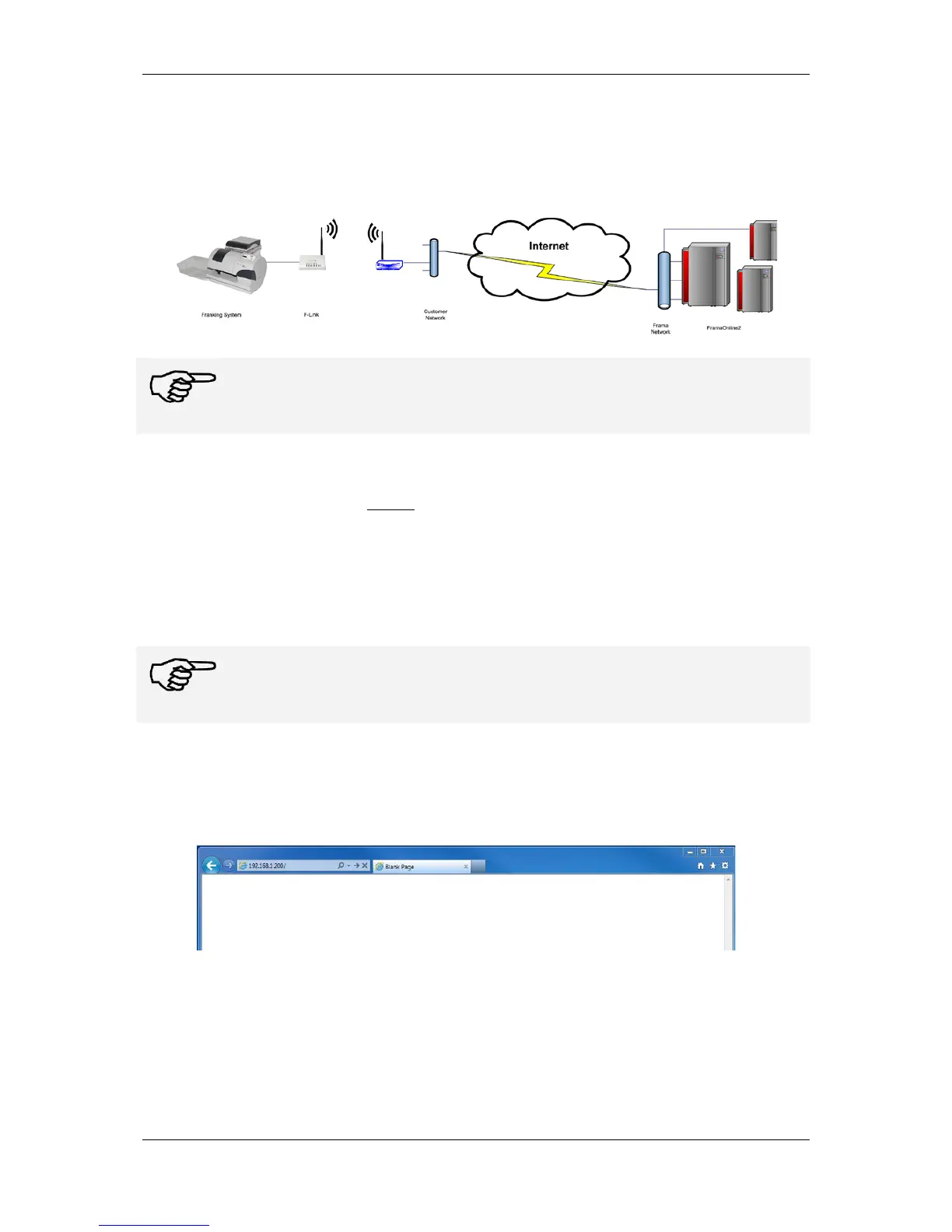
Frama F-Link
10
4.2 Wireless operation
The F-Link device can also operate with a wireless network. By default the F-Link is configured to oper-
ate with a wired connection. Refer to the install manual for information about installing the F-Link on
the franking system for wireless operation.
Note!
If the F-Link was used with LAN connection type DHCP or STATIC before for connec-
tions, the access to the F-Link configuration page by the default IP address
192.168.1.200 and a direct LAN cable is only possible after a reset of F-Link.
Configuring the F-Link for wireless operation over Alias IP address 192.168.1.200:
1. Connect the F-Link device directly with a LAN cable to a PC
(A cross-wired LAN cable is needed when the PC doesn’t support auto-MDIX).
2. Note the PC LAN network settings for later use.
Set the PC LAN network settings as follows:
IP address: 192.168.1.199
Subnet mask: 255.255.255.0
Note!
Configuration in environment with “open access points”
To prevent an automatic connection with open access points dismount the WI-FI an-
tenna until the F-Link has been set to WI-FI function.
3. Turn on the F-Link and wait until the Ready LED of the F-Link is on.
4. Open internet web browser on PC.
5. Insert the F-Link default IP 192.168.1.200 into address field.
6. Login with username and password. (Default username: “admin” and password: “admin”).
7. Open configuration page Wireless Settings.



 To Next Page