7
Opening the Web Browser Interface
To use the Web browser interface, open the Web browser on your computer, tablet or Wi-Fi device and
type http://192.168.10.1 into the web browser address window and press Enter or Return.
Go to “Your 4G LTE Mobile Hotspot Web Browser Interface” on the page 12 to see details of Web
Browser Interface features.
4G LTE Mobile Hotspot User Interface
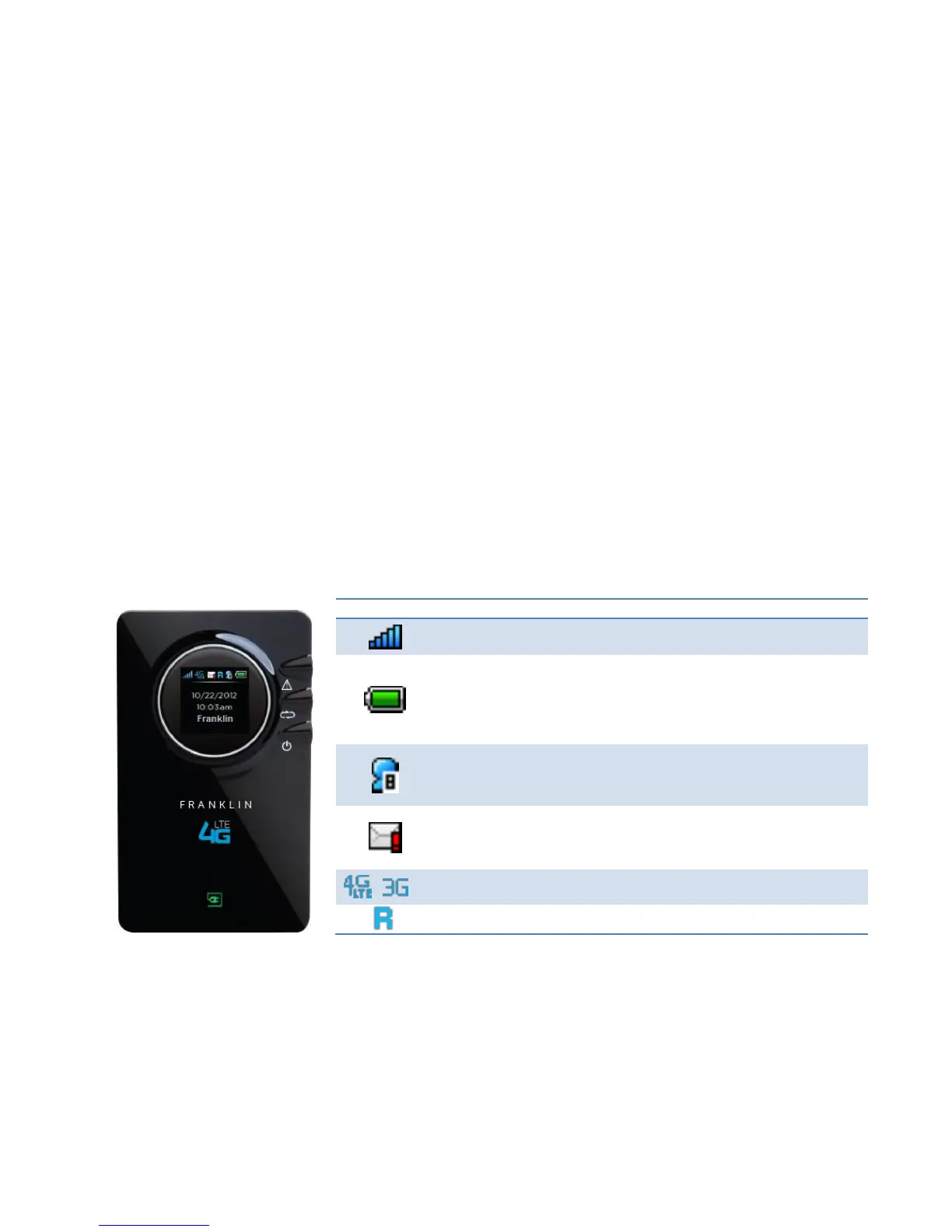
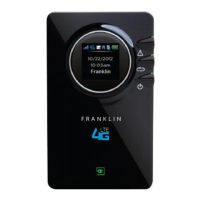
Your 4G LTE Mobile Hotspot has a graphic color LCD window and three functional buttons for user
interaction. The LCD window displays various icons and text messages to show device status. The three
functional buttons allow you to control the device functions and messages displayed on the LCD window.
Graphic Color LCD & Icons
The LCD window can display 6 different icons and 4 lines of text messages.
More bars indicate a stronger network signal.
The longer green bar inside the battery outline
indicates more battery power remaining. When the
remaining battery power becomes very low, the
battery outline will blink and a warning message
will display.
When multiple Wi-Fi devices are connected to the
device, the number of connected devices is
displayed next to the connected device icon.
The alert message icon will display when there are
messages from the network or alert messages from
the 4G LTE Mobile Hotspot.
A 4G or 3G icon displays according to the network
your 4G LTE Mobile Hotspot is connected to.
This icon appears when the device is roaming.


 To Next Page