14
Automatic connection mode and preferred service mode can be set from the “Setting” menu in the main
menu bar.
● Service Type: Displays the service type your 4G LTE Mobile Hotspot currently has acquired.
● Signal strength bar: Displays your current signal strength. Supports 0- 6 levels of signal strength.
● Connection time: Displays the time your 4G LTE Mobile Hotspot has been connected.
● Connection button: Connects you to an available network.
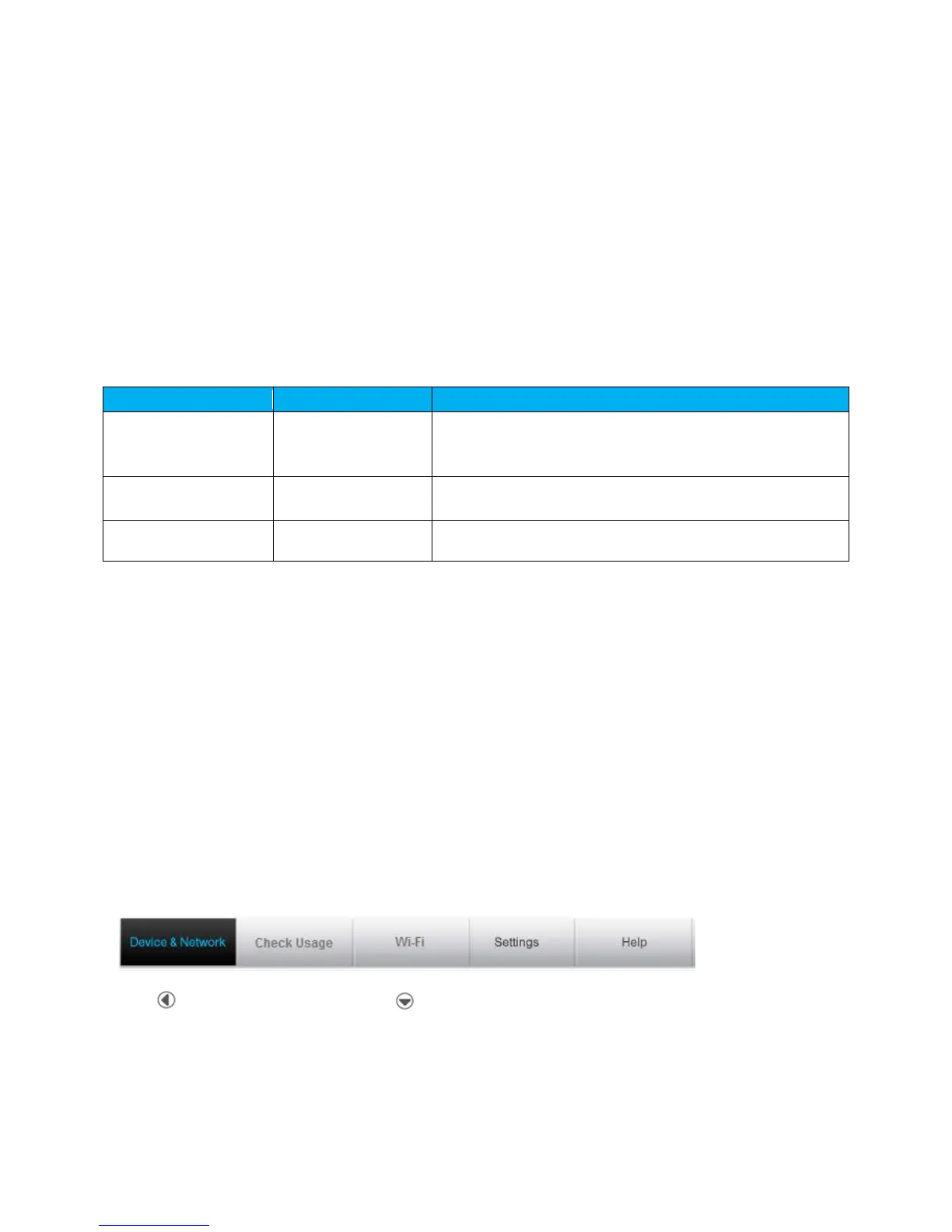
The following table provides your 4G LTE Mobile Hotspot status and connection button descriptions.
Radio power is on and your 4G LTE Mobile Hotspot is
disconnected.
Ready to connect.
Your 4G LTE Mobile Hotspot is connected and available
to disconnect the connection.
Connecting to the Network
Once your 4G LTE Mobile Hotspot is properly configured, connecting to the Internet is as simple as
clicking Connect. Once connected, Connect will now display Disconnect. Simply click Disconnect to
end your current connection. To connect to any other network shown, select it, and then click Connect.
Navigating Web UI menu
The main menu appears down across the top of the browser interface. Simply click the menu in the main
menu bar. The screen will display sub menus under each main menu item.
Click to open sub menu items. Click to close the sub menu items.
Device & Network Menu
The Device & Network menu allows you to view information about your device and network status.


 To Next Page