QUANTUM
™
LX CONDENSER/VESSEL CONTROL PANEL
MAINTENANCE
090.560-M (MAY 2016)
Page 30
KEYPAD
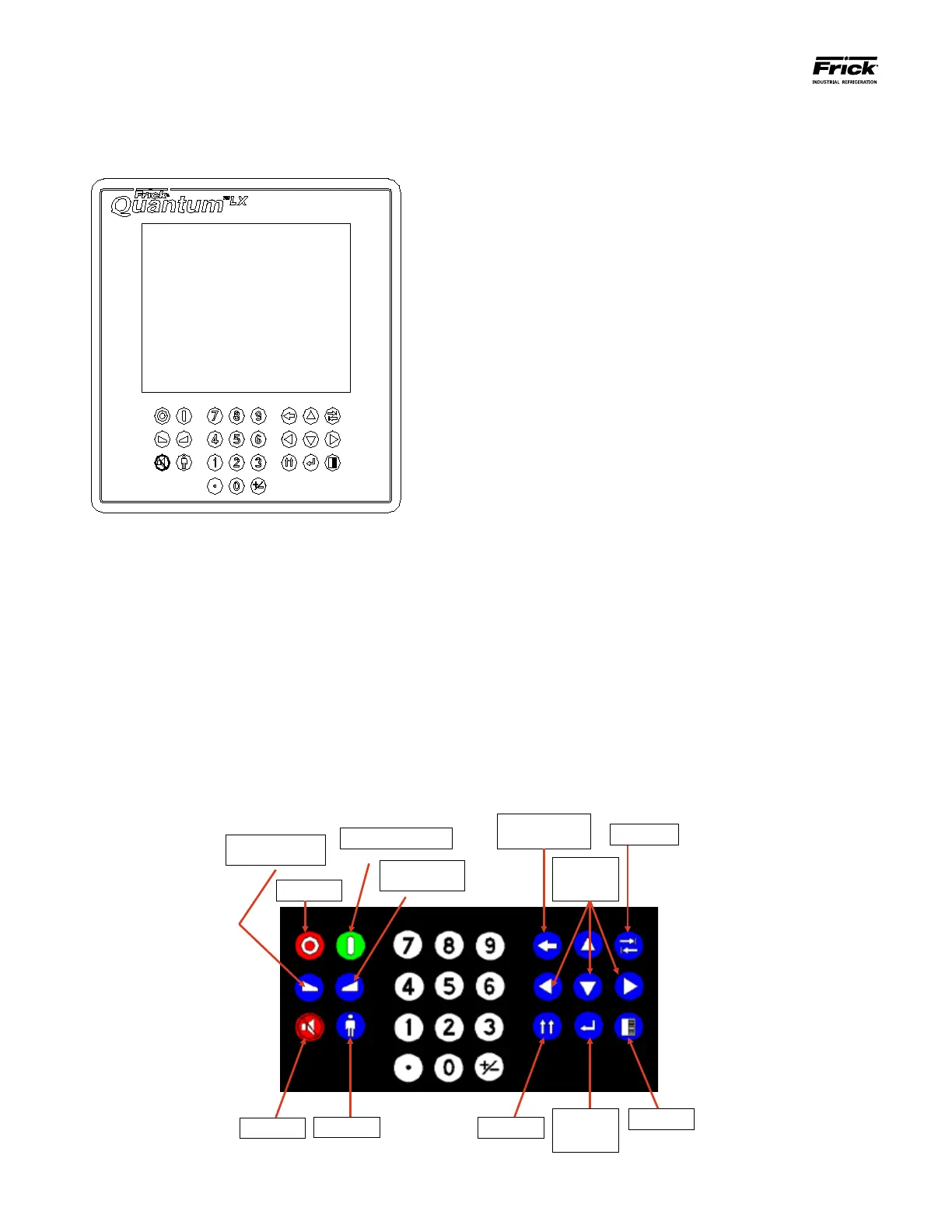
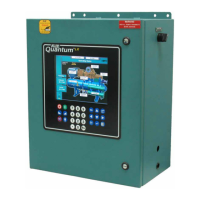
The Quantum™ LX keypad is shown here:
Display
Window
The Keypad consists of two areas, the Display window and
the Keypad itself. The Display window is simply a clear
portion of the Keypad assembly which the Display is able
to be viewed through.
KEYPAD TROUBLESHOOTING
The Keypad area consists of a series of 27 membrane
switches. Depressing each switch (key) should result in an
audible tactile clicking sound. To ensure that each key is
actually functioning:
Q4: Visually inspect the D8 LED located on the con-
trol board. This LED will normally ash on and off
at a rate of about once-per-second. Pressing a
key on the keypad will interrupt this ash rate,
and repeatedly depressing a key will cause the
LED to ash each time a key is pressed.
Q5: Visually inspect the D6 (Active) LED located on
the Q5 Interface board. This LED will normally
ash on and off at a rate of about once-per-sec-
ond. Pressing a key on the keypad will interrupt
this ash rate, and repeatedly depressing a key
will cause the LED to ash each time a key is
pressed.
If a keypad problem is suspected, or apparent, a USB ca-
pable computer keyboard (will have a USB style connector
on the end of the keyboard cable) can be used as a trou-
bleshooting aid. To by-pass the Quantum™ LX keypad,
open the control panel door. NOTE: Always be aware
of the presence of live AC voltage! Depending upon the
type of Quantum™ being diagnosed, use the following in-
structions:
Q4: Locate the USB connection on the controller, and
plug the USB end of the keyboard cable in to it.
Q5: Locate the two USB connections on the control-
ler, and plug the USB end of the keyboard cable
into either one.
The external USB based keyboard is now active and ready
to use. Some of the keyboard keys are mapped so that
they will duplicate the functions of the Quantum™ LX
keypad. NOTE: There is a slight variation between the
way a Q4 and a Q5 interpret this mapping, but these
variations are minor. To navigate using the external key-
board using Q5 keyboard mapping, refer to the following
pictorial:
Numeric Keys, decimal, +/- all the same as a keyboard.
TAB KEY
BACKSPACE
KEY
CURSOR
KEYS
ENTER
KEY
F5 Key
F10 Key
F11 Key
F2 Key
F9 Key – Unload
F4 Key – Stop Unload
F12 Key
F7 Key – Load
F3 Key – Stop Load
F8 Key




 To Next Page