Opening the FRITZ!Box User Interface
Requirements
• Your computer, smartphone, or tablet is connected with the
FRITZ!Box via Wi-Fi or network cable.
• The connection is not via the Wi-Fi guest access or LAN guest ac-
cess of the FRITZ!Box.
Instructions: Opening the FRITZ!Box User Interface
1. Start a web browser on your computer or mobile device.
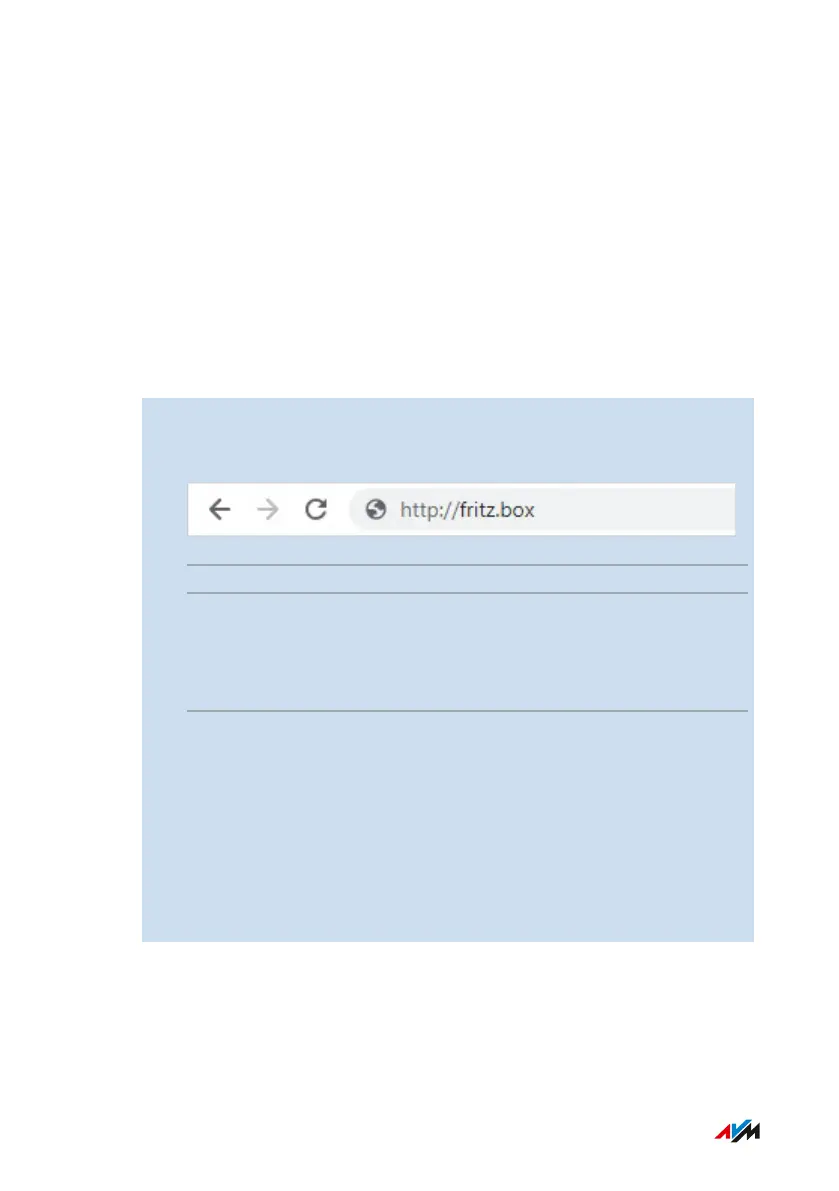
2. Enter the address http://fritz.box.
Tip
You can also enter the IP address of the FRITZ!Box or the emer-
gency IP.
The preset IP address is: http://192.168.178.1
The emergency IP address is: http://169.254.1.1
3. Log in with the FRITZ!Box password or with the login data of a
FRITZ!Box user.
The preconfigured FRITZ!Box password is printed on the type la-
bel on the outside of the housing and on the FRITZ! Notes service
card.
The first time the user interface is opened, the Wizard for Basic Con-
figuration of the FRITZ!Box starts; see page68. The next time the
user interface is started, the Overview page appears.
FRITZ!Box7590 59
Accessing the FRITZ!Box
• • • • • • • • • • • • • • • • • • • • • • • • • • • • • • • • • • • • • • • • • • • • • • • • • • • • • • • • • • • • • • • • • • • • • • • • • • • • • • • • • • • • • • • • • • • • • • • • • • • • • • • •
• • • • • • • • • • • • • • • • • • • • • • • • • • • • • • • • • • • • • • • • • • • • • • • • • • • • • • • • • • • • • • • • • • • • • • • • • • • • • • • • • • • • • • • • • • • • • • • • • • • • • • • •


 To Next Page