CONFIGURATION (continued)
5. Tap “Add”.
6. Tap “Video Analytics”.
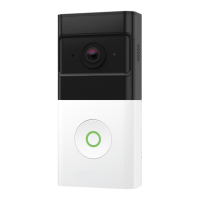
7. Select your Wireless Doorbell Camera and tap Next in the top right corner to
start the setup.
8. Follow the remaining steps as prompted to fully customize your Video Analytics
rule.
A. To add a thumbnail image of the video clip to the push notification
sent when a person is detected, choose the mobile devices to receive
notifications on then select “Attach a Thumbnail” in the drop-down list.
Adjust Video Settings
To access settings for your Wireless Doorbell Camera, like image quality and motion
sensitivity, follow the steps below:
1. Log into the Frontpoint app.
2. Tap “Doorbell Camera” in the navigation menu ( ).
3. Tap in the top right corner.
4. In the Wireless Doorbell Camera settings menu, you can adjust the following
settings:
A. Rename your Wireless Doorbell Camera.
B. Check the camera’s battery level.
C. Adjust the camera’s streaming image quality to preserve battery.
D. Adjust the camera’s motion sensitivity.
i. The motion sensitivity can be raised or lowered if you are receiving too
many or too few notifications.
E. Adjust the doorbell’s call button notification settings.
F. Adjust the Wireless Doorbell Camera’s outdoor tone volume.
A. Adjust the Wireless Doorbell Camera’s call volume.
16
1
2
3
4
A
B
C
D
E
F
5
6
7
8
A
i
G


 To Next Page