15
CONFIGURATION
Now that your Wireless Doorbell is up and running, let’s get it configured according to
your preferences.
Activate Push Notifications
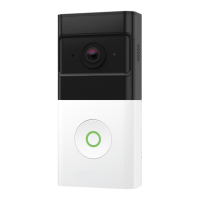
To turn on push notifications for your Wireless Doorbell Camera, follow the steps
below:
1. Log in to your account on the Frontpoint app.
2. Tap on Doorbell Camera in the navigation menu ( ).
3. Tap in the top right corner.
4. Tap “Push Notifications”.
5. Toggle the “Doorbell Call Notification” to Active at the top of the menu to ensure
you are sent a notification when the button on your doorbell is pressed.
6. Customize the Doorbell Call Notification by adjusting the remaining settings as
desired.
Tip: Don’t want to receive notifications at all hours? Select when to receive Doorbell Call Notifications by
choosing a notification schedule under the “During this time frame” menu option.
Set Up Rapid Person-Detection
Video Analytics equips your Wireless Doorbell Camera with rapid person-detection
that can send a notification when your camera detects a person- avoiding unwanted
motion-based notifications for natural occurrences like trees blowing or cars passing.
To configure Video Analytics for your Wireless Doorbell Camera, follow the steps
below:
1. Log into the Frontpoint app.
2. Tap on “Video” in the navigation menu ( ).
3. Tap in the top right corner.
4. Tap “Recording Rules”.
1
2
3
4
1
2
3
4
5
6


 To Next Page