© 2014 Flanders Scientic, Inc.
38
Return to Table of Contents
Color Management Menu
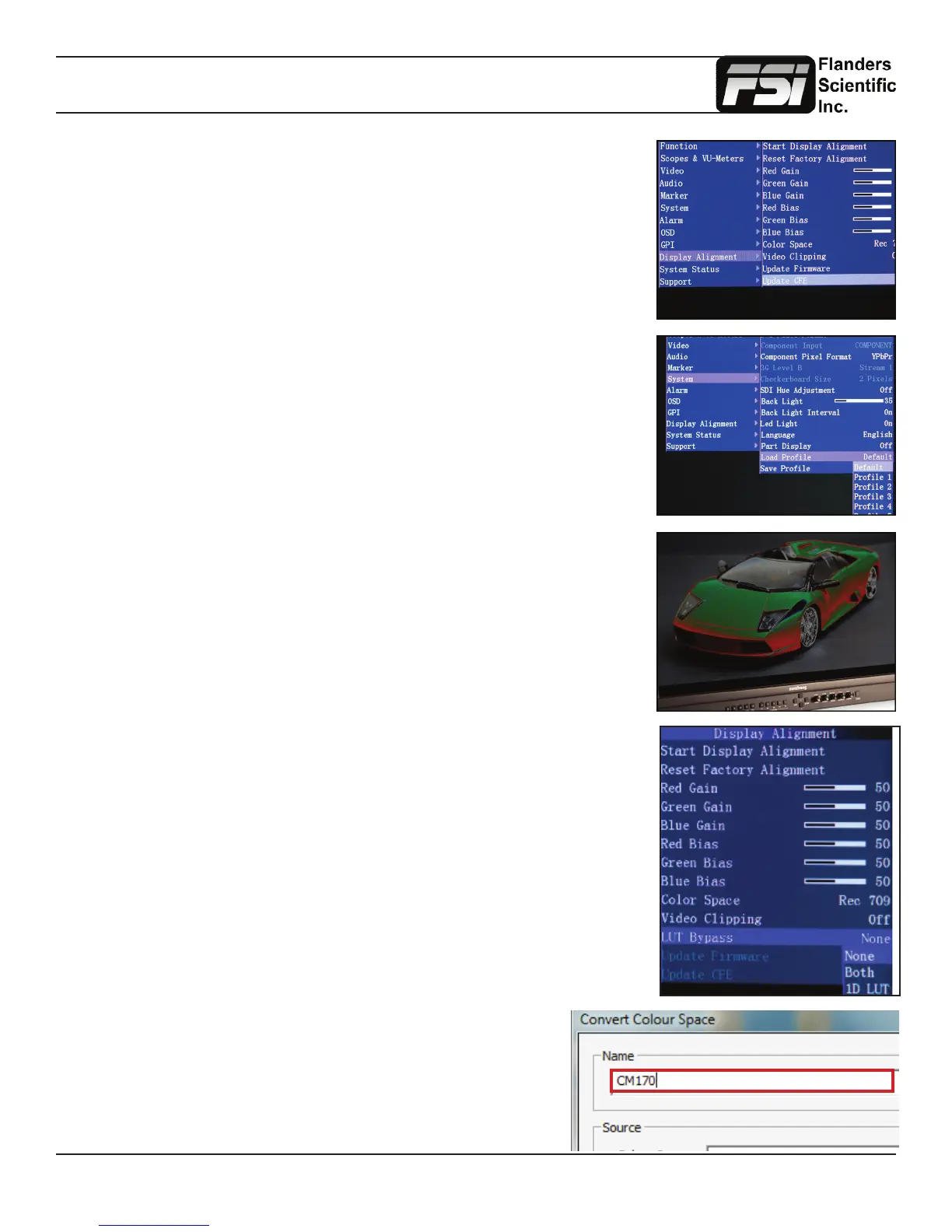
Once the les have nished transferring, on the monitor go to:
Menu \ Color Management \ Update LUT
Press ENTER to begin the process, and conrm with Yes when the monitor prompts
you.
The update process can take several minutes. Upon completion of the LUT transfer,
power cycle the monitor and load the default prole.
Menu \ System \ Load Prole \ Default
Hit ENTER and conrm with Yes.
Note: If you notice image solarization, the CFE update did not complete correctly. It
may be necessary to repeat this process.
In the Color Management menu, set LUT Bypass to 3D LUT, effectively placing the
monitor in Wide Gamut mode and bypassing the factory 3D LUTs. The monitor should
be placed in this mode before proling with any third party solution.
Special Notes for OLED Monitors
We suggest setting the Color Matching Function (CMF) selection to CIE 1931 for
proling and 3D LUT creation. Once calibration is complete you can switch to Judd
modied if you prefer to operate with a Judd modied CMF based calibration. Please
note the Judd Mode selection adds a slight delay to signal locking speed when switching
sources.
When using LightSpace to generate custom user LUTs for FSI monitors, the
colorspace image name typed into the Convert Color Space Window MUST
match the monitor model name. Valid Model Names: LM-2461W, BM210, BM230,
CM170, CM171, CM172, CM240, CM250, CM320TD, CM500TD
Once you’ve generated your custom LUT, You must rename
the .dat le saved by the third party program to “user1”,
“user2”, or “user3” if not already named this way before you
attempt to import it.
Loading Custom Calibration LUTs
If you are now running rmware version 9.50 or later you can follow the steps outlined
below to load a custom calibration LUT to the monitor. For guidance on proling a mon-
itor with a third party program that outputs LUTs in a compatible FSI LUT format please
see the program specic instructions for the solution you are using. The instructions in
this manual will only cover pre-proling setup and how to load a completed 3D LUT to
the monitor.



 To Next Page