PAG.
15
rev 1.0
ENGLISH
3.CHANNEL
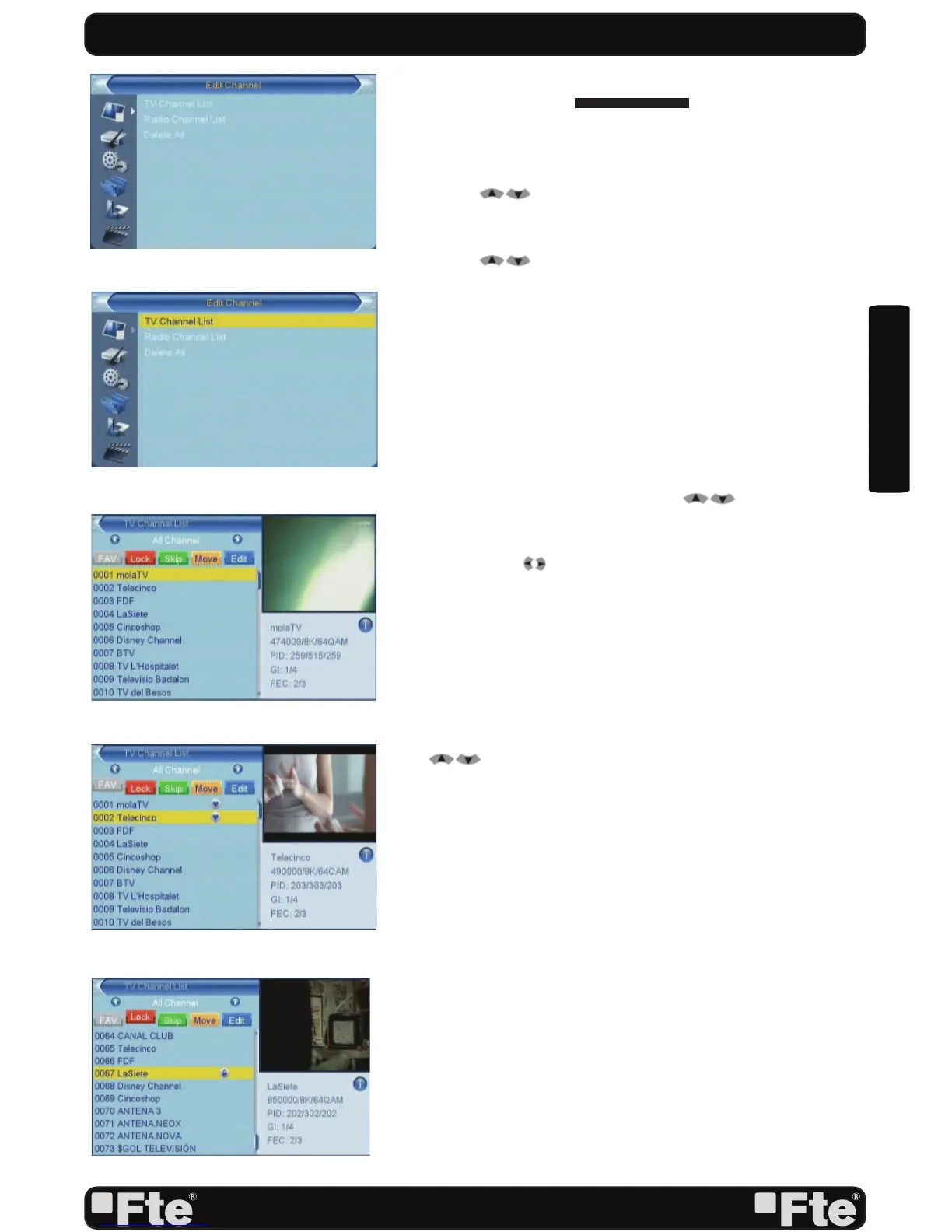
Press [Menu] in the TV mode to enter the main menu (OSD
9).
1. Press [ ] to select the Channel item.
2. Press [OK] to enter the selected item.
In the Channel menu (OSD 10):
3. Press [
] to select the wanted menu item.
4. Press [OK] to enter the selected item among.
- TV Channel List
- Radio Channel List
- Delete all channels
3.1 TV CHANNEL LIST
When you enter to “Channel List” menu, there will display the
screen like below (OSD 11).
1.You can move highlight by press [ ] key to preview
the current highlighted program in the right side preview
window.
2.You can use [ ] key to switch “Group”.
3.Press the number key [FAV, [Red], [Green], [Yellow]
and [Blue]can implement the corresponding function in
“Channel List”.
3.1.1 FAVOURITE
1. Press [FAV] and [OK] to open the Favourite window.
2. You can move highlight between 8 favorite groups by press
[ ] key and press [OK] key.
3. Once the favourites group has been selected press EXIT in
order to get out of this option.
4. There will show a favorite mark beside the marked channel
(OSD 12).
3.1.2 LOCK
1. In “TV Channel List Edit” menu, press number key [Red].
2. Next press [OK] over the channel you wish to block. A
window will appear, please insert password in it in order
to get the channel blocked. Once the password has been
correctly inserted, a mark will appear on the right side of
the channel’s name (OSD 13).
3.1.3 SKIP
In “TV Channel List Edit” menu, press number key [Green]
can make a “skip mark” in the right side of the highlighted
channel. After save and exit “TV Channel List Edit” menu,
CHANNEL
OSD 9
OSD 10
OSD 11
OSD 12
OSD 13



 To Next Page