PAG.
28
rev 1.0
ENGLISH
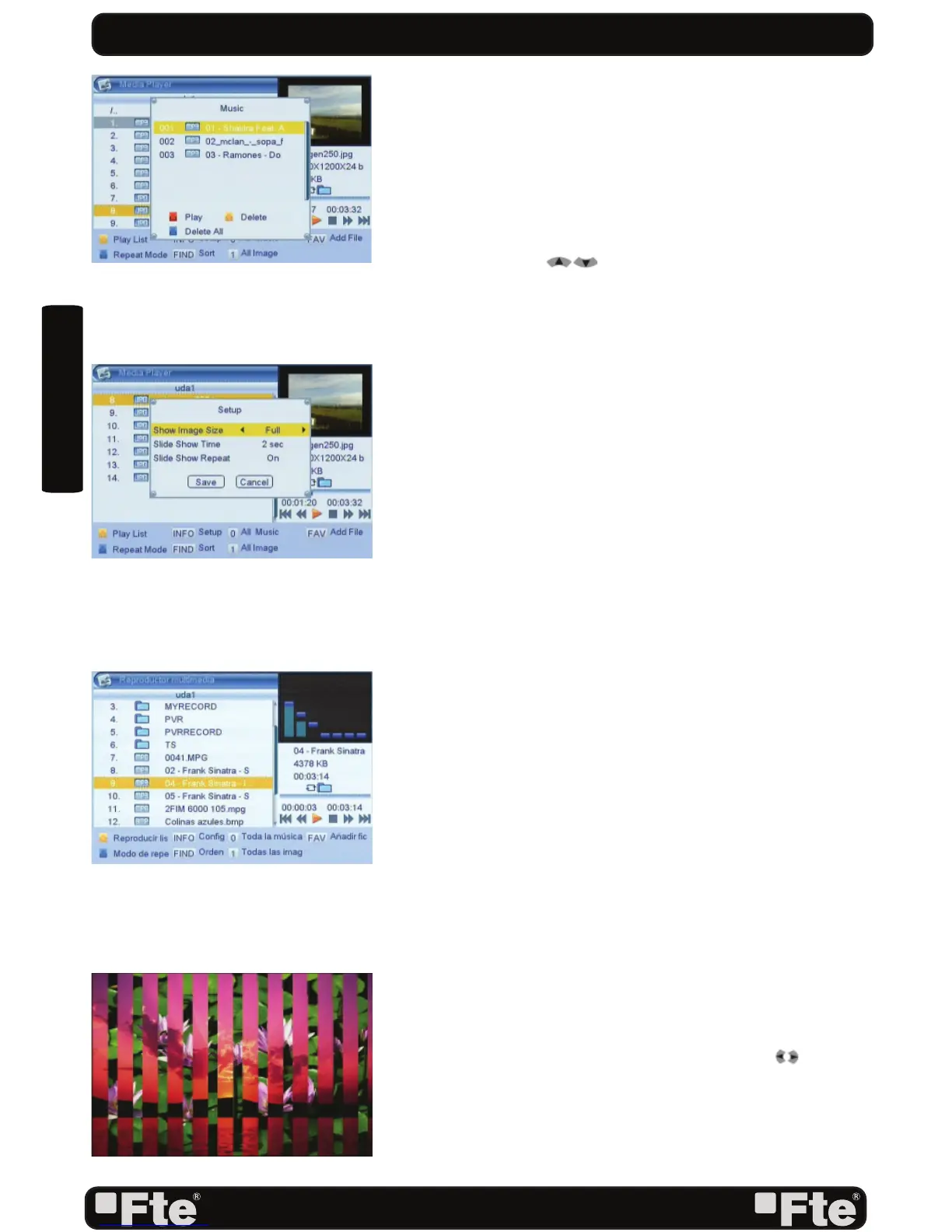
In order to open the play list, please press [yellow button] and
select which of the two list you wish to open (OSD 52).
1. Press [Red button] on any fi le from one list to play all the
fi les contained.
2. Press [Yellow button] on any fi le from one list to delete
the fi le.
3. Press [Blue button] on any fi le from one list to delete all the
fi les contained.
4. Press the keys [
] to move along the fi les and press
[OK] to enter and exit of the folders or open a fi le or
playlist.
8.1.1.ADDING A NEW FILE TO THE LIST
1. Go over the fi le you want to add to your customized playlist
and press the [FAV] button.
2. In order to add all the music fi les to the music play list,
please press [0].
3. In order to add all the images to the images play list, press
[1].
8.1.2.CONFIGURE THE SLIDE SHOW
*Only available for the picture playlist (OSD 53).
This function allows you to confi gure the “slide show”,
therefore,
1. Select setup option, press [INFO].
2. A new window will appear where you should confi gure
some parameters:
- Time of viewing each picture on the screen.
- Repeat: When the playlist fi nishes, it starts again.
8.1.3.AUDIO .MP3 PLAYER
1. Press [OK] over the.MP3 fi le or list of .MP3 fi les you want
to play (OSD 54).
2. A Player will be opened as it is shown in the picture.
-[Blue]: It changes among the different ways of replay:
random, list or single.
8.1.4.PICTURE VIEWER
1. Press [OK] over the fi le .JPG that you want to show.
2. The selected image will be shown in the screen and the
reproduction of the images will start in slide show way.
3. You can rotate the picture with the buttons [ ]. (OSD
55)
REC & MEDIA
OSD 53
OSD 54
OSD 55
OSD 52


 To Next Page