EasyManua.ls Logo

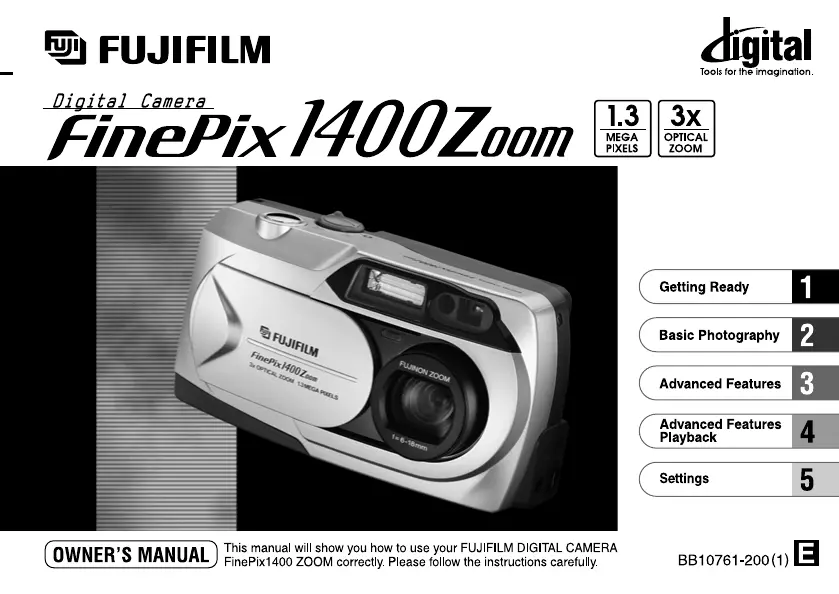
FujiFilm FINEPIX 1400 ZOOM - User Manual

FujiFilm FINEPIX 1400 ZOOM
45 pages
Print Icon
To Next Page IconTo Next Page
Loading...

Table of Contents

Questions and Answers

  • T
    Tony DunnAug 15, 2025
    Why my FujiFilm Digital Camera has no power?
    • L
      Leslie RobertsonAug 15, 2025
      If your FujiFilm Digital Camera has no power, it could be due to the following reasons: * The battery may be exhausted, so load a new battery. * The AC power adapter plug may have come out of the power outlet, so plug the adapter back in.
  • M
    Maria MilesAug 18, 2025
    What to do if my FujiFilm FINEPIX 1400 ZOOM doesn't take a photo when I press the shutter button?
    • D
      David JonesAug 19, 2025
      If your FujiFilm Digital Camera is not taking pictures when you press the shutter button, there might be several reasons: * The lens cover might be on, so remove it. * A SmartMedia card might not be loaded, so load one. * The SmartMedia card might be full, so erase some images or use a card with free space. * The SmartMedia card might be write-protected, so remove the write-protection. * The SmartMedia card might not be formatted, so format it. * The SmartMedia contact area might be dirty, so wipe it with a clean, dry cloth. * The SmartMedia card might be damaged, so load a new one. * The camera might have switched off with the Auto Power Off function, so switch it back on. * The battery might be exhausted, so load new batteries.
  • A
    Andrew HoodAug 21, 2025
    Why does the battery run out quickly on my FujiFilm FINEPIX 1400 ZOOM?
    • L
      Lori BrownAug 22, 2025
      If the battery in your FujiFilm Digital Camera runs out quickly, it could be due to several reasons: * You might be using the camera in extremely cold conditions, so put the battery in your pocket or another warm place to heat it and then load it into the camera just before you take a picture. * The terminals might be soiled, so wipe the battery terminals with a clean, dry cloth. * The batteries might be flat, so load a new battery.
  • R
    Robert MillerAug 25, 2025
    Why does my FujiFilm Digital Camera power cut out during operation?
    • A
      Ashley GarnerAug 26, 2025
      If your FujiFilm Digital Camera's power cuts out during operation, the battery is likely exhausted. In this case, you should load new batteries.
  • J
    Joel RogersAug 27, 2025
    How to fix blurred images on FujiFilm FINEPIX 1400 ZOOM Digital Camera?
    • T
      Tammy StricklandAug 27, 2025
      If your FujiFilm Digital Camera is producing blurred images, it could be due to: * A soiled lens, so clean the lens. * Using macro photography to photograph scenery, so cancel macro photography.
  • B
    Brandy WilsonAug 30, 2025
    Why is the playback image too dark on my FujiFilm FINEPIX 1400 ZOOM Digital Camera even though I used the flash?
    • D
      Douglas WilsonAug 30, 2025
      If the playback image on your FujiFilm Digital Camera is too dark even when using the flash, consider these possibilities: * The subject might be too far away, so move closer to the subject. * Your finger might be covering the flash, so hold the camera correctly.
  • P
    Peter YoungSep 2, 2025
    Why the flash will not charge on my FujiFilm Digital Camera?
    • D
      Derek LongSep 2, 2025
      If the flash on your FujiFilm Digital Camera will not charge, there are a few potential causes: * An incompatible SmartMedia card might be loaded, so load a compatible SmartMedia card, erase a frame, or remove the write-protection. * The camera might be set to Suppressed Flash mode, so set the flash mode to Auto, Red-eye Reduction, Forced Flash, or Night Scene. * The battery might be exhausted, so load new batteries.
  • J
    Jill FrySep 5, 2025
    Why I cannot format the SmartMedia on my FujiFilm FINEPIX 1400 ZOOM?
    • K
      kimberlymontesSep 5, 2025
      If you cannot format the SmartMedia in your FujiFilm Digital Camera, it is likely because the SmartMedia is write-protected. Remove the write-protection to format the card. (Peel off the write-protect sticker.)
  • D
    Donald CookSep 9, 2025
    What to do if nothing happens when I use the camera buttons and switches on my FujiFilm FINEPIX 1400 ZOOM Digital Camera?
    • J
      Jeffrey HartmanSep 9, 2025
      If nothing happens when you use the buttons and switches on your FujiFilm Digital Camera, it could be due to: * Camera malfunction, so remove and re-insert the battery. * The Mode Switch has been moved to another setting, so move the Mode Switch to the correct setting. * The battery is exhausted, so load new batteries.
  • M
    Mr. Donald HarveySep 12, 2025
    Why I cannot erase all the frames on my FujiFilm FINEPIX 1400 ZOOM Digital Camera?
    • L
      Lori OlsonSep 12, 2025
      If you cannot erase all the frames on your FujiFilm Digital Camera, it means that the frame is protected. Remove the frame protection to erase it.

Summary

Getting Ready

Basic Photography

Advanced Features

Advanced Features Playback

Settings

Important Warnings and Declarations

Customer Warnings (U.S.A. & Canada)

Covers FCC compliance for the U.S. and Canadian ICES-003.

EC Declaration of Conformity

Details compliance with EMC and Low Voltage Directives.

Preface and Camera Overview

Introduction and Photography Tips

Advice on test shots, copyright, and handling the camera.

Camera Features and Accessories

Lists key camera features and included accessories.

Camera Nomenclature and Controls

Identifying Camera Parts

Diagrams labeling the camera's buttons, ports, and components.

Nomenclature: LCD Display and Strap Attachment

Understanding LCD Monitor Displays

Explains shooting and playback display information.

Attaching the Camera Strap

Instructions on how to properly attach the camera strap.

Getting Ready: Power Supply Options

Using Batteries

Details on compatible batteries and shot counts.

Using the AC Power Adapter

Instructions for connecting and using the AC adapter.

Getting Ready: Managing SmartMedia

Loading and Removing SmartMedia

Step-by-step guide for inserting and ejecting SmartMedia cards.

Getting Ready: Basic Operations

Switching Camera On and Off

Procedure for powering the camera on and off.

Setting the Date and Time

Instructions for setting the camera's date and time.

Basic Photography: Taking Pictures

Setting Date and Time (Continued)

Completes the date and time configuration process.

Initial Picture Taking Steps

Opening the lens cover and starting photography.

Basic Photography: Picture Taking Techniques

Camera Handling and Zooming

Proper grip, zoom operation, and flash range.

Flash Range and Use

Details effective flash ranges for wide and telephoto shots.

Basic Photography: Focus and Indicators

Focusing and Taking the Shot

How to focus using half-press and take the picture.

Viewfinder Lamp Indicators

Explanation of viewfinder lamp colors and meanings.

Autofocus Limitations

Subjects that may cause autofocus issues.

Basic Photography: AF;AE Lock

Available Shots and SmartMedia Capacity

Chart showing shots per SmartMedia size and quality.

Understanding AF;AE Lock

How to lock focus and exposure for better composition.

Basic Photography: Framing Guidelines

Applying AF;AE Lock

Steps for using AF/AE lock before shooting.

Using Framing Guideline Function

How to display and select framing guidelines.

Advanced Features Playback: Viewing Images

Framing Guideline Types

Explains Scene, Group Shot, and Portrait guideline uses.

Playback Modes and Navigation

How to switch between playback modes and navigate images.

Advanced Features Playback: Zoom and Multi-Frame

Using Playback Zoom

How to zoom in on images during playback.

Multi-Frame Playback

Viewing multiple images simultaneously on the screen.

Advanced Features Playback: Erasing Images

Erasing a Single Image Frame

Procedure for deleting a single selected image.

Advanced Features: Flash Operations

Selecting Flash Modes

Cycle through available flash modes (Auto, Red-Eye, etc.).

Auto, Red-Eye Reduction, and Forced Flash

Details on common flash modes and their uses.

Advanced Features: Macro Photography

Suppressed Flash and Night Scenes

Using flash-off mode and slow synchro for specific shots.

Enabling Macro Photography

How to activate close-up shooting mode.

Advanced Features: Self-Timer and Digital Zoom

Using Digital Telephoto Zoom

Enlarging the central portion of an image digitally.

Setting Up the Self-Timer

Configuring the camera for delayed shooting.

Advanced Features: Manual Mode

Self-Timer Operation Details

How the self-timer operates and can be stopped.

Entering Manual Photography Mode

Steps to switch the camera to manual shooting mode.

Advanced Features: Manual Mode Settings

Brightness and Exposure Compensation

Adjusting exposure levels for optimal brightness.

Setting the White Balance

Adjusting color balance for different lighting conditions.

Advanced Features Playback: Setup and Power

Confirming Manual Mode Settings

Saving settings made in Manual mode.

Advanced Playback Options Overview

Introduction to advanced playback functions.

Advanced Features Playback: Media Management

Erasing All Frames and Formatting

Procedures for deleting all images and reformatting SmartMedia.

Advanced Features Playback: Frame Protection

Setting Single-Frame Protection

How to protect individual images from accidental deletion.

Removing Single-Frame Protection

How to unprotect previously secured images.

Advanced Features Playback: All-Frame Protection

Protecting or Unprotecting All Frames

Applying or removing protection to all images at once.

Advanced Features Playback: Resizing Images

How to Resize Images

Steps for changing the resolution of image files.

Resizing Benefits and Limitations

Reasons to resize and restrictions on the process.

Advanced Features Playback: DPOF Print Settings

Specifying Print Options with DPOF

How to specify prints for frames and number of copies.

Setting DPOF Date Imprinting

Enabling or disabling date printing on DPOF orders.

Advanced Features Playback: DPOF Frame and Quantity

Setting Frames for DPOF Printing

Selecting specific frames to include in print orders.

Specifying Number of Prints

Setting the quantity of prints for each selected frame.

Advanced Features Playback: DPOF Trimming

Trimming Images for DPOF

How to crop images for print orders.

Trimming Specifications and Results

Details on trimming aspect ratio and size limits.

Advanced Features Playback: DPOF Management

Reviewing and Cancelling DPOF Settings

Checking and removing individual DPOF print specifications.

Setting and Cancelling All DPOF

Applying or removing DPOF settings for all images.

Settings: Setup Mode Configuration

Overview of Setup Menu Options

Details the functions available in the Setup menu.

Settings: Image Configuration

Setting Image Quality (Compression)

Adjusting image compression ratio for better quality or more shots.

Setting File Size (Resolution)

Choosing image resolution (e.g., 1280x960 or 640x480).

Settings: File Numbering and Display

Frame Number Memory Options

Explains RENEW and CONT modes for file numbering.

Adjusting LCD Monitor Brightness

Procedure to increase or decrease screen brightness.

System Expansion and PC Connectivity

System Expansion Options Overview

How to expand camera functionality with optional products.

Using the USB Interface Set

Connecting the camera to a PC via USB for image transfer.

PC Connectivity and Accessories Guide

USB Interface Set Details

Information on USB connection and data transfer indicators.

Accessory Guide Overview

Lists optional accessories like SmartMedia and adapters.

Accessories and Camera Usage Guidelines

SmartMedia Adapters and Readers

Details on floppy adapters, PC card adapters, and card readers.

Important Camera Usage Precautions

Advice on avoiding damaging environments and condensation.

Safety: Power Supply Precautions

Battery Types and Handling

Guidance on applicable batteries, care, and disposal.

AC Power Adapter Usage

Precautions for using the AC power adapter.

Safety: SmartMedia Handling and Usage

SmartMedia Handling and PC Interaction

Notes on inserting, removing, and using SmartMedia with PCs.

Troubleshooting: LCD Warning Displays

Comprehensive Troubleshooting Guide

Power and Battery Troubleshooting

Resolving issues related to power and battery life.

Image Capture and Flash Issues

Troubleshooting problems with taking photos and flash.

Media and Button Functionality Issues

Resolving problems with SmartMedia and camera buttons.

Technical Specifications

Camera System and Performance Specs

Details on CCD, resolution, lens, and storage media.

Power, Dimensions, and Usage Conditions

Information on power supply, camera size, and operating environment.

Glossary and General Safety

Explanation of Technical Terms

Definitions for terms like AF/AE Lock, DPOF, EV, JPEG, and White Balance.

General Safety Precautions and Icons

Key safety advice and explanation of warning icons.

Critical Safety Warnings and Precautions

Camera and Battery Safety Warnings

Warnings against modifying the camera, battery mishandling, and impacts.

Environmental and Usage Safety

Precautions for use in thunderstorms, extreme temperatures, and motion.

FujiFilm FINEPIX 1400 ZOOM Specifications

General IconGeneral
Effective Pixels1.3 million
LensFujinon 3x optical zoom
Shutter Speed1/2 - 1/1000 sec
Digital Zoom2.5x
Image Resolution1280 x 960 pixels
Image Sensor1/2.7" CCD
Aperturef/2.8
ISO Range100
Display1.8 in LCD
StorageSmartMedia
Battery TypeAA

Related product manuals