EasyManua.ls Logo

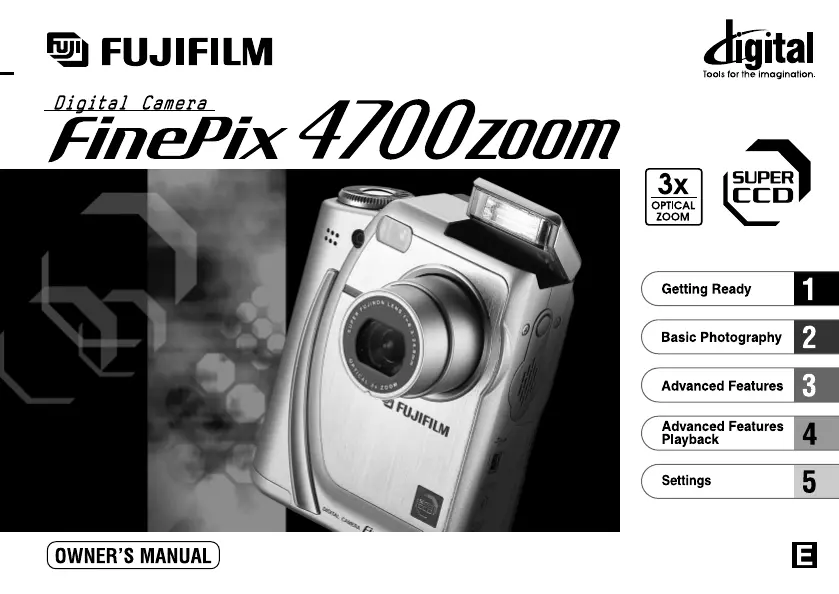
FujiFilm FINEPIX 4700 ZOOM - User Manual

FujiFilm FINEPIX 4700 ZOOM
63 pages
Print Icon
To Next Page IconTo Next Page
Loading...
BB10959-200
(
1
)
This manual will show you how to use your
FUJIFILM DIGITAL CAMERA
FinePix4700 ZOOM correctly. Please follow the instructions carefully.

Table of Contents

Questions and Answers

  • S
    Sharon BrownAug 18, 2025
    Why does my FujiFilm FINEPIX 4700 ZOOM Digital Camera battery run out so quickly?
    • M
      marshhollyAug 18, 2025
      Your FujiFilm Digital Camera battery might be draining quickly due to several reasons. It could be that you're using the camera in extremely cold conditions; in that case, try warming the battery in your pocket before use. The terminals might be soiled, so wipe them with a clean, dry cloth. Or, the battery might simply be flat, requiring you to load a new, fully charged battery.
  • S
    Stacey BondAug 20, 2025
    What to do if my FujiFilm FINEPIX 4700 ZOOM Digital Camera has no power?
    • M
      Michele WarrenAug 21, 2025
      If your FujiFilm Digital Camera has no power, the most likely cause is either an exhausted battery or a disconnected AC power adapter. Try loading a new, fully charged battery. If you're using the AC adapter, make sure it's properly plugged into the power outlet.
  • J
    Jennifer PettyAug 23, 2025
    Why is the playback image too dark on my FujiFilm FINEPIX 4700 ZOOM even though I used the flash?
    • M
      Monica JonesAug 23, 2025
      If your playback images are too dark even when using the flash on your FujiFilm Digital Camera, it could be because the subject is too far away; try moving closer. Alternatively, your finger might be covering the flash, so ensure you hold the camera correctly.
  • D
    daniel39Aug 26, 2025
    Why is the image blurred on my FujiFilm Digital Camera?
    • S
      Sean BondAug 26, 2025
      If the image is blurred on your FujiFilm Digital Camera, it may be because the lens is dirty; try cleaning it. Alternatively, if the lens is zoomed to telephoto in Macro mode, cancel Macro mode.
  • N
    Nathan WagnerAug 28, 2025
    What to do if there is no picture or sound on the TV connected to my FujiFilm FINEPIX 4700 ZOOM Digital Camera?
    • C
      coxrichardAug 28, 2025
      If you're not getting any picture or sound on your TV when it's connected to your FujiFilm Digital Camera, there are a few things to check: * Ensure the A/V cable is correctly connected during movie playback. * Verify that the camera and TV are connected correctly. * Make sure the TV input is set to 'Video,' not 'TV'. * Also, check that the TV volume isn't set too low and adjust it as needed.
  • J
    Juan MooreAug 30, 2025
    Why won't the flash charge on my FujiFilm FINEPIX 4700 ZOOM?
    • K
      Karen QuinnAug 30, 2025
      The flash on your FujiFilm Digital Camera might not charge for several reasons. Check if a compatible SmartMedia is loaded; if not, load one, erase a frame, or remove the write-protection. Also, ensure the camera isn't set to Suppressed Flash mode; if it is, switch to Auto, Red-Eye Reduction, or Forced Flash mode. Additionally, verify that the camera isn't set to Macro Photography, and ensure the battery isn't exhausted by loading a new one.
  • B
    Brian ReedSep 2, 2025
    Why can’t I use the flash to take pictures with my FujiFilm Digital Camera?
    • J
      Jeffrey MacdonaldSep 2, 2025
      If you can't use the flash on your FujiFilm Digital Camera, it could be due to a few reasons. Check that the Mode switch and Photography mode dial are set to the correct setting. Ensure that the flash is not set to Suppressed Flash mode; instead, set it to Auto, Red-Eye Reduction, or Forced Flash mode by popping the flash unit up. Also, make sure you wait until charging is completed before pressing the shutter button.
  • W
    williamsstephanieSep 5, 2025
    What to do if nothing happens when I use the switches and dial on my FujiFilm FINEPIX 4700 ZOOM?
    • A
      Alex CamachoSep 5, 2025
      If your FujiFilm Digital Camera isn't responding to the switches and dial, it could be due to a camera malfunction. Try switching the camera on again using the 'POWER' switch. Another possibility is that the Mode switch and Photography mode dial has been moved to another setting; in this case, remove and re-insert the battery. Finally, ensure that the battery is not exhausted; if it is, load a new battery.
  • M
    Melissa GalvanSep 7, 2025
    Why does my FujiFilm FINEPIX 4700 ZOOM Digital Camera power cut out during operation?
    • L
      Laura ConleySep 7, 2025
      If your FujiFilm Digital Camera is cutting out during operation, the most likely reason is that the battery is exhausted. Try loading a new, fully charged battery to resolve this issue.
  • K
    Kimberly MannSep 9, 2025
    What to do if there is no sound on my FujiFilm FINEPIX 4700 ZOOM Digital Camera?
    • J
      Jason AndersonSep 10, 2025
      If there is no sound on your FujiFilm Digital Camera, check the following: ensure the camera volume is not set too low and adjust it if needed. Also, make sure you are not covering the microphone during recording. Finally, disconnect the A/V cable if it is connected.

Summary

Getting Ready

Attaching the Strap

How to attach the camera strap for secure handling.

Selecting the Power Supply

Information on using batteries and AC power adapter.

Loading and Removing the SmartMedia

Instructions for inserting and removing SmartMedia cards.

Switching On and Off

Steps for powering the camera on and off.

Setting the Date and Time

Guide to setting the camera's date and time.

Safety and Warnings

General Warnings

Precautions against fire, shock, rain, and moisture.

Preface and Overview

Preface Notes

Important notes on photography, copyright, and handling.

Camera Features

Key features and specifications of the FinePix4700 ZOOM.

Included Accessories

List of accessories provided with the camera.

Camera Nomenclature

External Controls and Ports

Identification of camera buttons, dials, and connection sockets.

LCD Panel and Display

LCD Panel Overview

Explanation of icons and information on the LCD panel during shooting.

LCD Display Details

Detailed breakdown of display information and icons.

Mode Dial and Controls

Mode Switch and Photography Mode Dial

Explanation of the mode switch and photography mode dial functions.

LCD Monitor Displays

Shooting Display Examples

Examples of text and icons shown on the LCD during shooting.

Playback Display Examples

Examples of text and icons shown on the LCD during playback.

Power Supply Options

Using Batteries

Details on battery types and charging.

Media and Power Connections

Using the AC Power Adapter

Connecting and using the AC power adapter.

Loading and Removing SmartMedia

Steps for inserting and ejecting the SmartMedia card.

Camera Operation

Removing SmartMedia

Procedure for safely removing the SmartMedia card.

Switching On and Off

How to power the camera on and off and battery status indicators.

Date and Time Settings

Setting the Date and Time

Guide to configuring the camera's date and time settings.

Basic Photography

Taking Pictures (Auto Mode)

Step-by-step guide to capturing images using Auto mode.

Shooting Techniques

Framing and Focusing

Using the LCD monitor or viewfinder for composition and focus.

Shutter Button Operation

How to press the shutter button for shooting and focus confirmation.

Photography Aids and Data

Viewfinder Lamp Display

Meaning of the viewfinder lamp colors and statuses.

Autofocus Limitations

Subjects or conditions that may affect autofocus performance.

Available Shots and SmartMedia Capacity

Table showing shots based on image quality and SmartMedia size.

Focus and Exposure Control

Using AF;AE Lock

How to lock focus and exposure for precise composition.

Composition Tools

Framing Guideline Function

Using on-screen guidelines to improve composition.

Image Playback

Viewing Images

How to navigate and view recorded images on the camera.

Images Viewable on Camera

Types of images compatible with the FinePix4700 ZOOM.

Playback Features

Playback Zoom

Magnifying images during playback for detail review.

Multi-Frame Playback

Viewing multiple images simultaneously for selection.

Image Management

Erasing Single Frames

Procedure for deleting individual images from the SmartMedia.

External Connections

Using a TV Monitor

Connecting the camera to a TV for image viewing.

Advanced Photography Features

Advanced Features Photography

Introduction to advanced shooting modes and settings.

Photography Modes

Auto Mode

Using the camera's automatic shooting mode.

Portrait Mode

Optimized settings for photographing people.

Landscape Mode

Optimized settings for capturing scenery.

Specialized Photography Modes

Manual Mode

Taking pictures with custom settings for exposure and more.

Continuous Shooting Mode

Capturing multiple shots in quick succession.

Movie Recording

Movie Mode

Instructions for recording video clips with sound.

Movie Recording Details

Movie Recording Operation

Steps and considerations for shooting movies.

Photography Menu Settings

Setting Brightness (Exposure Compensation)

Adjusting exposure levels for optimal image brightness.

Photography Menu Adjustments

Flash Brightness Adjustment

Fine-tuning flash output for better lighting.

Setting White Balance

Adjusting color temperature for accurate colors under different lighting.

Setting Sensitivity (ISO)

Adjusting ISO for low-light or fast shutter speed shooting.

Manual Focus and Metering

Manual Focus Setting

Using manual focus when autofocus is not suitable.

Photometry Modes

Selecting light metering modes for accurate exposure.

Image Quality Settings

Sharpness Adjustment

Controlling image sharpness or softness.

Preview Display Setting

Enabling or disabling the post-shot preview screen.

Advanced Shooting Techniques

Auto Bracketing

Taking multiple shots with varying exposures.

Flash Photography Modes

Overview of different flash modes for various shooting scenarios.

Flash Photography Modes

Auto Flash Mode

Automatic flash firing based on shooting conditions.

Red-Eye Reduction Mode

Minimizing red-eye effect in flash photography.

Forced Flash Mode

Using flash for backlit scenes or specific lighting.

Night Scenes (Slow Synchro)

Combining slow shutter speed with flash for night shots.

Specialized Flash and Macro

Suppressed Flash Mode

Disabling the flash for ambient light photography.

Macro (Close-up) Photography

Taking detailed close-up shots of small subjects.

Self-Timer Photography

Using the Self-Timer

Setting up timed shots for group photos or self-portraits.

Digital Zoom Function

Using Digital Zoom

Enlarging images digitally beyond optical zoom limits.

Advanced Playback Features

Playback Mode Menu

Overview of available playback functions and their pages.

Movie Playback Operations

Movie Playback Controls

How to play, pause, fast forward, and rewind movie files.

Movie Playback Navigation

Movie Playback Control

Using buttons to control playback and navigate through movie frames.

Playback Menu Functions

Erasing and Formatting

Deleting files or formatting the SmartMedia card.

Automatic Playback

Setting up automatic image slideshows with display effects.

Image Editing in Playback

Resizing Images

Reducing image file size for email or other uses.

Image Protection

Single-Frame Protection

Protecting individual images from accidental erasure.

Bulk Image Protection

Protection for All Frames

Applying or removing protection for all images at once.

Print Ordering (DPOF)

Specifying Print Options

Setting up prints using Digital Print Order Format (DPOF).

DPOF Date Setting

Choosing whether to imprint the date on prints.

DPOF Frame and Cropping

DPOF Set Frame

Selecting specific frames and number of prints for DPOF.

DPOF Settings Confirmation

DPOF Frame Confirmation

Reviewing and confirming DPOF settings for frames.

DPOF Management

DPOF Review;Cancel

Checking and cancelling DPOF print settings.

DPOF Global Settings

DPOF Set All;Cancel All

Applying or removing DPOF settings for all images.

Index Creation

Create Index

Generating index images for quick movie file content review.

Camera Settings

Set-Up Mode

Accessing and configuring camera settings like quality and file size.

Image Configuration

Setting Image Quality

Choosing compression levels for image quality and file size.

Setting File Size

Selecting image resolution (pixel count) for photos.

Camera Personalization

Frame Number Memory

Managing file numbering for images stored on SmartMedia.

Startup Screen Setup

Registering an image to display when the camera powers on.

Display and Audio Settings

Adjusting LCD Brightness and Speaker Volume

Customizing screen brightness and audio output volume.

System Expansion and Connectivity

System Expansion Options

Using optional accessories to enhance camera functionality.

Using USB Cables and Software

Connecting the camera to a PC for data transfer.

Accessories and Software

Optional Accessories Guide

Information on optional accessories for expanded camera use.

Reference Information

Explanation of Terms

Definitions of technical terms used in the manual.

Camera Usage Guidelines

Places to Avoid

Environments or conditions to avoid when using the camera.

Notes on Condensation

Handling condensation to prevent damage.

Power Supply Notes

Applicable Batteries

Details on compatible battery types for the camera.

Notes on Batteries

Important precautions for battery handling and usage.

Power Supply Management

Notes on Small Rechargeable Batteries

Specific care for Ni-MH and Ni-Cd batteries.

Notes on Battery Charger

Guidelines for using the battery charger safely.

Battery Charger Specifications

Technical specifications for the BC-NH battery charger.

Notes on AC Power Adapter

Precautions for using the AC power adapter.

SmartMedia Card Usage

Notes on Handling SmartMedia

Proper procedures for inserting, removing, and caring for SmartMedia.

Using SmartMedia with a PC

Guidelines for interacting with SmartMedia on a personal computer.

Troubleshooting: Warning Displays

Warning Displays Summary

Table explaining common warning messages and their remedies.

Troubleshooting Guide

Troubleshooting Common Issues

Solutions for problems like no power or battery issues.

Troubleshooting Solutions

Troubleshooting Camera Functions

Resolving issues with flash, playback, focus, and media errors.

Technical Specifications

Camera System Specifications

Detailed technical data for the FinePix4700 ZOOM camera.

Crucial Safety Information

General Safety Notes

Essential safety precautions for camera operation and handling.

Warning Icons Explained

Understanding the meaning of safety icons used in the manual.

Safety Precautions

Environmental and Handling Precautions

Warnings regarding environmental conditions and camera handling.

EC Declaration of Conformity

Statement of compliance with relevant safety and EMC directives.

FujiFilm FINEPIX 4700 ZOOM Specifications

General IconGeneral
Effective Pixels2.4 million
Optical Zoom3x
Storage MediaSmartMedia Card
ViewfinderOptical viewfinder
Video OutputNTSC/PAL
Focal Length7.6 - 22.8mm (equivalent to 36 - 108mm in 35mm format)
Aperturef/2.8 - f/8
ISO Sensitivity200
Display1.8" LCD
BatteryNP-80 Li-ion battery
Digital Zoom2x
Aperture RangeF2.8 - F4.9
LCD Screen1.8 inches
Flash ModesAuto
Exposure ModesProgram
White BalanceAuto, Daylight, Shade, Fluorescent, Incandescent
Self-Timer10 sec
Power Source4 x AA batteries

Related product manuals