9
FUJITSU Storage ETERNUS DX100 S3/DX200 S3 Hybrid Storage Systems Setup Guide
Copyright 2017 FUJITSU LIMITED
P3AM-7852-06ENZ0
Perform the settings that are required before operation of the ETERNUS DX on the Initial Setup screen.
Perform the following settings according to the wizard
screen:
●
Set Storage System Name
●
Change User Password
●
Set Thin Provisioning
●
Register SED Authentication Key
●
Setup Network Environment
In the Setup Network Environment settings, set the IP
address of the MNT port to connect the ETERNUS DX to
the operation management LAN.
1.
Open the Web browser on the PC terminal.
2.
Enter the following URL in the address bar of the Web
browser.
http://192.168.1.1/
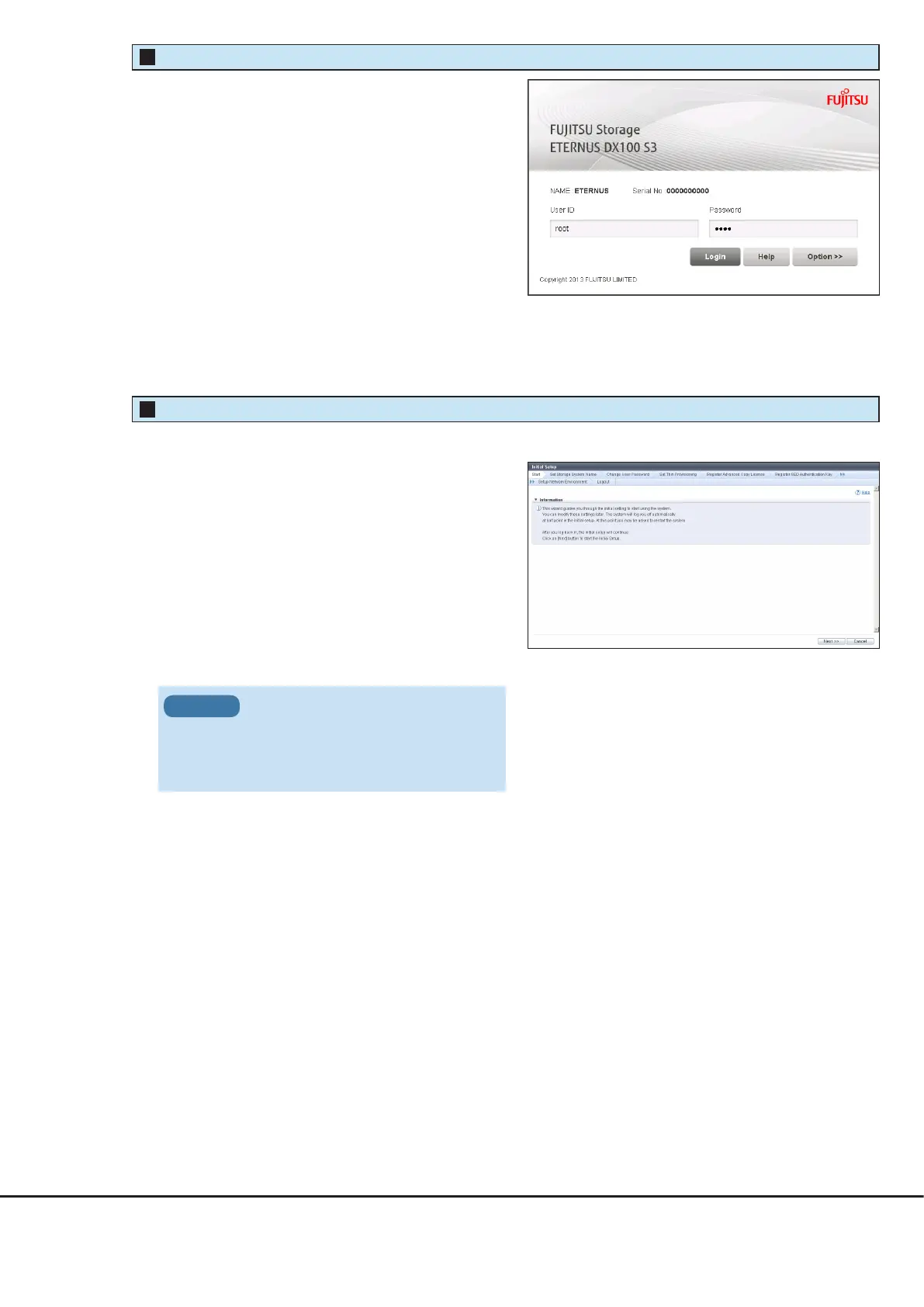
The login screen for ETERNUS Web GUI appears.
3.
To change the user interface language, click the
[Option] button and select "English" or "Japanese" in
"Language".
4.
Enter the username and password.
Username: root
Password: root (by default)
ETERNUS Web GUI Startup
3
Initial Setup
4
After logging in, the Initial Setup screen of ETERNUS Web GUI appears.
After the settings are complete, close the Web browser.
Make sure to set up the network
environment for the MNT port.
If the network environment for the MNT
port is not set up, some functions will be
unusable.
IMPORTANT










 To Next Page