4
■ Installation (Custom)
1. Perform steps 1. to 2. in "Installation
(Recommended) (page 3)".
2. Click the [Installation (Custom)] button.
3. Select the check box for the software to
install and click the [Next] button.
4. Follow the instructions on the screen to
proceed with the installation.
Installing the Scanner
Install the scanner in the following procedure.
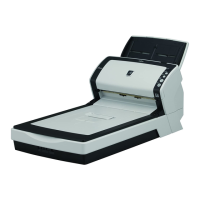
1. Place the scanner at its installation site.
2. Unlock the transport lock switch.
There is a carrier unit inside the flatbed which
is fixed in place to prevent damage during
transportation.
Slide the transport lock switch on the back.
Connecting the Cables
Connect each cable in the following procedure.
1. Confirm that the computer is turned off.
2. Connect the USB cable to the USB
connector of the scanner and USB port of
the computer.
ATTENTION
Carry the scanner by supporting it from the
bottom.
145 (5.71)
257
281
234
(10.12)
40 (1.57)
(11.06)
(9.21)
145 (5.71)
Outer dimensions
Installation space
Unit: mm (in.)
Locked
Unlocked
Transport lock switch
CAUTION
Only use the supplied AC adapter. Not doing
so may cause the scanner to malfunction.
Furthermore, do not use the supplied AC
adaptor for other products.
ATTENTION
zUse the supplied USB cable.
zWhen you use a USB hub, a USB 2.0
certified hub is recommended. If the
scanner that is connected to the USB hub
does not operate properly, connect the
USB cable to the USB port of the
computer directly.
zIf you connect the scanner with USB 2.0,
it is required that the USB port be
compliant with USB 2.0. The scanning
speed slows down when you connect the
scanner with USB 1.1.
zConnect it with
the USB mark
facing up.
1
3
2
2
3
3
USB connector
AC cable
USB cable
Power connector
AC adapter
USB bus power cable


 To Next Page
 Loading...