CONTENTS
INTRODUCTION
1 NAMES AND FUNCTIONS OF PARTS
2 BASIC SCANNER OPERATIONS
3 SCANNING VARIOUS TYPES OF
DOCUMENTS
3.1 Scanning Double Sided Documents
3.2 Scanning Different-width Documents
3.3 Scanning Documents longer than A4 size
3.4 Saving Scanned Images in PDF Format
3.5 Excluding a Color in the Image (dropout
color)
3.6 Skipping blank pages
3.7 Detecting Multi Feeds
4 DAILY CARE
5 REPLACING CONSUMABLES
6 TROUBLESHOOTING
7 DOCUMENT SPECIFICATIONS FOR ADF
8 OPTIONS
9 SCANNER SPECIFICATIONS
Appendix
3.5 Excluding a Color in the Image (dropout color)
A selected color (primary colors: red, green or blue) can be removed (dropped out) from the scanned image
data.
For example, if the document contains black text in a green frame, you can set the scanner to read only the
text and eliminate (drop out) the green frame.
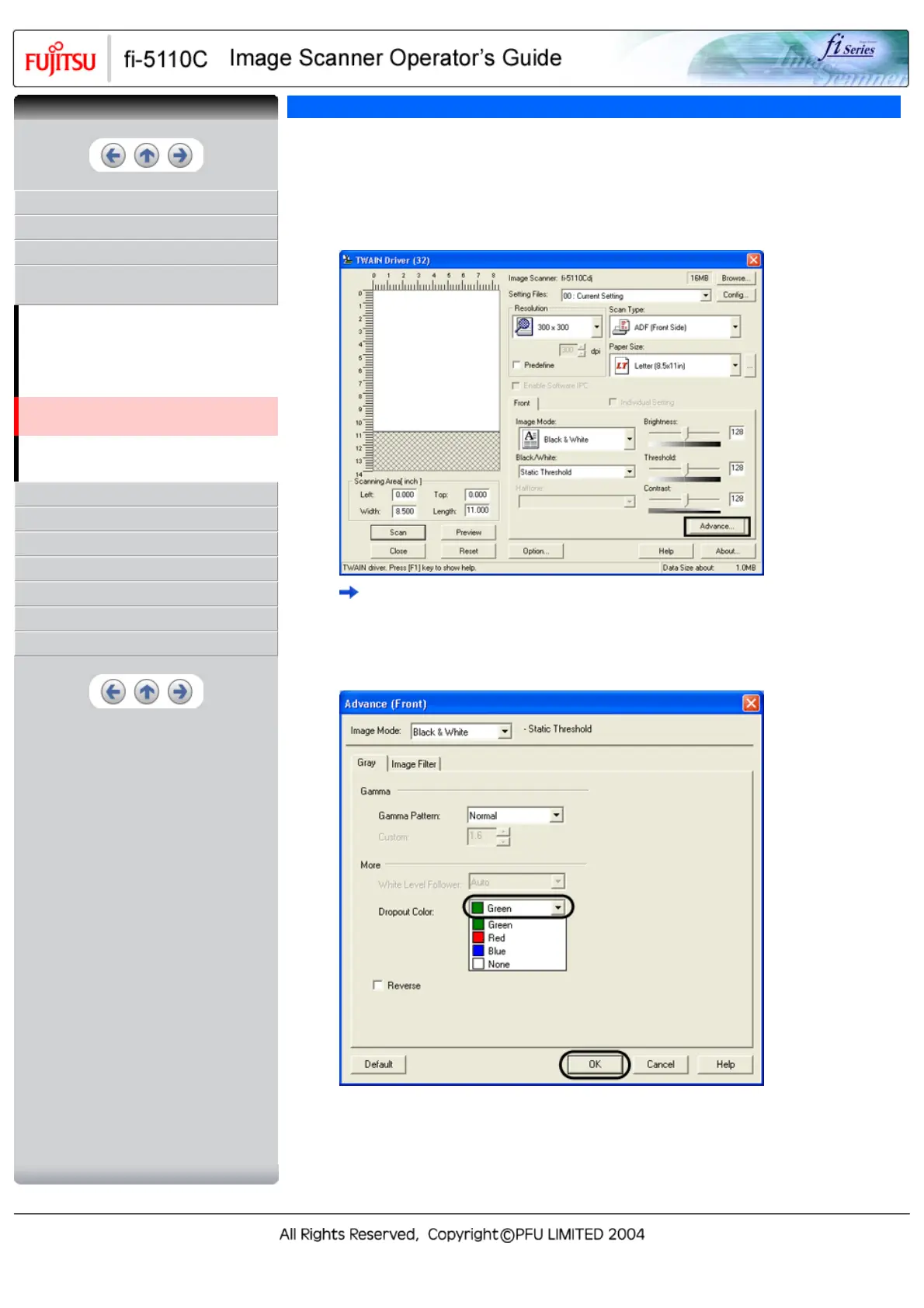
To set the scanner to drop out a color, change the settings in the [TWAIN Driver] dialogbox before scanning.
1. Click the [Advance...] button in the [TWAIN Driver] dialog box.
The [Advance] dialog box appears.
2. Select the color to be drop out from "Dropout Color" under "More".
For example, if the document contains black text in green frame, select [Green] so that the scanner
only reads the text and eliminates the frames.
If you do not wish to have any colors dropped out select "None".
3. Click the [OK] button.
The [TWAIN Driver] dialog box will be redisplayed.
Continue scanning from this dialog box.
CONTENTS


 To Next Page
 Loading...