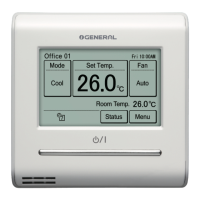
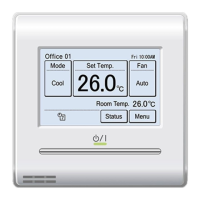
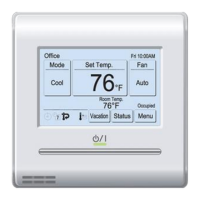
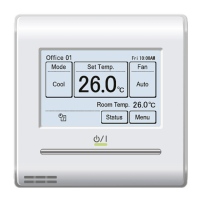
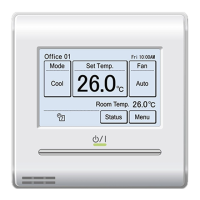
When the item to be set is touched, the display switches
to each setting screen. When each setting is complete
or canceled, the display returns to this screen. When
[Back] is touched, the display returns to the “Main Menu”
screen.
3-7-1 Panel Calibration
(1) Touch the [Panel Calibration] on the “Preference”
screen.
(2) “Panel Calibration” screen is displayed. Touch the [Start]
on the “Panel Calibration” screen.
(1) (2)
Back
Preference
Panel
Calibration
Backlight
Setting
Contrast
Panel Calibration
Cancel Start
Calibrate the touch panel screen by touching
the 3 [+] marks displayed on the screen.
Press the [Start] button to start the
calibration.
(3) Touch the center of the [+] mark.
(4) The [+] mark is displayed at the bottom left side of the
screen. Touch the center of this mark.
(3) (4)
Touch the center of the [+] mark. Touch the center of the [+] mark.
(5) The [+] mark is displayed at
the bottom right side of the
screen. Touch the center of
this mark.
Touch the center of the [+] mark.
(6) The [+] marks are sequentially displayed at 3 points on
the screen again. Touch the center of each mark.
For confirmation, touch the 3 [+] marks
again.
Touch the center of the [+] mark.
For confirmation, touch the 3 [+] marks
again.
Touch the center of the [+] mark.
For confirmation, touch the 3 [+] marks
again.
Touch the center of the [+] mark.
(7) When calibration was successful, the display returns to
the “Preference” screen.
If the Panel Calibration has failed
Screen shows that calibration
failed. To repeat calibration,
touch [Retry] and repeat (2) to
(6).
Cancel Retry
Calibration failed. If you repeat it, press the
[Retry] button.
3-7-2 Backlight Setting
(1) Touch the [Backlight Setting]
on the “Preference” screen.
Back
Preference
Panel
Calibration
Backlight
Setting
Contrast
Enable or disable the backlight
(2) “Backlight Setting” screen is displayed. Touch the [En-
able/Disable] on the “Backlight Setting” screen.
(3) “Enable/Disable” screen is displayed. Select the [Enable]
or [Disable].
(2) (3)
Enable/Disable [Enable]
[30s]
[2]
Automatic Off Time
Brightness
Backlight Setting
Cancel OK
Enable/Disable
Cancel OK
Enable
Disable
When the [OK] is touched, the display returns to the
“Backlight Setting” screen.
Note
When set to “Disable”, [Automatic Off Time] and [Bright-
ness] setting are unnecessary.
(Cannot be set) Go to (8).
Set the time until backlight is turned off.
(4) Touch the [Automatic Off Time] on the “Backlight Set-
ting” screen.
(5) “Automatic Off Time” screen is displayed. Select the [60
sec.] or [30 sec.].
(4) (5)
Enable/Disable [Enable]
[30s]
[2]
Automatic Off Time
Brightness
Backlight Setting
Cancel OK
Automatic Off Time
Cancel OK
30s
60s
When the [OK] is touched, the display returns to the
“Backlight Setting” screen.
Adjust the brightness of Backlight
(6) Touch the [Brightness] on the “Backlight Setting” screen.
(7) “Brightness” screen is displayed. Adjust the brightness
with the [
] or [ ].
(6) (7)
Enable/Disable [Enable]
[30s]
[2]
Automatic Off Time
Brightness
Backlight Setting
Cancel OK
2
3
1
Brightness
Cancel OK
Brightness
Cancel OK
When the [OK] is touched, the display returns to the
“Backlight Setting” screen.
Apply the setting.
(8) After setting is complete,
touch the [OK] on the “Back-
light Setting” screen.
After the setting change is
displayed, the display returns
to the “Preference” screen.
Enable/Disable [Enable]
[30s]
[2]
Automatic Off Time
Brightness
Backlight Setting
Cancel OK



 To Next Page
 Loading...