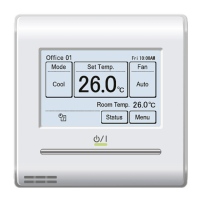
Set the Date and Time
(2) Touch the [Date and Time Setting] on the “Date Setting”
screen. “Date and Time Setting” screen is displayed.
(3) Touch the [Date] on the “Date and Time Setting” screen.
“Date” screen is displayed.
(2) (3)
Date Setting
Date and Time Setting
Display Format Setting
Back
Date and Time Setting
Date
01/ 01/2015
Time
12:00 AM
Thu 12:00AM
Cancel OK
Date Format Day/Month/Year
Time Format 12:00-11:59AM/PM
Summer Time Setting Disable
(4) Set the date by touching [ ]
or [ ].
When the [OK] is touched, the
display returns to the “Date
and Time Setting” screen.
2015
0101
Thu 12:00AM
Date
Cancel OK
YearMonthDay
Note
Setting screen format corresponds to the preference of
the “Display format Setting”.
(5) Touch the [Time] on the “Date and Time Setting” screen.
(6) “Time” screen is displayed. Set the Time with [ ] or [ ].
(5) (6)
Date and Time Setting
Date
01/ 01/2015
Time
12:00 AM
Thu 12:00AM
Cancel OK
Date Format Day/Month/Year
Time Format 12:00-11:59AM/PM
Summer Time Setting Disable
12 00
Thu 12:00AM
Time
Cancel OK
hour
AM
min.
When the [OK] is touched, the display returns to the
“Date and Time Setting” screen.
Note
Setting screen format corresponds to the preference of
the “Display format Setting”.
(7) When the [OK] on the “Date and Time Setting” screen is
touched, after a setting change screen is displayed, the
display returns to the “Date Setting” screen.
Set the Display Format of the Date and Time
(8) Touch the [Display Format Setting] on the “Date Setting”
screen.
(9) “Display Format Setting” screen is displayed. Touch the
[Date Format].
(8) (9)
Date Setting
Date and Time Setting
Display Format Setting
Back
Display Format Setting
Cancel OK
Fri 10:00AM
Date Format
Time Format
Day/Month/Year
12:00–11:59AM/PM
(10) “Date Format” screen is displayed. Select the desired
format.
When the [OK] is touched, after a setting change screen
is displayed, the display returns to the “Display Format
Setting” screen.
(11) Touch the [Time Format] on the “Display Format Set-
ting” screen.
(10) (11)
Month/Dat/Year
Year/Month/Day
Date Format
Cancel OK
Day/Month/Year
Fri 10:00AM
Display Format Setting
Cancel OK
Fri 10:00AM
Date Format
Time Format
Day/Month/Year
12:00–11:59AM/PM
(12) “Time Format” screen is
displayed. Select the desired
format.
When the [OK] is touched, the
display returns to the “Display
Format Setting” screen.
00:00–11:59 AM/PM
00:00–23:59
Time Format
Cancel OK
12:00–11:59 AM/PM
Fri 10:00AM
(13) When the [OK] on the “Display Format Setting” screen
is touched, after a setting change screen is displayed,
the display returns to the “Date setting” screen.
Quit the Date setting
(14) When the [Back] on the “Date
Setting” screen is touched, the
display returns to the “Initial
Setting” screen.
Date Setting
Date and Time Setting
Display Format Setting
Back
3-8-3 Temp. Unit Setting
(1) Touch the [Temp. Unit Setting] on the “Initial Setting”
screen.
(2) “Temp. Unit Setting” screen is displayed. Select the [°C]
or [°F]. (Default is “°C”.)
(1) (2)
Back
Next
Page
Page 1/ 3
Initial Setting
Language Setting Date Setting
R.C.Group
Name Setting
Temp. Unit
Setting
°C
°F
Temp. Unit Setting
Cancel OK
When the [OK] is touched, after a setting change screen
is displayed, the display returns to the “Initial Setting”
screen.



 To Next Page
 Loading...