3. EQUIPMENT SETUP
3-22
3.6.2 How to create a local wireless network
Note 1: Do the procedure with [Local Network] in [Wireless LAN Settings] turned off.
Note 2: It may not be possible to connect to a local network if the network is unstable.
In this case, turn [Wireless] off and on, or connect via an existing LAN network.
Note 3: Confirm that [When Necessary] is selected in [Connect to the Internet] before
doing the procedure.
1. Open the home screen, then tap [Settings][General][Wireless LAN Set-
tings][Wireless Mode].
2. Tap [Create Local Network], then tap “<“ to go back one layer.
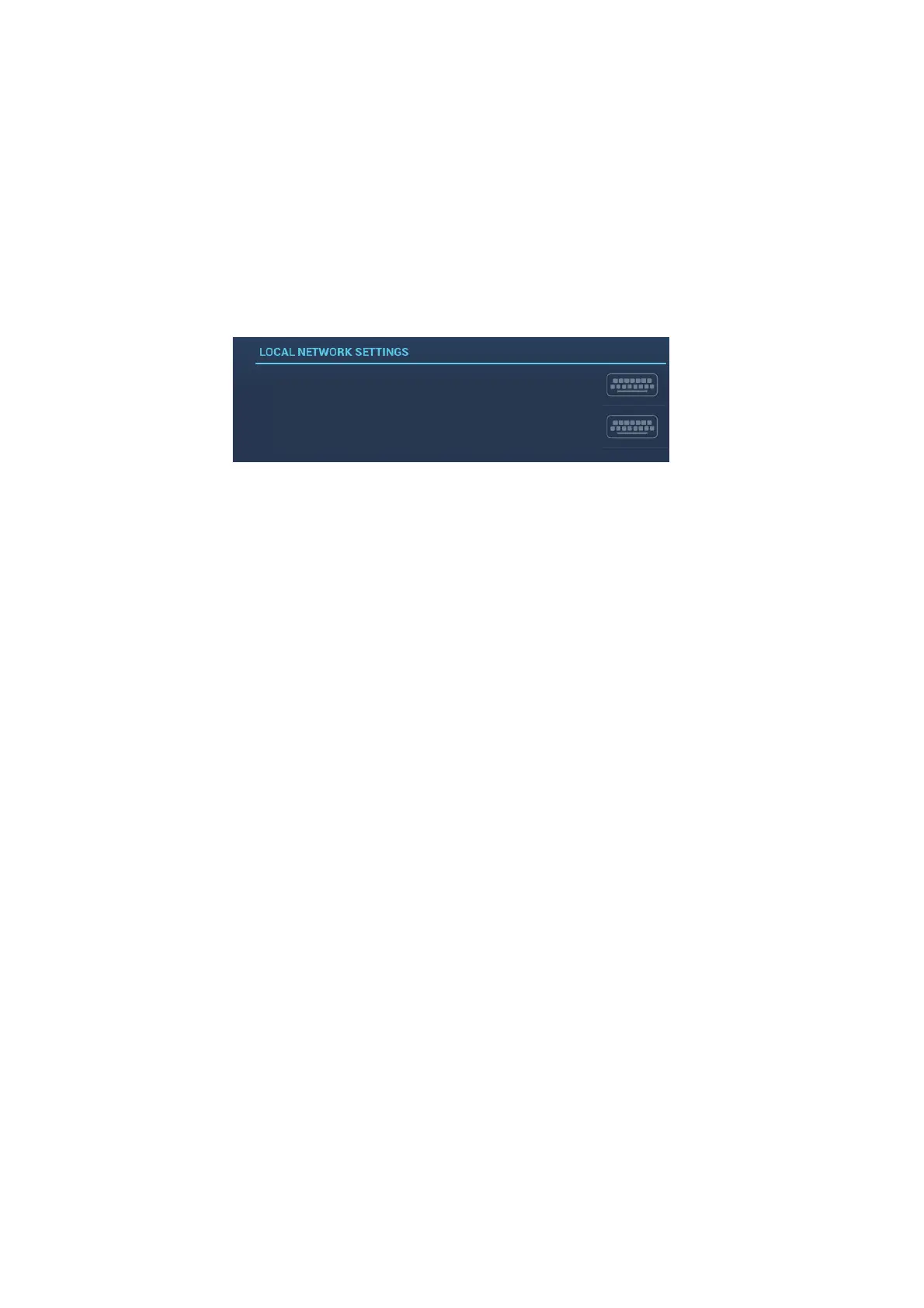
3. Tap [Name].
4. Enter the name of the network, then tap [].
5. Tap [Password].
6. Enter the password, then tap .
7. Turn on [Local Network] in [Wireless LAN Settings] to connect to the network.
8. Tap [X] on the title bar to close the menu.
9. Connect to NavNet TZtouch2 at your tablet or smartphone.
Use the network name and password, set up in this procedure, when connecting
to the TZT2BB via tablet or smartphone.
Name TZTL15F
Password
XXXXXXXX







 To Next Page