222
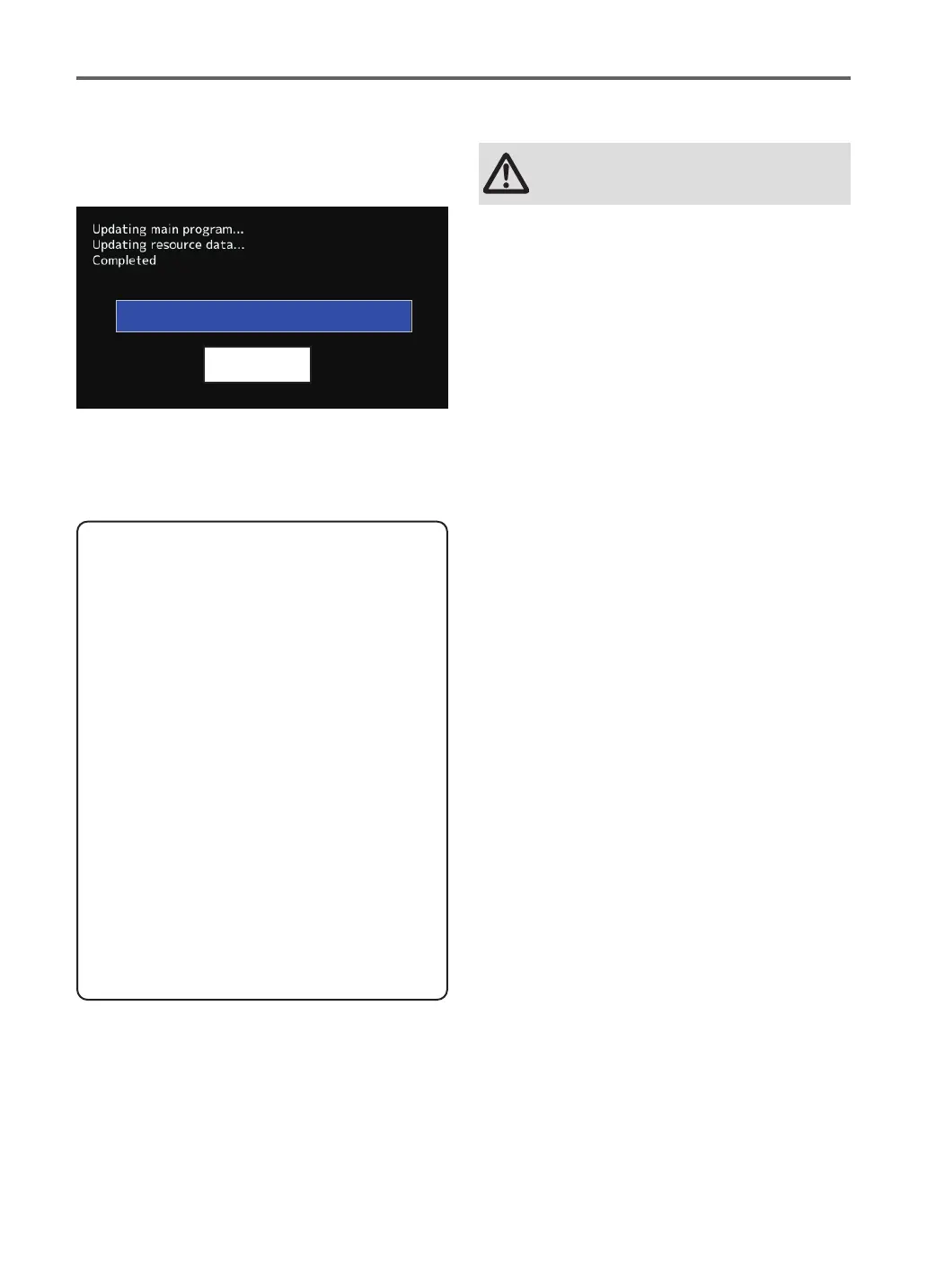
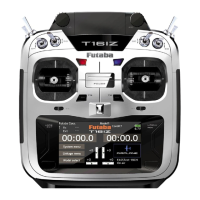
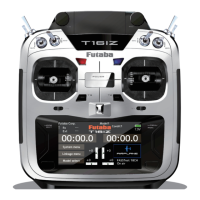
7. When the software update is completed,
"Completed" message is shown on the LCD
display of your T16IZ. (Show below picture.)
8. Turn off the power switch of your T16IZ and
remove the SD card from the card slot.
Possible Problems
When one of the error messages shown
below appears on the LCD screen your
T16IZ, the software update will not be
completed.
"Low battery."
Software update is postponed because
of low battery. Retry the software update
after the battery is recharged.
"Update le not found."
The T16IZ cannot nd the update le on the
SD card. Check to be sure all the update
les have been copied onto the SD card.
"Broken le."
The T16IZ detects the update le error. The
update file may be broken or for another
transmitter.
"Write error."
The software update procedure is stopped
for an unknown reason. Contact your local
service center when this error message
appears on the LCD screen of your T16IZ.
Don't absolutely remove the battery
and the SD card from the transmitter
during the update.
There is a possibility that the transmitter
will be damaged.
Recovering a failed update
If you failed to update for any reason, it
may transmitter will not start.
In that case, please update again
transmitter in the following procedure.
1. Detach the battery from the transmitter.
2. Insert the SD card that contained the
update les to the transmitter.
3. Attach the battery to the transmitter
while pressing down the "HOME/EXIT"
button.
4. The update will start.
Even after the above steps, if the
transmitter fails to update or does not
start, please have it serviced.
Complete


 To Next Page