
 Need help?
Do you have a question about the FUVISION A9 and is the answer not in the manual?
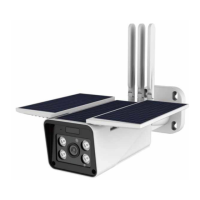
Labels and illustrates the various parts of the FUVISION A9 camera.
Instructions for obtaining the 'Ubell' app on iOS and Android devices.
Steps to power on the camera, including LED indicators and voice prompts.
Step-by-step guide to connect the camera to your smartphone app via Wi-Fi.
Guidance on entering the correct Wi-Fi password and confirming it for successful pairing.
Process of searching for the device and confirming connection after successful pairing.
Provides solutions for common issues when pairing the camera with the app via sound wave.
Explains how to perform a factory reset using the reset button and expected voice prompts.
Instructions on how to generate and share a QR code for other users to access the camera.
Important notes regarding password visibility and setting modifications by shared users.
Explains Silence, Notification, and Call in modes for managing alerts and recordings.
Describes how to play back cloud videos, their duration, and overwriting policy.
Guides on how to find and play video events recorded on the micro SD card.
Advises on checking and improving Wi-Fi signal strength for smooth live view.
Recommends an 8ft installation height and adjusting camera angle for accurate motion detection.
Tips to minimize false alarms, including adjusting camera angle and PIR sensitivity.
Details marking holes, drilling, and fixing the bracket to the wall using expansion screws.
Explains how to adjust the solar panel angle (0-90 degrees) using the Allen key for optimal charging.
Covers resolution, lens angle, video format, and frame rate for the camera.
Details audio output/input, WiFi specifications, and battery capacity/standby time.
Lists operating temperature, humidity, system support, PIR specs, and waterproof rating.
Explains the meaning of LED flashes and steady lights for different camera states like power, network, and PIR trigger.
Instructions on how to initiate live video viewing from the device list in the app.
Emphasizes keeping Cloud Storage enabled for accurate time synchronization between camera and phone.
Tips to ensure a strong Wi-Fi connection for a smooth live viewing experience.
Explains the meaning of battery indicators during sunlight, charging, and low power states.
Advice on what invited users can see and change regarding camera settings.
How to take screenshots and manually record videos, saving them to the phone's album.
Instructions for using two-way audio communication and muting camera sounds.
How to access device settings, cloud storage, album, and cruise mode for live viewing.
Steps for setting up and formatting the SD card within the app for video storage.
Options to adjust the camera's display orientation (Normal, Rotate, Mirror) based on installation.
Options to configure camera settings based on lighting conditions like Normal, Night IR, and Dynamic.
How to adjust PIR sensitivity (Disabled, Low, Medium, High) for motion detection accuracy.
Setting video length for micro SD card recordings or enabling continuous recording.
Enabling or disabling the blue LED indicator on the camera for operations or motion triggers.
Setting the power frequency (50Hz/60Hz) according to local electrical standards for optimal performance.
How to set a custom name and a secure password for your camera.
Instructions on how to update the mobile app to the latest version to fix bugs.
Details on saving PIR activity videos in the cloud, retention period, and daily limits.
Information on saving PIR activity and live viewing videos to the micro SD card.
How to save REC mode videos and screenshots to your phone's album.
Troubleshooting steps for failing to connect the camera to the app using sound wave technology.
Reasons for not seeing live streams after In-App setup and potential solutions like Wi-Fi extenders.
How to ensure you receive alarms by checking app and mobile notification settings.
Provides contact email for additional assistance and technical support from FUVISION.
Details the warranty coverage for manufacturer-related defects and exclusions like abuse or unauthorized repairs.
 General
| Night Vision | Yes |
|---|---|
| Two-Way Audio | Yes |
| Motion Detection | Yes |
| Storage | MicroSD card (up to 128GB) |
| Power Supply | DC 5V/1A |
| Resolution | 1080p |
| Connectivity | Wi-Fi |

 To Next Page