EasyManua.ls Logo

Gainscha GS-2208D Series - User Manual

Gainscha GS-2208D Series
25 pages
Print Icon
To Next Page IconTo Next Page
Loading...
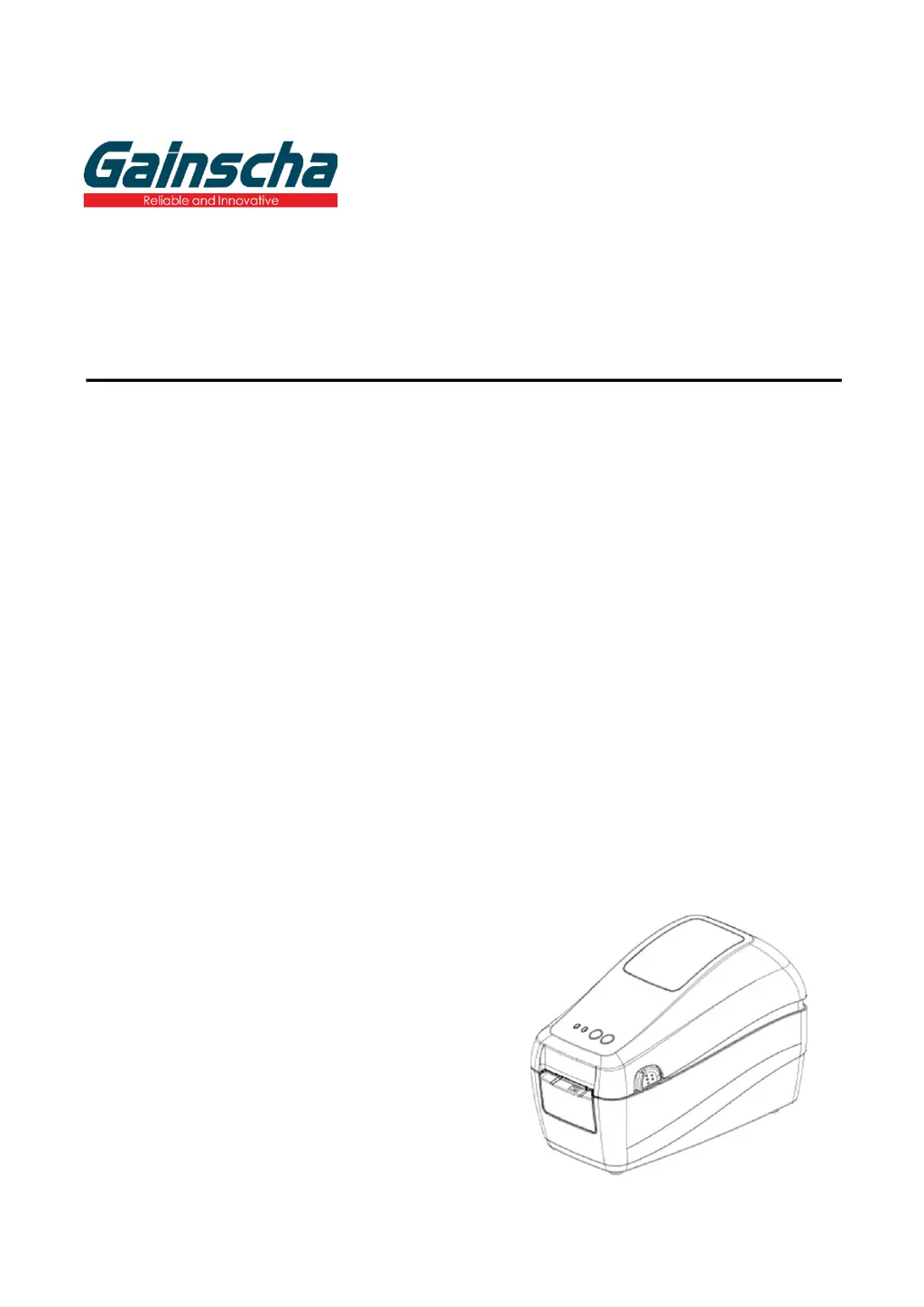
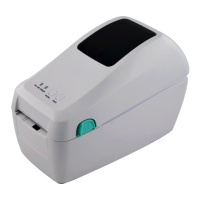
GS-2208D/GS-3205D Series
DIRECT THERMAL
THERMAL LABEL PRINTER
USER’S MANUAL
Ver.1.0.4

Questions and Answers

  • G
    Gary Thompson IIIAug 14, 2025
    What to do if my Gainscha GS-2208D is unable to print?
    • R
      Ruben CunninghamAug 14, 2025
      If your Gainscha Label Maker is not printing, first ensure the cable is securely connected to the serial, USB interface, or parallel port. If that doesn't work, try using a new cable. You may also need to clean the print head. Also, turn off the printer and plug the connector again to ensure that the print head’s harness connector is well connected with printhead. Finally, confirm whether the connection cable of the stepping motor is connected correctly.
  • R
    Robert HarrisAug 17, 2025
    Why does my Gainscha GS-2208D skip labels when printing?
    • D
      David DavisAug 18, 2025
      If the Gainscha Label Maker skips labels during printing, ensure the label size is correctly specified in your settings. Also, calibrate the sensor using the Auto Gap or Manual Gap options. Finally, use a blower to clear any dust that may be covering the media sensor.
  • D
    dawnfloresAug 21, 2025
    What to do if my Gainscha GS-2208D has a paper jam?
    • C
      carpentertheresaAug 21, 2025
      If you're experiencing a paper jam with your Gainscha Label Maker, try the following: Recalibrate the label sensor. Ensure that the label size is set correctly. Also, clean the inside of the printer to remove any blocked labels.
  • S
    sjacksonAug 25, 2025
    How to fix a Gainscha GS-2208D when the power indicator does not illuminate?
    • M
      Ms. Cynthia PughAug 25, 2025
      If the power indicator on your Gainscha Label Maker does not illuminate, make sure the power cord is correctly plugged into both the printer and the outlet. Also, verify that the printer power switch is turned on.
  • S
    Sarah MurphyAug 28, 2025
    What to do if my Gainscha GS-2208D says 'Out of paper'?
    • L
      Louis HarrisAug 28, 2025
      If your Gainscha Label Maker is out of paper, install new paper. If the problem persists, follow the paper installation steps to reinstall the paper correctly. You might also need to recalibrate the label sensor.
  • D
    Dr. Christopher JordanSep 1, 2025
    How to remove gray line on blank label from Gainscha GS-2208D?
    • J
      Jason CohenSep 1, 2025
      If you see a gray line on the blank label from your Gainscha Label Maker, try cleaning the print head. If the issue persists, clean the platen roller as well.
  • M
    Mercedes BlankenshipSep 5, 2025
    Why is the printing position incorrect for small labels on my Gainscha GS-2208D?
    • D
      David SkinnerSep 5, 2025
      If the printing position of a small label is incorrect on your Gainscha Label Maker, recalibrate the sensor sensitivity. Also, ensure you have set the correct label size and gap size. If you're using BarTender software, adjust the vertical offset in the driver settings.
  • P
    Peter JacobsonSep 9, 2025
    How to resolve wrinkle problem on Gainscha GS-2208D?
    • R
      Robert AlexanderSep 9, 2025
      If you are experiencing a wrinkle problem with your Gainscha Label Maker, ensure the label guide touches the edge of the media guide. Also, please set the suitable density to have good print quality.

Summary

Introduction

Product Introduction

Overview of the Gainscha barcode printer, highlighting its reliable performance and compact design.

Operations Overview

Unpacking and Inspection

Instructions for safely unpacking the printer and checking the included components.

Printer Views and Components

Details the physical layout and components of the printer, covering front, interior, and rear views.

Setup

Setting up the Printer

Step-by-step guide for physically connecting and powering on the printer for initial use.

Install Printer Driver

Guides users through the process of installing the necessary printer driver software on a Windows system.

Driver Installation Steps

Details the sequential steps for connecting the printer and selecting the correct model during driver installation.

Verify Installation and Port Settings

Instructions for confirming successful driver installation and modifying printer port configurations.

Loading the Media

Loading Roll Labels

Procedure for correctly loading roll labels into the printer, including guide adjustments.

LED and Button Functions

LED Indicator Status

Explains the meaning of different LED light combinations and their corresponding printer events.

Regular Button Functions

Describes the functions of the Feed and Pause buttons in various printer states (ready, print, error).

Power-on Utilities and Boot Functions

Details special functions activated by pressing button combinations during printer power-on for testing and configuration.

PrinterUtility Software

Start and Navigate PrinterUtility

Guide to launching the Gainscha PrinterUtility software and understanding its main function items.

Printer Configuration and Settings

Instructions on accessing printer settings via Printer Utility, loading parameters, and saving configurations.

Troubleshooting Common Problems

Power, Paper, and Jam Issues

Addresses common problems like no power, out of paper, and paper jams with possible causes and solutions.

Print Quality and Positioning Issues

Solutions for print quality problems, incorrect label positioning, wrinkles, and gray lines.

Printer Maintenance

Cleaning Procedures and Precautions

Methods for cleaning the print head, platen roller, sensors, and exterior, along with important handling notes.

Revise History

Gainscha GS-2208D Series Specifications

General IconGeneral
Resolution203 DPI
Memory8MB Flash, 8MB SDRAM
InterfaceUSB, Serial (RS-232), Parallel (IEEE-1284)
Print MethodDirect Thermal
Media TypeRoll
Media Thickness0.06 mm ~ 0.254 mm
Media Roll DiameterMax. 127 mm (5’’ OD)
Processor32-bit
Power SupplyAC 100-240V, 50/60Hz
Printing TechnologyDirect Thermal
Label Thickness Range0.06 mm ~ 0.254 mm
Media Width25.4 mm to 108 mm (1 inch to 4.25 inches)
Label Width Range25.4 mm to 108 mm (1 inch to 4.25 inches)

Related product manuals