EasyManua.ls Logo

Gainscha GS-2406T Series - User Manual

Default Icon
35 pages
Print Icon
To Next Page IconTo Next Page
Loading...
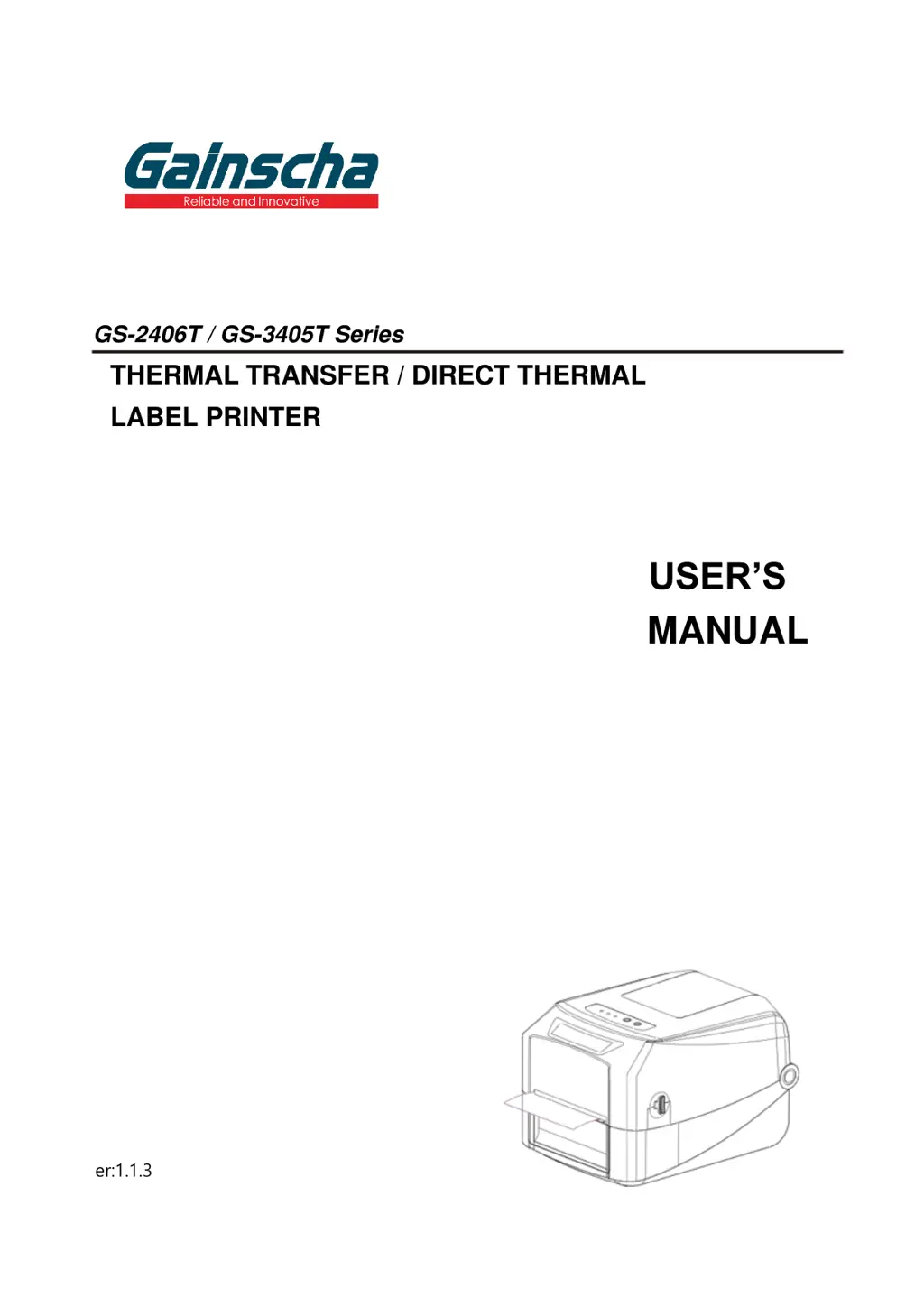
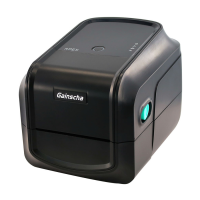
GS-2406T / GS-3405T Series
THERMAL TRANSFER / DIRECT THERMAL
LABEL PRINTER
USER’S
MANUAL
Ver:1.1.3

Questions and Answers

  • H
    Heather ValdezAug 17, 2025
    What to do if my Gainscha Label Maker is unable to print?
    • S
      Sarah RuizAug 18, 2025
      If your Gainscha Label Maker is unable to print, ensure the cable is securely connected to the serial, USB interface, or parallel port. If the issue persists, try a new cable. Also, verify the ribbon and media are compatible and that the ribbon is loaded correctly. Clean the print head if there's dust or adhesive accumulation. Adjust the print density if it’s incorrect. Lastly, turn off the printer and reconnect the print head's harness connector.
  • R
    Raymond PrinceAug 20, 2025
    Why is my Gainscha Label Maker producing poor print quality?
    • B
      Bradley JohnstonAug 20, 2025
      Poor print quality on your Gainscha Label Maker can be due to several factors. First, make sure the ribbon and media are loaded correctly. Clean the print head and platen roller to remove any dust or adhesive. Adjust the print density and print speed. Run a self-test to check the print head for damage, and ensure you are using compatible ribbon and label media.
  • C
    carlos89Aug 22, 2025
    What causes paper jams in Gainscha Label Maker and how to fix it?
    • P
      paynecaseyAug 23, 2025
      Paper jams in your Gainscha Label Maker can occur if the gap or black mark sensor detection is incorrect, so recalibrate the label sensor. Also, ensure the label size is set correctly. If labels are blocked inside the printer, clean the inside of the printer.
  • J
    Jonathan RodriguezAug 25, 2025
    How to fix Gainscha Label Maker skipping labels when printing?
    • S
      Samantha DeanAug 26, 2025
      If your Gainscha Label Maker is skipping labels, verify that the label size is set up correctly. Calibrate the sensor using the Auto Gap or Manual Gap options. Also, clear any dust from the GAP/Black mark sensor using a blower.
  • J
    Jennifer EdwardsAug 27, 2025
    What to do if Gainscha Label Maker runs out of paper?
    • L
      lwatersAug 27, 2025
      If your Gainscha Label Maker runs out of paper, install new paper. Ensure the paper installation path is correct by reinstalling it according to the instructions. If the problem persists, recalibrate the label sensor.
  • D
    daniellejohnsonAug 30, 2025
    How to fix missing printing on the sides of labels with Gainscha Label Maker?
    • M
      Matthew Hernandez MDAug 30, 2025
      If your Gainscha Label Maker is missing printing on the left or right side of the label, ensure that the correct label size is set.
  • E
    Eddie BartlettSep 1, 2025
    Why is the printing position incorrect for small labels on my Gainscha Label Maker?
    • R
      Robert JohnsonSep 1, 2025
      If the printing position of small labels is incorrect on your Gainscha Label Maker, recalibrate the sensor sensitivity. Ensure the correct label size and gap size are set. If using BarTender software, adjust the vertical offset in the driver.
  • D
    donald66Sep 4, 2025
    What causes gray lines on blank labels from my Gainscha Label Maker?
    • J
      Joy HamiltonSep 4, 2025
      Gray lines on blank labels from your Gainscha Label Maker are often caused by a dirty print head or a dirty platen roller. Clean both of these components.
  • W
    William JonesSep 6, 2025
    What causes wrinkle problem in Gainscha Label Maker?
    • A
      Andrea JimenezSep 7, 2025
      Wrinkles during printing with your Gainscha Label Maker can be caused by incorrect ribbon or media installation. Ensure the label guide touches the edge of the media guide and set the suitable density for good print quality.
  • J
    Janice MurphySep 9, 2025
    What to do if Gainscha Label Maker runs out of ribbon?
    • S
      smithwendySep 9, 2025
      If your Gainscha Label Maker is out of ribbon, install a new ribbon. If the issue persists, ensure the ribbon is installed correctly by following the installation steps.

Summary

Agency Compliance and Approvals

Introduction

Product Introduction

Introduces the Gainscha bar code label printer and its capabilities.

Product Features

Details the standard and optional features of the GS-2406T/GS-3405T series printers.

Operations Overview

Unpacking and Inspection

Guides users on inspecting the printer and its accessories upon delivery.

Printer Overview

Provides visual identification of printer components.

Setup

Setting up the Printer

Step-by-step instructions for initial printer connection and power-on.

Install Printer Driver

Detailed guide on installing the necessary software driver for the printer.

Loading the Ribbon

Instructions for correctly installing the thermal transfer ribbon.

Loading the Media

Steps for loading various types of print media and labels.

Loading the Cutter

Procedure for installing the optional cutter accessory.

Loading the Peeler

Steps for installing the optional peeler accessory.

LED and Button Functions

LED Indicator

Explains the status indicated by different LED lights on the printer.

Regular Button Functions

Describes the operation of the Feed and Pause buttons.

Power-on Utilities

Details special functions accessible during printer startup.

Printer Utility

Start the Printer Utility

Instructions on launching and navigating the printer utility software.

Printer Function

How to configure printer settings and functions via the utility.

Troubleshooting

Common Problems

Lists common issues and their solutions for printer operation.

Revise History

Gainscha GS-2406T Series Specifications

General IconGeneral
BrandGainscha
ModelGS-2406T Series
CategoryLabel Maker
LanguageEnglish

Related product manuals