EasyManua.ls Logo

Gainscha GS-2408D Series - User Manual

Gainscha GS-2408D Series
25 pages
Print Icon
To Next Page IconTo Next Page
Loading...
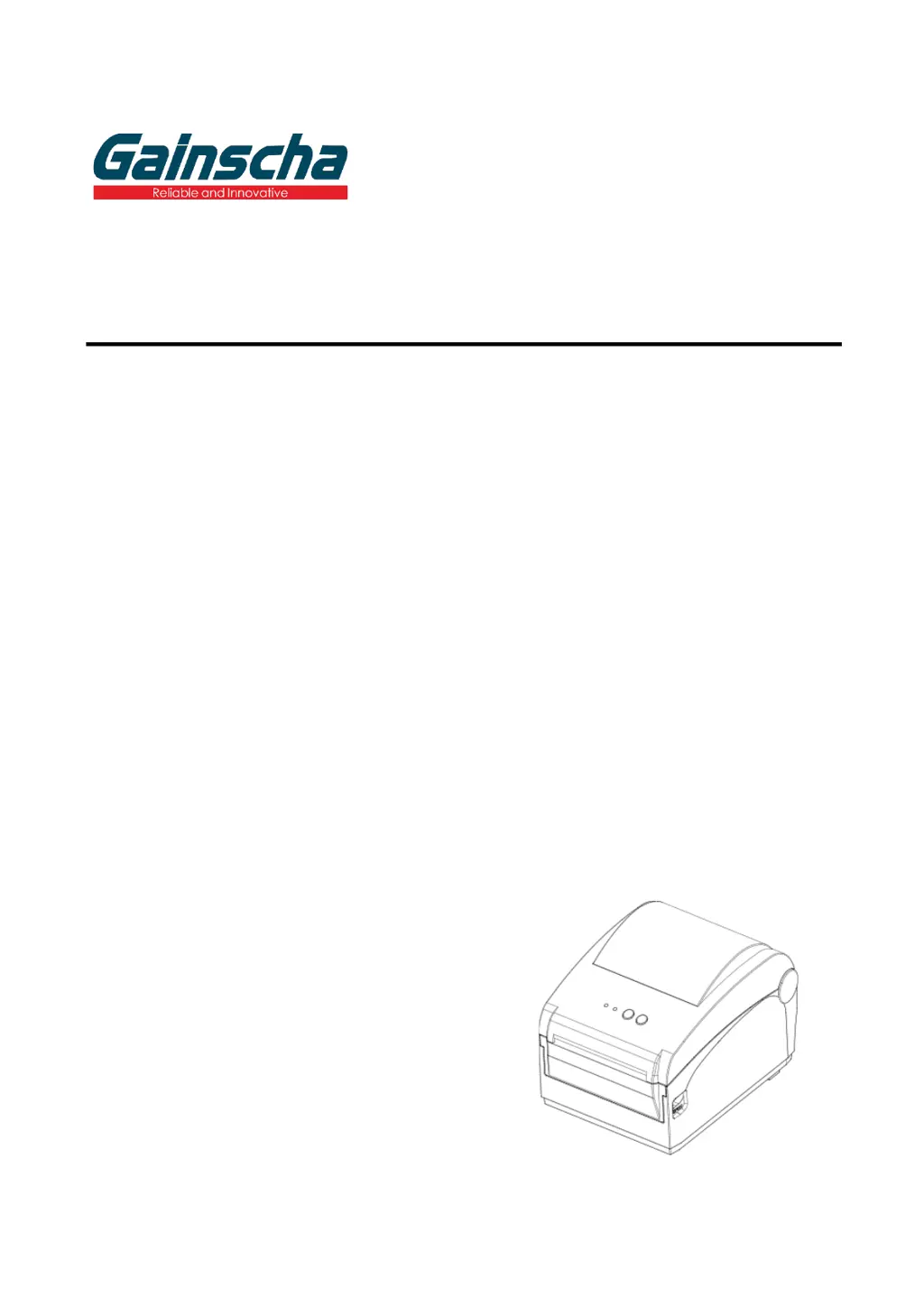
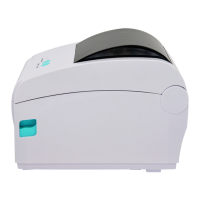
GS-2408D/GS-3405D Series
DIRECT THERMAL
THERMAL LABEL PRINTER
USER’S
MANUAL
Ver.1.0.4

Questions and Answers

  • D
    Dean SullivanAug 17, 2025
    Why is the print quality poor on my Gainscha GS-2408D?
    • T
      Thomas WashingtonAug 18, 2025
      If you're experiencing poor print quality with your Gainscha Label Maker, several factors could be responsible. First, ensure that the media is loaded correctly. If the issue persists, the print head may be dirty due to dust or adhesive accumulation; try cleaning it. Also, check your print density settings; they may need adjustment, along with the print speed. If these steps don't resolve the issue, the printhead element might be damaged, so run a printer self-test to check the print head test pattern for missing dots. Make sure that you are using the right labels for your printer. If the print head mechanism does not latch the print head properly, it can also lead to poor print quality.
  • A
    Alice CurryAug 20, 2025
    What to do if my Gainscha Label Maker says it's out of paper?
    • X
      xmontesAug 20, 2025
      If your Gainscha Label Maker is showing an 'out of paper' error, even when it's not, there are a few things to check. First, make sure you actually have paper installed. If you do, ensure that the paper is installed correctly by following the correct steps for installation. If the problem continues, it might be due to incorrect gap or black mark sensor detection, so recalibrate the label sensor.
  • G
    Glenn McintoshAug 22, 2025
    How to fix a paper jam in my Gainscha GS-2408D Label Maker?
    • K
      Kendra Robbins DVMAug 22, 2025
      If your Gainscha Label Maker is experiencing paper jams, there might be several reasons. First, the gap or black mark sensor detection could be incorrect; try recalibrating the label sensor. Also, the label size may be set incorrectly, so ensure you've set the correct label size. Finally, a label may be blocked inside the printer, requiring you to clean the inside of the printer.
  • J
    Jessica MartinAug 25, 2025
    Why does my Gainscha GS-2408D Label Maker skip labels when printing?
    • J
      Jorge JamesAug 26, 2025
      If your Gainscha Label Maker is skipping labels during printing, it could be due to a few reasons. First, verify that the label size is specified correctly in your settings. If that's not the issue, the sensor sensitivity might not be set properly; try calibrating the sensor using the Auto Gap or Manual Gap options. Also, check if the media sensor is covered with dust and, if so, clear it with a blower.
  • N
    nponceAug 27, 2025
    What to do if my Gainscha Label Maker is not printing?
    • B
      brent40Aug 28, 2025
      If your Gainscha Label Maker is unable to print, several issues could be the cause. Ensure the cable is securely connected to the serial, USB interface, or parallel port. If the connection is good, the print density setting might be incorrect, consider changing the cable. Another potential issue is that the print head’s harness connector might not be well connected with the printhead; turn off the printer and plug the connector again. Finally, confirm whether the connection cable of the stepping motor is connected correctly.
  • J
    John WrightAug 30, 2025
    Why won't my Gainscha Label Maker turn on?
    • F
      Felicia HillAug 30, 2025
      If the power indicator on your Gainscha Label Maker does not illuminate, there are a couple of things you can check. First, make sure the power cord is properly connected to both the printer and the outlet. If it is, ensure that the printer power switch is turned on.
  • G
    Gregory LiSep 1, 2025
    How to adjust the printing position of small labels on my Gainscha GS-2408D?
    • J
      Jeremy BrownSep 1, 2025
      If the printing position of small labels is incorrect on your Gainscha Label Maker, it could be due to a few reasons. The media sensor sensitivity might not be set properly, so try calibrating the sensor sensitivity again. Additionally, the label size could be incorrect; ensure you set the correct label size and gap size. If you're using BarTender software, the vertical offset setting in the driver might be incorrect, so adjust it accordingly.
  • L
    Lisa EvansSep 4, 2025
    Why is my Gainscha GS-2408D missing printing on the sides of the label?
    • M
      molly29Sep 4, 2025
      If your Gainscha Label Maker is missing printing on the left or right side of the label, it's likely due to an incorrect label size setup. Ensure you set the correct label size in your printer settings.
  • S
    Sarah ThomasSep 6, 2025
    Why are my labels wrinkling when I print with my Gainscha GS-2408D Label Maker?
    • T
      Theresa HowardSep 7, 2025
      If you're experiencing wrinkle problems with your Gainscha Label Maker, several factors could be the cause. First, media installation might be incorrect; ensure it is properly installed. Also, the print density might be incorrect; set the suitable density to have good print quality. Finally, make sure the label guide touches the edge of the media guide, as incorrect media feeding can also cause wrinkles.
  • T
    Thomas RochaSep 9, 2025
    How do I remove gray lines from labels printed by my Gainscha GS-2408D?
    • M
      Marcus MejiaSep 9, 2025
      If you notice a gray line on the blank labels printed by your Gainscha Label Maker, it's likely due to a dirty print head or platen roller. Try cleaning both the print head and the platen roller to resolve this issue.

Summary

Introduction

Product Introduction

Overview of the Gainscha bar code printer, its applications, and key features.

Product Features

Detailed specifications of the printer models including resolution, speed, and interfaces.

Operations Overview

Unpacking and Inspection

Guide to unpacking, inspecting, and identifying included items.

Printer Overview

Detailed diagrams and labels of the printer's top, interior, front, and rear views.

Setup

Setting up the Printer

Step-by-step instructions for physically connecting and powering on the printer.

Install Printer Driver

Guide for installing the necessary software drivers for the printer on a computer.

Loading the Media

Instructions for correctly loading label rolls into the printer.

LED and Button Functions

LED Indicator

Explanation of the status lights on the printer and their meanings.

Regular Button Functions

Describes the functions of the FEED and PAUSE buttons in different modes.

Power-on Utilities

Details on using button combinations at startup for testing and configuration.

Printer Utility

Start the PrinterUtility

How to launch and navigate the main interface of the utility software.

Printer Function

How to configure printer settings like speed, density, and label type using the utility.

Troubleshooting

Common Problems

Lists common issues, potential causes, and recovery steps for printer malfunctions.

Maintenance

Printer Maintenance

Procedures and recommended materials for cleaning the print head, platen roller, and exterior.

Revise History

Revise History Log

Chronological record of manual updates, including version numbers and content changes.

Gainscha GS-2408D Series Specifications

General IconGeneral
Resolution203 dpi
Printing TechnologyThermal
Max. Print Length1778 mm
Maximum Label Length1778 mm
Media TypeRoll
Supported Media TypesContinuous
Processor32-bit RISC
Memory8 MB Flash
InterfaceUSB, RS-232
ConnectivityUSB, RS-232
Power SupplyAC 100-240V, 50/60Hz

Related product manuals