EasyManua.ls Logo

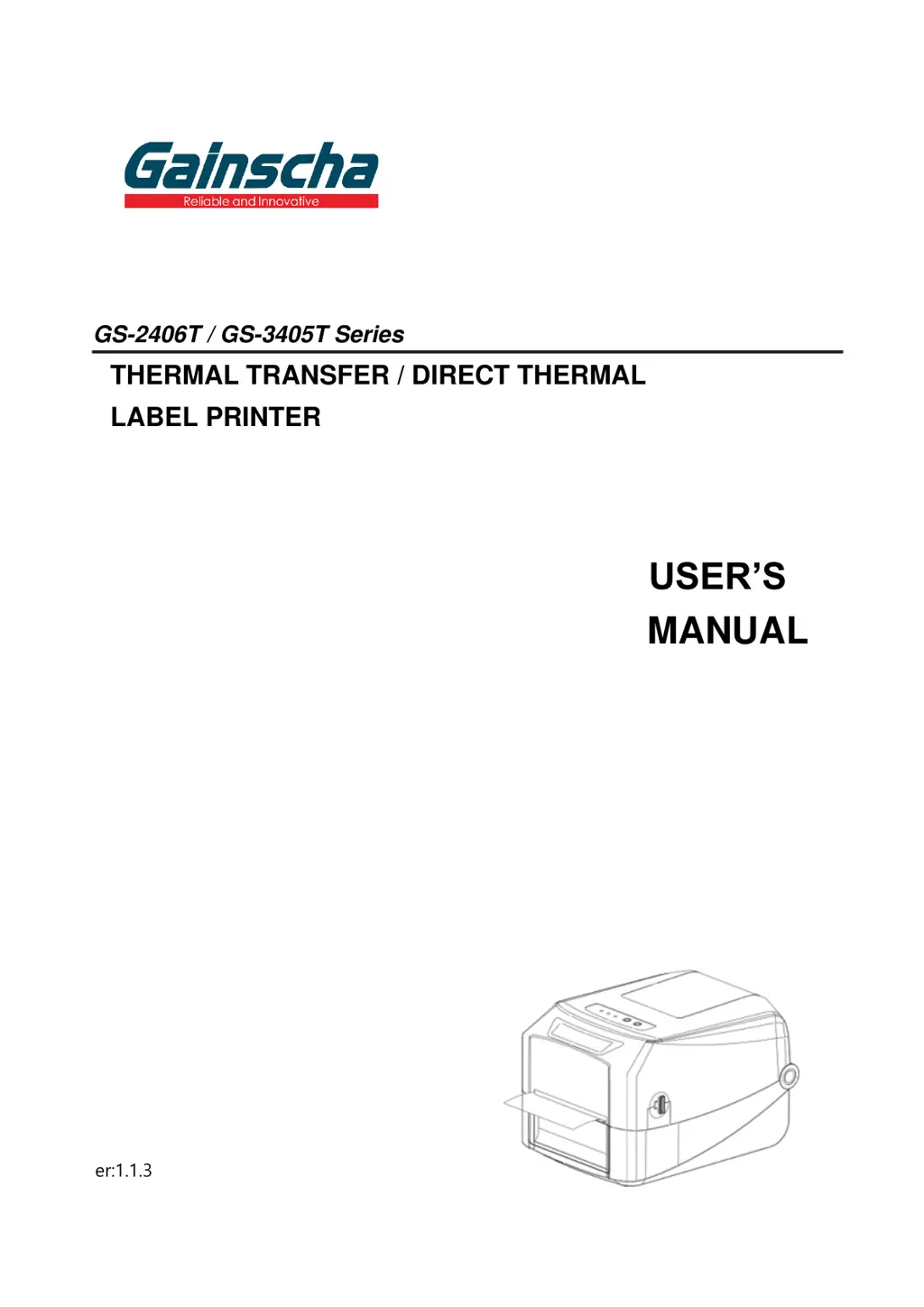
Gainscha GS-3405T Series - User Manual

Gainscha GS-3405T Series
35 pages
Print Icon
To Next Page IconTo Next Page
Loading...
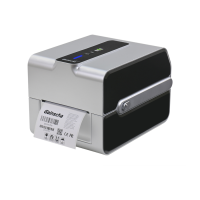
GS-2406T / GS-3405T Series
THERMAL TRANSFER / DIRECT THERMAL
LABEL PRINTER
USER’S
MANUAL
Ver:1.1.3

Questions and Answers

  • A
    Alyssa RichardsAug 18, 2025
    What to do if my Gainscha Label Maker is unable to print?
    • L
      leeangelaAug 18, 2025
      If your Gainscha Label Maker is unable to print, ensure the cable is securely connected to the serial, USB interface, or parallel port. If the issue persists, try a new cable. Also, verify the ribbon and media are compatible and that the ribbon is loaded correctly. Clean the print head if there's dust or adhesive accumulation. Adjust the print density if it’s incorrect. Lastly, turn off the printer and reconnect the print head's harness connector.
  • B
    Brent EspinozaAug 20, 2025
    Why is my Gainscha Label Maker producing poor print quality?
    • C
      Craig MartinezAug 21, 2025
      Poor print quality on your Gainscha Label Maker can be due to several factors. First, make sure the ribbon and media are loaded correctly. Clean the print head and platen roller to remove any dust or adhesive. Adjust the print density and print speed. Run a self-test to check the print head for damage, and ensure you are using compatible ribbon and label media.
  • J
    Jason CherryAug 23, 2025
    What causes paper jams in Gainscha Label Maker and how to fix it?
    • A
      awoodAug 23, 2025
      Paper jams in your Gainscha Label Maker can occur if the gap or black mark sensor detection is incorrect, so recalibrate the label sensor. Also, ensure the label size is set correctly. If labels are blocked inside the printer, clean the inside of the printer.
  • M
    Monica DavisAug 26, 2025
    How to fix Gainscha Label Maker skipping labels when printing?
    • D
      Darren TorresAug 26, 2025
      If your Gainscha Label Maker is skipping labels, verify that the label size is set up correctly. Calibrate the sensor using the Auto Gap or Manual Gap options. Also, clear any dust from the GAP/Black mark sensor using a blower.
  • M
    Monica RichardsAug 28, 2025
    What to do if Gainscha Label Maker runs out of paper?
    • J
      Julie OliverAug 28, 2025
      If your Gainscha Label Maker runs out of paper, install new paper. Ensure the paper installation path is correct by reinstalling it according to the instructions. If the problem persists, recalibrate the label sensor.
  • B
    Billy HoustonAug 31, 2025
    How to fix missing printing on the sides of labels with Gainscha Label Maker?
    • C
      Cody DunnAug 31, 2025
      If your Gainscha Label Maker is missing printing on the left or right side of the label, ensure that the correct label size is set.
  • V
    vallenSep 2, 2025
    Why is the printing position incorrect for small labels on my Gainscha Label Maker?
    • C
      Crystal MartinSep 2, 2025
      If the printing position of small labels is incorrect on your Gainscha Label Maker, recalibrate the sensor sensitivity. Ensure the correct label size and gap size are set. If using BarTender software, adjust the vertical offset in the driver.
  • N
    natasha37Sep 4, 2025
    What causes gray lines on blank labels from my Gainscha Label Maker?
    • C
      Christina JonesSep 4, 2025
      Gray lines on blank labels from your Gainscha Label Maker are often caused by a dirty print head or a dirty platen roller. Clean both of these components.
  • E
    Erik PearsonSep 7, 2025
    What causes wrinkle problem in Gainscha Label Maker?
    • J
      John MercadoSep 7, 2025
      Wrinkles during printing with your Gainscha Label Maker can be caused by incorrect ribbon or media installation. Ensure the label guide touches the edge of the media guide and set the suitable density for good print quality.
  • J
    Jeremiah EdwardsSep 10, 2025
    What to do if Gainscha Label Maker runs out of ribbon?
    • J
      Justin ChoiSep 10, 2025
      If your Gainscha Label Maker is out of ribbon, install a new ribbon. If the issue persists, ensure the ribbon is installed correctly by following the installation steps.

Summary

Introduction

Product Introduction

Provides an overview of the Gainscha barcode label printer's features and capabilities.

Product Features

Details the standard and optional features of the GS-2406T/GS-3405T series printers.

Operations Overview

Unpacking and Inspection

Instructions for unpacking the printer and verifying included components.

Printer Overview

Provides visual identification of the printer's various external and internal parts.

Setup

Setting up the Printer

Step-by-step instructions for physically connecting and powering on the printer.

Loading the Ribbon

Loading the Media

Loading the Roll Labels

Instructions for loading label rolls into the printer.

Ribbon and print media loading diagram

Diagram illustrating the correct placement of ribbon and print media.

Loading the Cutter

Loading the Peeler

LED and Button Functions

LED Indicator

Explanation of the status lights and their meanings during operation.

Regular Button Functions

Details the functions of the printer's control buttons in different modes.

Power-on Utilities

Describes special functions activated by pressing buttons during power-on.

PirnterUtility

Start the PirnterUtility

Instructions on how to launch and navigate the printer utility software.

Troubleshooting

Common Problems

Lists common issues and their solutions for printer operation.

Maintenance

Cleaning Process

Methods and materials for cleaning various parts of the printer.

Revise History

Gainscha GS-3405T Series Specifications

General IconGeneral
Resolution203 dpi
Weight2.5 kg
Media TypeContinuous
Media Thickness0.06 - 0.25 mm
Processor32-bit RISC
InterfaceUSB, Serial (RS-232), Ethernet
Power SupplyAC 100-240V, 50/60Hz
Supported Barcode TypesQR Code, PDF417
Supported Image FormatsPCX, BMP

Related product manuals