choice, you can set your camera name).
The app automatically searches for all Wi-Fi trail cameras
nearby, please make sure your camera is within the Wi-Fi
range. This process may take up to 15 seconds. If there is no
device shown in the list, please click the Refresh button on the
top-right corner.
Tap the one you want to add (Figure 10). The app starts
connecting to your camera. It might take up to 15 seconds to
build the Bluetooth and Wi-Fi connection between the app and
camera. There are 4 steps (Illustration omitted):
Step1 – Connecting through Bluetooth…
Step2 – Activating the camera…
Step3 – Searching Wi-Fi... The camera display will turn off
during Wi-Fi connecting.
Step4 – Connecting through Wi-Fi…
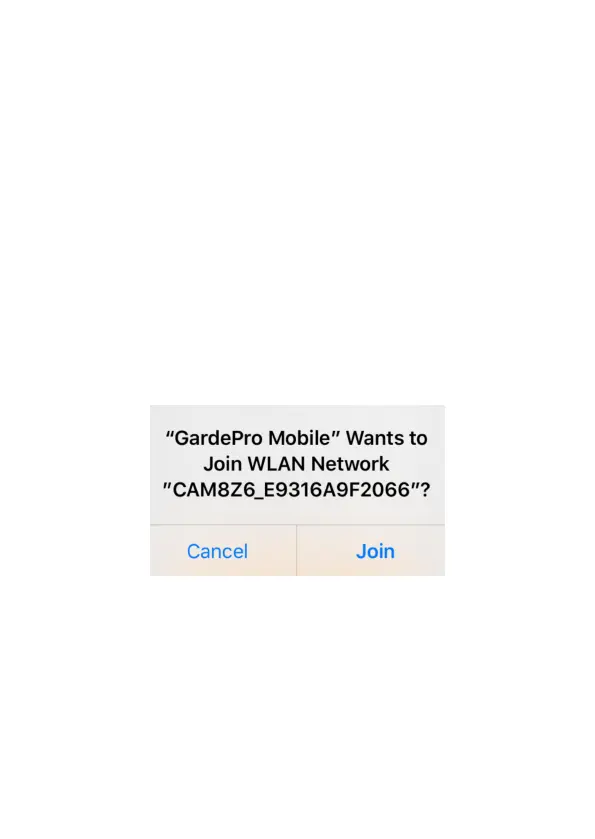
Figure 11: Allow Wi-Fi Connection on iOS Device
A system pop-up message will show (Figure 11).
Please tap "Join" to allow Wi-Fi connection. The string
"CAM8Z6_E9316A9F2066" is the name of Wi-Fi hotspot on
the camera to allow Wi-Fi connection. Among cameras, the
prefix CAM8Z6 is fixed, E9316A9F2066 is the internal camera
identifier which may vary from different cameras.
NOTE: On Android devices, there might be different system
pop-up messages that ask for allowing app connection to


 To Next Page