EasyManua.ls Logo

Garmin aera 1900111700 - User Manual

Garmin aera 1900111700
52 pages
Print Icon
To Next Page IconTo Next Page
Loading...
automotive
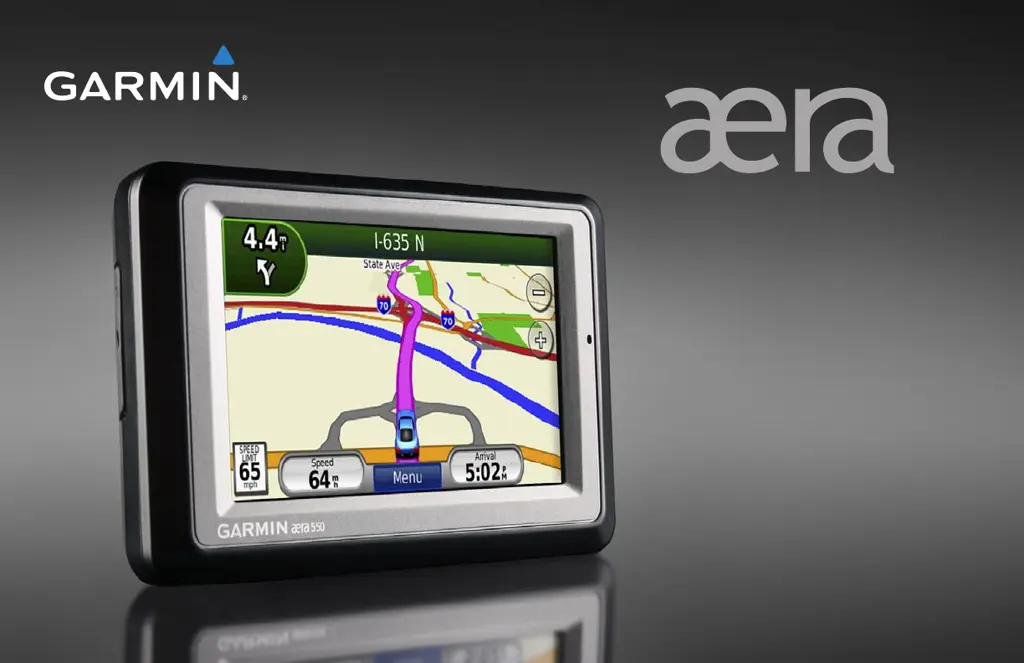
owners manual
models: 500, 510, 550, 560

Table of Contents

Questions and Answers

  • D
    David CarsonAug 15, 2025
    What to do if my Garmin GPS aera does not charge in my car?
    • M
      Michael SchneiderAug 15, 2025
      First, check the fuse in the vehicle power cable. Make sure your vehicle is on and supplying power to the outlet. Note that your Garmin aera GPS can only charge between 32°F and 113°F (0°C and 45°C). Avoid charging in direct sunlight or hot environments.
  • S
    Shannon CooleyAug 18, 2025
    How to connect my Garmin aera 1900111700 aera to the computer?
    • R
      robinwhiteAug 18, 2025
      Unplug the USB cable from your computer. Turn off your Garmin aera GPS device. Plug the USB cable back into both your computer and your aera. The aera should automatically turn on and enter USB mass storage mode.
  • R
    Robert BurtonAug 21, 2025
    How to fix Garmin aera 1900111700 GPS aera that never gets satellite signals?
    • D
      Diana BellAug 21, 2025
      Move your Garmin aera GPS out of parking garages and away from tall buildings and trees. Remain stationary for several minutes to allow it to acquire satellite signals.
  • C
    Crystal ColeAug 25, 2025
    How to fix a frozen Garmin GPS aera?
    • E
      Elizabeth JacksonAug 25, 2025
      If your Garmin aera GPS screen stops responding, try turning the device off and then on again. If the issue persists, remove the battery and then reinstall it. The aera should then operate normally.
  • C
    chasechristinaAug 28, 2025
    How to connect my phone to Garmin aera 1900111700 GPS aera?
    • R
      Robert JohnsonAug 28, 2025
      On your Garmin aera GPS, go to Tools > Settings > Bluetooth. Ensure that Bluetooth is enabled. Also, make sure your phone is turned on and within 33 feet (about 10 meters) of your aera.
  • J
    Jennifer ParkAug 31, 2025
    Why I cannot get traffic information on my Garmin aera 1900111700 GPS?
    • K
      Kenneth GomezAug 31, 2025
      Ensure your Garmin aera GPS is traffic compatible and within a coverage area to receive traffic data. If compatible, check that the FM TMC Traffic receiver is properly connected to both the power connector on the cradle and a power outlet in your vehicle. Traffic information is only available within coverage areas.
  • B
    bandersonSep 3, 2025
    What to do if the touchscreen is not responding on my Garmin aera 1900111700 GPS?
    • S
      shellywatsonSep 4, 2025
      Turn off your Garmin aera GPS. Then, hold your finger on the screen while pressing and holding the Power button until the calibration screen appears. Follow the on-screen instructions to calibrate the touchscreen.
  • N
    Nicholas MooreSep 7, 2025
    Why is my Garmin aera 1900111700 battery gauge inaccurate?
    • K
      Kelsey BushSep 7, 2025
      Allow your Garmin aera GPS unit to fully discharge completely, and then fully charge it without interrupting the charge cycle. This may recalibrate the battery gauge.
  • B
    Brittany ChavezSep 12, 2025
    Why can't I see my Garmin aera 1900111700 as a removable drive?
    • S
      Sherry LongSep 12, 2025
      If you have multiple network drives mapped on your computer, Windows might have difficulty assigning drive letters to your Garmin aera GPS drives. Refer to your operating system's Help file for instructions on how to map or assign drive letters.

Summary

Introduction

Contact Garmin

Information on how to contact Garmin for support and inquiries.

Getting Started

Installing the Battery

Step-by-step guide on how to install the device's battery.

Charging Your aera

Instructions on how to charge the aera device before use.

Mounting Your aera in an Automobile

Guidance on how to securely mount the aera in a vehicle.

Configuring Your aera

Initial setup and configuration steps for the aera device.

Acquiring Satellites

Steps to acquire GPS satellite signals for navigation.

Using the Menu Page

Overview of navigating and using the main menu interface.

Power button

Description of the power button's function and operation.

Finding Your Destination

Instructions on how to search for and select destinations.

Following Your Route

Guidance on how to follow the calculated route and navigate.

Adjusting the Volume

How to adjust the audio volume for various device functions.

Customizing the aera

Adding Security

Setting up Garmin Lock and Safe Mode for device security.

Restoring All Settings

Resetting all device settings to their original defaults.

Changing Bluetooth Technology Settings

Configuring Bluetooth connections for devices.

Where To?

Finding an Address

How to locate a specific street address using the device.

Using the Main Pages

Map Page

Overview of the map display, vehicle icon, and map interaction.

Turn List Page

Displays turn-by-turn instructions for the entire route.

Using Hands-free Calling

Pairing Your Devices

Connecting your mobile phone and headset via Bluetooth.

Receiving XM Signals

Listening to XM Radio

Instructions for listening to XM Radio broadcasts.

Weather

Accessing and viewing weather information.

Using FM TMC Traffic

Receiving Traffic Information

Conditions required to receive FM TMC traffic data.

Traffic on Your Route

How traffic conditions affect route calculation and optimization.

Avoiding Traffic on Your Route

Options to avoid or bypass traffic delays on the selected route.

Using the Media Players

Using a Wireless Headset

Connecting and using a Bluetooth headset for audio playback.

Playing Music

Loading, managing, and playing music files on the device.

Managing Files

Connecting Your aera to Your Computer

How to connect the aera to a computer for file management.

Transferring Files

Copying files between your computer and the aera.

Using the Tools

Settings

Accessing and configuring various device settings.

ecoRoute

Features for calculating fuel economy and improving efficiency.

Calibrate the Fuel Economy

Improving the accuracy of fuel economy reports by calibration.

Appendix

Resetting the aera

Restoring the device to its default operational state.

Locking Your aera

Activating the Garmin Lock feature for theft deterrence.

Updating the Software

Procedure for downloading and installing software updates.

Maximizing the Battery Life

Tips and settings to extend the device's battery duration.

Troubleshooting

Solutions for common problems and issues encountered with the device.

Garmin aera 1900111700 Specifications

General IconGeneral
BrandGarmin
Modelaera 1900111700
CategoryGPS
LanguageEnglish

Related product manuals