Turning On LiveTrack
Before you can start your first LiveTrack session, you must set up contacts in the Garmin Connect app.
1 Select > Safety & Tracking > LiveTrack.
2 Select an option:
• Select Auto Start to start a LiveTrack session each time you start this type of activity.
• Select LiveTrack Name to update the name of your LiveTrack session. The current date is the default
name.
• Select Recipients to view recipients.
• Select Course Sharing if you want your recipients to see your course.
• Select Spectator Messaging if you want to allow your recipients to send you text messages during your
cycling activity (Spectator Messaging, page36).
• Select Extend LiveTrack to extend viewing of the LiveTrack session for 24 hours.
3 Select Start LiveTrack.
Recipients can view your live data on a Garmin Connect tracking page.
Starting a GroupTrack Session
Before you can start a GroupTrack session, you must have a phone with the Garmin Connect app paired to your
device (Pairing Your Phone, page32).
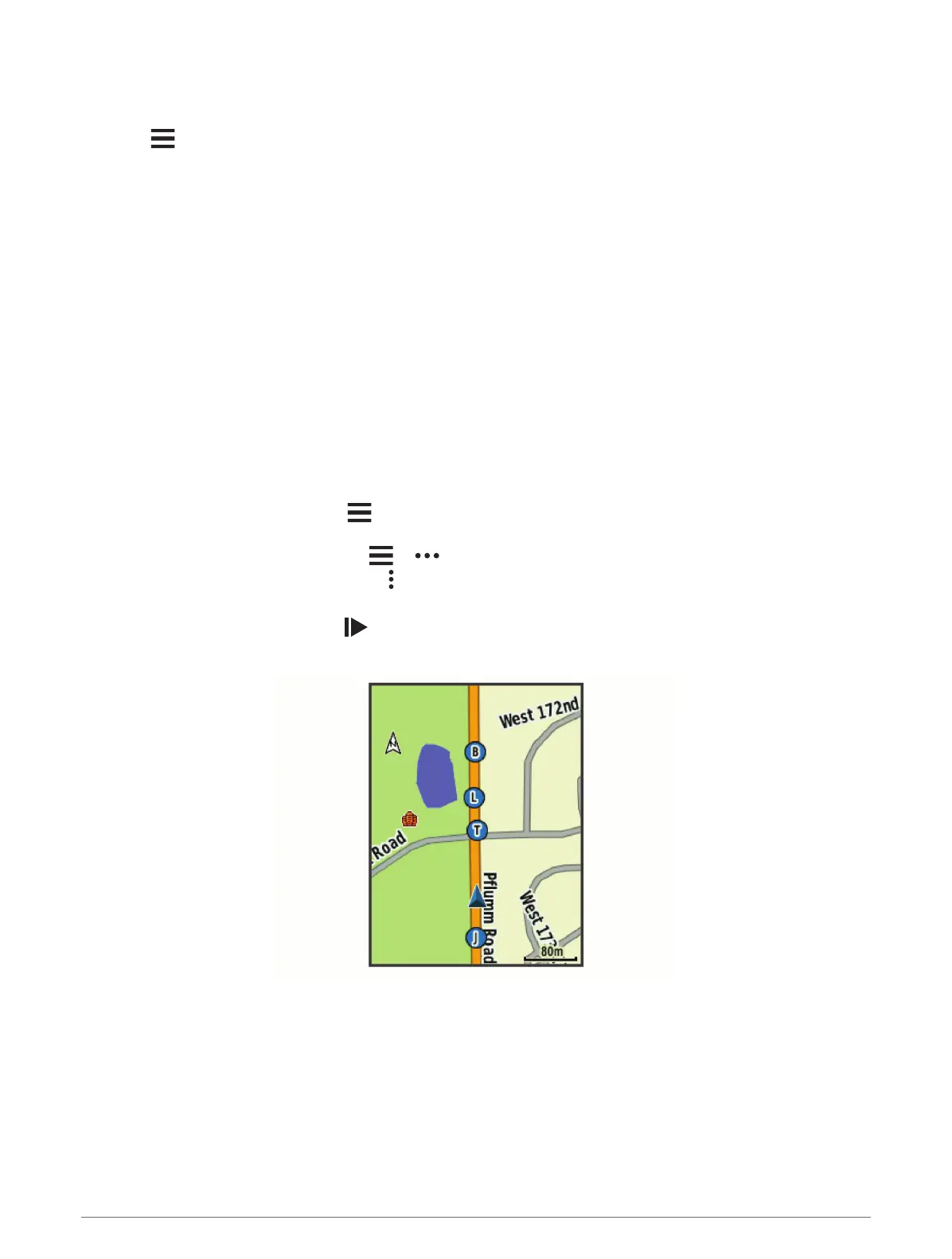
During a ride, you can see the riders in your GroupTrack session on the map.
1 On the Edge bike computer, select > Safety & Tracking > GroupTrack to enable viewing connections on
the map screen.
2 From the Garmin Connect app, select or .
3 Select Safety & Tracking > LiveTrack > > Settings > GroupTrack > All Connections.
4 Select Start LiveTrack.
5 On the Edge bike computer, press , and go for a ride.
6 Scroll to the map to view your connections.
7 Scroll to the GroupTrack list.
You can select a rider from the list, and that rider appears centered on the map.
Connected Features 35


 To Next Page