Garmin G1000 Pilot’s Guide for the Piper PA-32 Saratoga
190-02692-00 Rev. A208
FLIGHT MANAGEMENT
SYSTEM
OVERVIEW
FLIGHT
INSTRUMENTS
EIS
AUDIO PANEL
& CNS
FLIGHT
MANAGEMENT
HAZARD
AVOIDANCE
AFCS
ADDITIONAL
FEATURES
APPENDICESINDEX
In the US, airways that are “one-way” for specified hours of operation are not uncommon. These airways
are always bidirectional in the system database.
The system only allows correct airway sequences to be inserted. If the pilot subsequently inverts the
flight plan, the system inverts the airway waypoint sequence and removes the airway header.
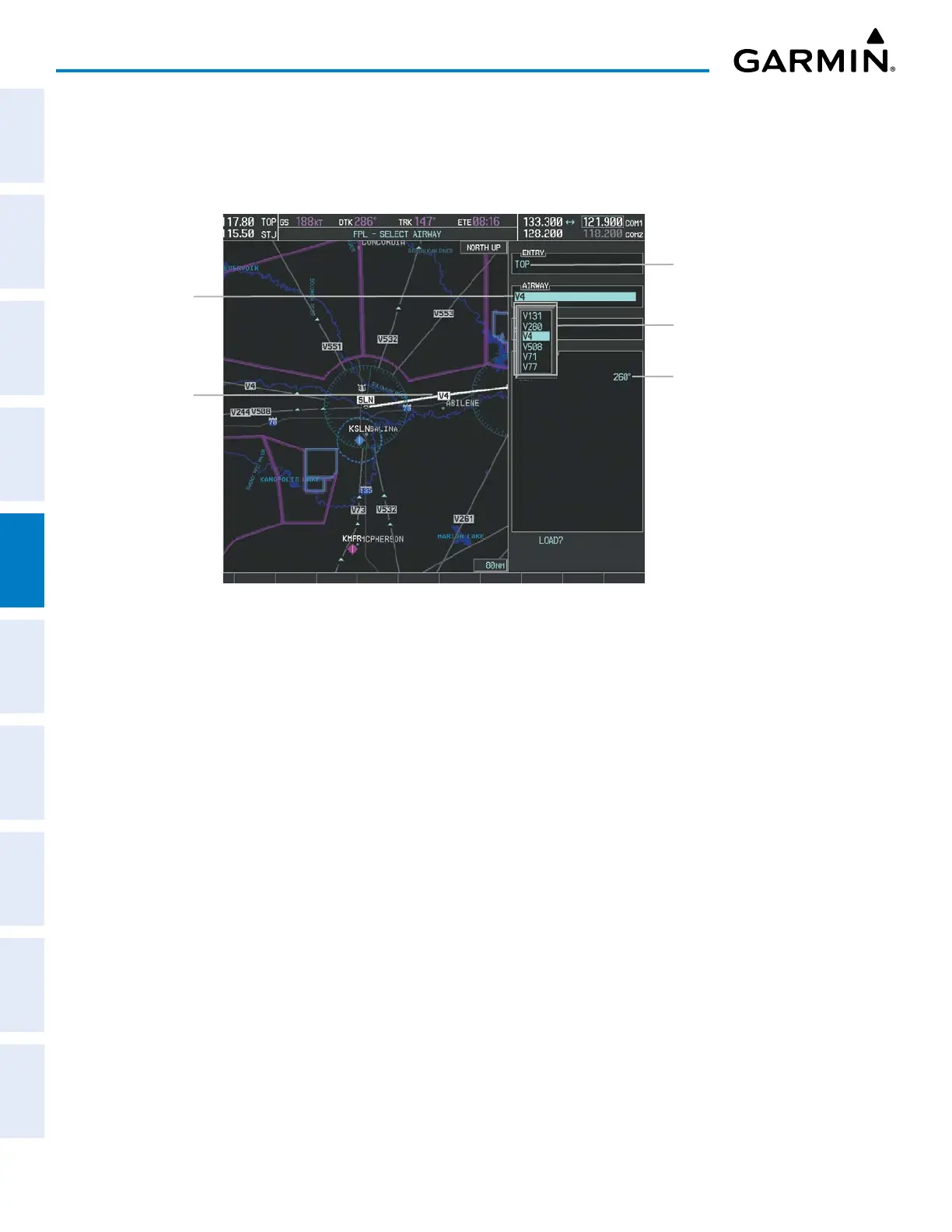
Figure 5-58 Select Airway Page – Selecting Airway
Airway Entry Waypoint
Selected Airway
Airways Available at TOP
Airway Waypoint Sequence
Preview of Selected
Airway
Adding an airway to a flight plan:
1) Press the FPL Key.
2) Push the FMS Knob to activate the cursor (not required on the PFD).
3) Turn the large FMS Knob to highlight the waypoint after the desired airway entry point. If this waypoint is not
a valid airway entry point, a valid entry point should be entered at this time.
4) Turn the small FMS Knob one click clockwise and press the LD AIRWY Softkey, or press the MENU Key and
select ‘Load Airway’. The FPL – SELECT AIRWAY Page is displayed. The LD AIRWY Softkey or the “Load Airway”
menu item is available only when a valid airway entry waypoint has been chosen (the waypoint ahead of the
cursor position).
5) Turn the FMS Knob to select the desired airway from the list, and press the ENT Key. Low altitude airways are
shown first in the list, followed by all altitude airways, and then high altitude airways.
6) Turn the FMS Knob to select the desired airway exit point from the list, and press the ENT Key. LOAD? is
highlighted.
7) Press the ENT Key. The system returns to editing the flight plan with the new airway inserted.



 To Next Page