EasyManua.ls Logo

Garmin G5 - User Manual

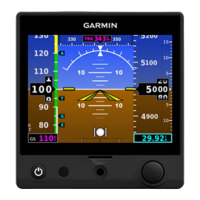
Garmin G5
168 pages
Print Icon
To Next Page IconTo Next Page
Loading...
G5 User's Manual

Table of Contents

Other manuals for Garmin G5

Questions and Answers

  • M
    markwilliamsAug 18, 2025
    How to prevent signal reflections on Garmin G5 Avionics Display CAN bus?
    • J
      Jessica ParkAug 19, 2025
      To prevent unwanted signal reflections or orphaned devices on the CAN bus in your Garmin Avionics Display system, ensure the CAN bus is daisy-chained between CAN devices. Avoid connecting CAN devices via a single point (star topology) or routing them through a hub device.
  • J
    Jamie PayneAug 21, 2025
    What does red light mean on Garmin G5 Avionics Display?
    • C
      Crystal BellAug 21, 2025
      A red status LED on your Garmin Avionics Display indicates a hardware fault.
  • L
    Lauren GrayAug 23, 2025
    What does flashing green light mean on Garmin G5 Avionics Display?
    • T
      Tracy NelsonAug 23, 2025
      A flashing green light on the status LED of your Garmin Avionics Display indicates that the unit is on and communicating via the CAN bus.
  • C
    Christina WarnerAug 28, 2025
    What to do if the GPS navigation information is removed from the Garmin G5 Attitude or HSI display?
    • L
      Lisa WoodAug 28, 2025
      If GPS position information disappears from your Garmin G5 Attitude or HSI display, start by verifying a Green Check by MapMX. Next, check the RS 232 wiring connecting the G5 and the GPS Navigator. Also, ensure that the GPS Navigator configuration hasn't changed since its initial installation. If the issue persists, consider replacing the G5 with a known good unit.
  • A
    amywilliamsonAug 30, 2025
    What to do if the VHF navigation information is removed from the Garmin G5 HSI display (with a GAD 29/29B installed)?
    • A
      Angela MorenoAug 30, 2025
      If VHF navigation information disappears from the G5 HSI display when a GAD 29/29B is installed, first verify there is a Green Check by A429. Check the ARINC 429 wiring between the G5 and the GAD 29/29B. If the LED indication is ‘No Light’, verify the circuit breaker, power and ground wiring. If the LED indication is ‘Steady Green’, inspect and verify the CAN Bus wiring. If problems continue, replace the GAD 29/29B with a known good unit.
  • D
    Daniel GonzalezSep 1, 2025
    How to fix a Red-X in the heading field on my Garmin G5?
    • W
      watsonkevinSep 1, 2025
      If a Red-X appears in the heading field on your Garmin G5, start by checking for magnetic anomalies while taxiing. Investigate whether any new equipment has been installed on the aircraft. Select the Device Information page, choose MAG, and confirm a Green Check by MAG. Inspect and verify the CAN Bus wiring between the G5 and GMU 11. As a last resort, replace the GMU 11 with a known good unit.
  • D
    Dr. Michael SimpsonSep 3, 2025
    What to do if the VHF navigation information is removed from the Garmin G5 HSI display (without a GAD 29/29B installed)?
    • A
      Ashley ButlerSep 3, 2025
      If VHF navigation information is missing from the G5 HSI display without a GAD 29/29B installed, verify a Green Check by ‘Input Format, Garmin VHF NAV Radio’ and ‘Output Format, Garmin VHF NAV Radio’. Check the RS-232 wiring connecting the G5 and the VHF Navigator. Ensure the VHF Navigator configuration hasn't changed since the initial installation. If issues persist, replace the G5 or VHF Navigator with a known good unit.
  • G
    gregoryturnerSep 6, 2025
    What causes a Garmin G5 Avionics Display to show a Red-X condition for airspeed and/or altitude?
    • L
      Lauren VargasSep 6, 2025
      If your Garmin Avionics Display shows a Red-X condition for airspeed and/or altitude, begin by inspecting the pitot/static plumbing integrity. Next, inspect the pitot/static ports and all associated equipment for any issues. If the problem persists, replace the G5 with a known good unit.
  • B
    Brittany HendrixSep 8, 2025
    What to do if OAT, TAS, and WINDS show a Red-X on my Garmin G5 Avionics Display?
    • S
      Sylvia WelchSep 8, 2025
      If the OAT, TAS, and WINDS annunciations show a Red-X condition on your Garmin Avionics Display, inspect the GTP 59 OAT probe and its connections for faults. If necessary, replace the GTP OAT probe. If the problem continues, try replacing the GAD 13 with a known good unit.
  • C
    Colin OdonnellSep 12, 2025
    What to do if the GPS navigation information is removed from the Garmin G5 HSI display and GPS VFR is displayed?
    • K
      kingdawnSep 12, 2025
      If GPS navigation information disappears from the G5 HSI display and GPS VFR is shown, verify there is a Green Check by A429. Check the ARINC 429 wiring between the G5 and the GAD 29/29B. If the LED indication is ‘No Light’, verify the circuit breaker, power and ground wiring. If the LED indication is ‘Steady Green’, inspect and verify the CAN Bus wiring. If these steps do not resolve the issue, replace the GAD 29/29B with a known good unit.

Summary

Section 1 Installation Manual

1.1 Installation Information

Provides details on required and optional equipment for G5 installation.

1.1.1 G5 Overview

Describes the G5 electronic instrument display and its features.

1.1.4 Required Garmin Equipment

Details part numbers for G5 unit, installation kit, and battery pack.

1.1.5 Required Non-Garmin Equipment

Lists necessary non-Garmin equipment like wiring and crimp tools.

1.2 Installation Preparation

Provides electrical and mechanical info for planning the G5 installation layout.

1.2.1 Electrical Considerations

Information required for planning the electrical layout of the G5 installation.

1.2.2 Wiring;Cabling Considerations

Details wiring and cabling requirements, including CAN bus considerations.

1.3 G5 Installation

Covers general and specific information for installing the G5 unit.

1.3.1 Primary Functions

Lists the key functions of the G5, including attitude, air data, and GPS.

1.3.4 Unit Installation

Step-by-step instructions for installing the G5 unit, including plumbing.

1.3.6 Mounting Instructions

Provides critical steps and guidelines for securely mounting the G5 unit.

1.4 GPS Antenna Installation

Provides general and specific information for installing GPS antennas with the G5.

1.5 G5 Pinout

Describes the pin configurations for the G5's J51 connector.

1.7 G5 Configuration and Post Installation Checkout

Outlines procedures for configuring, calibrating, and checking the G5 after installation.

1.7.1 Recommended Test Equipment

Lists essential test equipment for post-installation checkout procedures.

1.7.3 Software Loading Procedure

Details the process for loading software onto the G5 unit.

1.7.4 Configuration Pages

Describes various configuration pages for G5 settings and calibration.

1.7.4.2.1 G5 Post-Installation Calibration Procedures

Details critical calibration procedures required after G5 installation.

1.8 Troubleshooting

Provides guidance on diagnosing and resolving issues with the G5 system.

1.8.1 General Troubleshooting

Offers initial steps for troubleshooting general G5 system failures.

1.9 Maintenance

Covers inspection and return-to-service procedures for the G5.

1.10 Performance Specifications;Licensing;Compliance

Provides technical specifications, licensing, and compliance information for the G5.

Section 2 Pilots Guide

2.1 Bezel Overview

Identifies and describes the G5 bezel controls and indicators.

2.4 Operation

Explains how to operate the G5, including annunciations and displays.

2.4.1 G5 Annunciations

Describes system failures indicated by red 'X' flags and operational status.

2.4.2 G5 Attitude

Explains how the G5 calculates and displays aircraft attitude information.

2.5 Accessing Functionality

Guides users on navigating the G5's pages and menus.

2.5.1 Pages

Explains how to access the PFD and HSI pages based on system configuration.

2.6 PFD Page

Details the Primary Flight Display (PFD) page and its flight instruments.

2.6.1 Airspeed Indicator

Explains the airspeed indicator, including color-coding and trend vector.

2.6.2 Attitude Indicator

Describes the attitude indicator, pitch scale, roll scale, and slip/skid.

2.6.3 Altimeter

Explains the altimeter display, selected altitude, and barometric pressure setting.

2.7 HSI Page

Details the Horizontal Situation Indicator (HSI) page and its components.

2.7.1 Horizontal Situation Indicator (HSI)

Describes the HSI display, compass card, course deviation, and bearing pointers.

2.8 Navigation

Covers navigation data display, course deviation, and vertical guidance.

2.8.1 Course Deviation Indicator (CDI)

Explains the CDI on the PFD and HSI, including navigation sources.

2.8.2 Vertical Deviation Indicator and VNAV Indicator

Describes vertical deviation and VNAV indicators for ILS and GPS approaches.

2.9 Automatic Flight Control System (Optional)

Details the AFCS, including autopilot and yaw damper operation.

2.9.1 AFCS System Architecture

Explains the components of the AFCS, such as Flight Director and servos.

2.9.5 AFCS Operation

Explains the main operating functions of the AFCS: FD, Autopilot, Yaw Damper, Trim.

2.9.6 AFCS Pre-Flight Actions (Standalone Installation)

Recommended pre-flight checks for the AFCS before takeoff.

2.9.7 AFCS Controls

Identifies and explains the functions of the GMC 305/307 AFCS controls.

2.10 System Messages

Lists and explains various system messages and their comments.

Index

Garmin G5 Specifications

General IconGeneral
BrandGarmin
ModelG5
CategoryAvionics Display
LanguageEnglish

Related product manuals