6
Getting Started
Main Page Sequence
6
Getting Started
Creating Waypoints
The Simulator is now set up and ready to use!
Let’s review what we have covered so far:
1. The PAGE and QUIT key will cycle through the Main Pages, the PAGE key in a forward direction and the
QUIT key in reverse.
2. To select a field or option use the Right/Left and Up/Down functions of the
ARROW KEYPAD to control
the cursor or highlight.
3. To activate a field or option, place the highlight over the item and press
ENTER/MARK.
4. Use the
ARROW KEYPAD to scroll through alpha-numeric character lists when entering data.
Creating Waypoints
There will be many times that you will need to enter data in the GPSMAP 2006/2010, an example is
naming a waypoint. We have already taken a brief look at entering data, but let’s practice some more.
Through this exercise we will create a new waypoint, name the waypoint, and assign a symbol to the
waypoint. The term “Waypoint” may be new to you. You will find the term “Waypoint” is used frequently
when talking about navigation. A “Waypoint” is a position stored in the unit’s memory, that can be used for
navigation. Waypoints are used for direct navigation or you can use several waypoints to build a route.
Creating, or “Marking” a waypoint in the 2006/2010 is really very easy. The unit has to be turned on
and receiving at least three satellite signals or in Simulator Mode to mark a waypoint.
Marking your present position as a Waypoint:
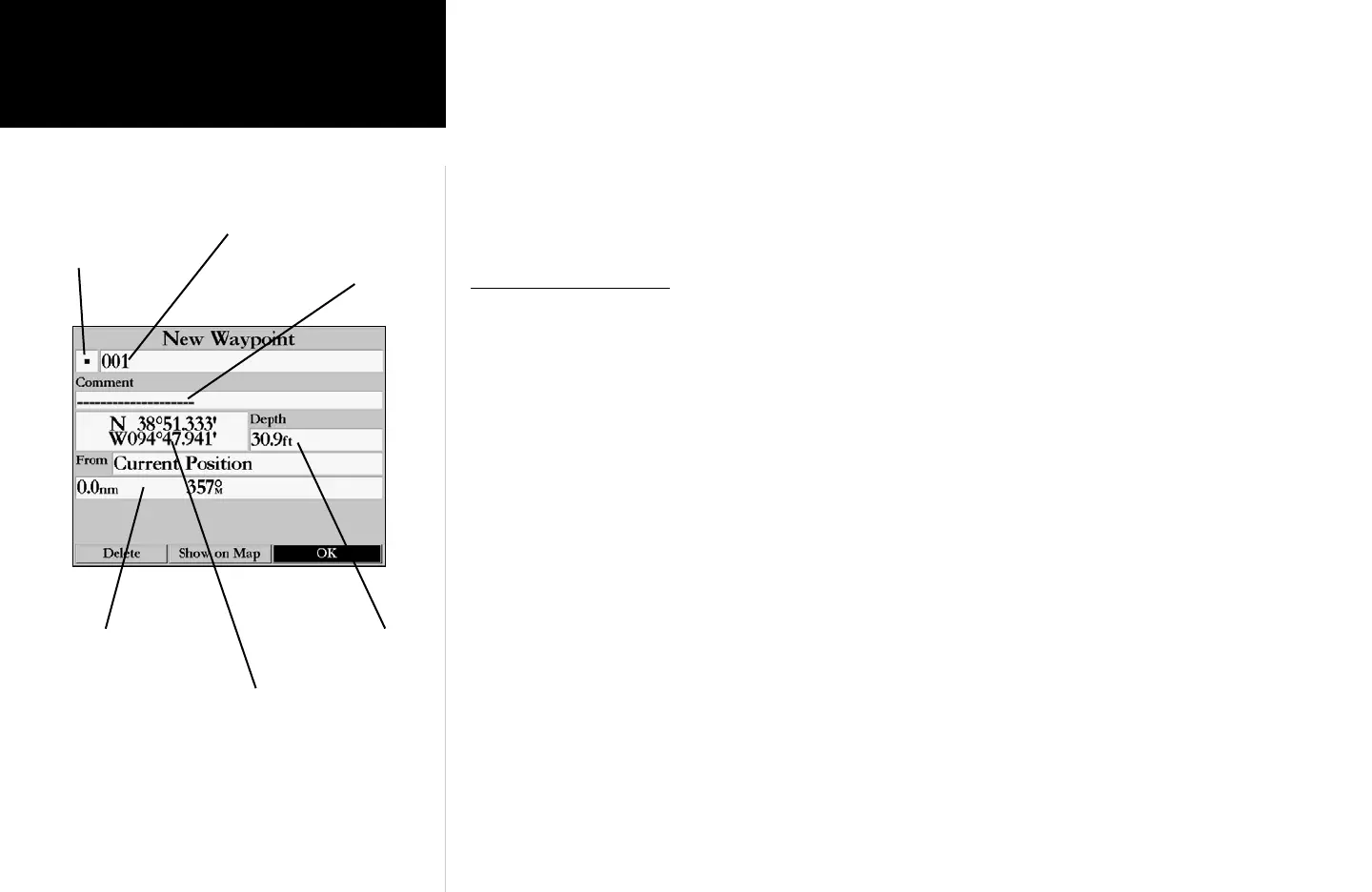
1. Press and hold the ENTER/MARK key (more than 1 second) until the ‘New Waypoint’ window is dis-
played.
When you hold the ENTER/MARK key, the GPSMAP 2006/2010 captures its current location and
displays the ‘New Waypoint’ window. You can see that the unit assigned a square as the default symbol
and a number as the default name. The ‘OK’ button is now highlighted. Pressing the ENTER/MARK key
will store the new waypoint using the default settings for the symbol and name, but let’s change them for
practice.
Changing the symbol:
1. Using the ARROW KEYPAD, highlight the symbol field, then press the ENTER/MARK key. This will
display a list showing all of the available symbols.
Symbol Field
Name Field
Comment Field
(up to 20 characters)
Captured Location
Distance and Direction
from Captured Location
Depth Field





 To Next Page