GPSMAP 640 Owner’s Manual 69
Automotive Mode: Using XM
Automotive Mode: UsingUsing XM
Your GPSMAP 640 can receive XM radio, XM weather, and XM
trafc using an optional XM smart antenna (such as the GXM 40).
For more information about an XM smart antenna and XM
subscriptions, visit www.garmin.com/xm.
Notes:
• XM service is available only in the lower 48 United States and
southern Canada.
• You must purchase and activate your XM service before you
can use the XM features.
Touch Tools > XM Services.
XM Radio—opens the XM tuner.
Local Weather—displays current weather conditions based
on your present location. Touch Forecast to view a ve-day
weather forecast for this area.
Weather Map—displays current weather conditions on the
map. See page 58 for tips on browsing the map.
•
•
•
Listening to XM Radio
1. Connect an optional XM antenna to the GPSMAP 640.
2. Touch Tools > XM Services > XM Radio to open the XM Radio
player.
NOTE: To open the XM Radio player directly from the Map page,
touch the XM Radio player icon ( ).
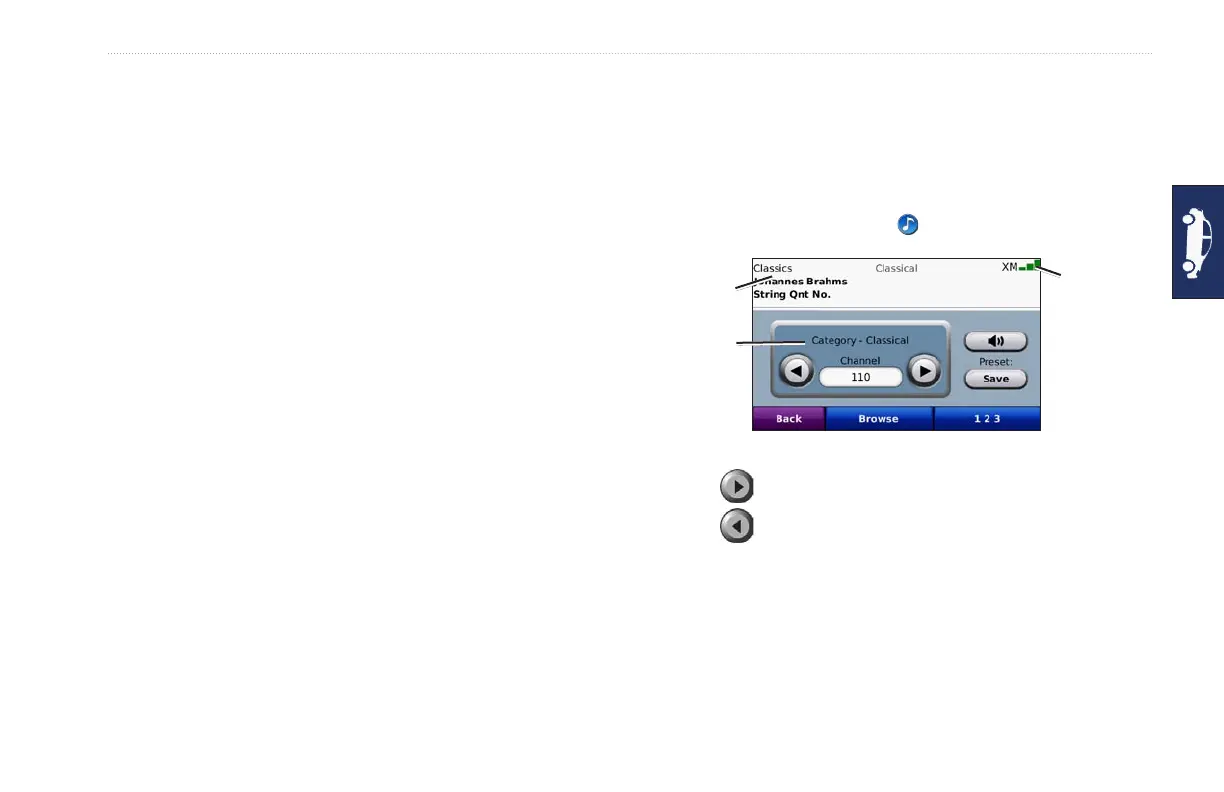
Automotive Mode: XM Radio player
XM signal
strength
Browse
category
Now
playing
Touch to go to the next channel in the browse category.
Touch to go to the previous channel in the browse category.
Touch Browse to search a category, such as Recent Channels,
Kids, or Urban. Adjacent to each channel is the current program
information. Touch a channel to listen to that channel.
Touch 123 to enter an XM channel. Then touch Done to listen
to that channel.
•
•
•
•












 To Next Page