4 Garmin Mobile
™
PC Quick Start Manual
2. Clickacategory.Tondadestinationbyname,click
Spell Name, enter all or part of the name, and click
the location you want.
3. Click a sub-category, or click All Categories. A list
of destinations near your current location appears.
4. Click a destination to view it on the map. You can
also type the name of the destination in the text
baratthetopofthescreentonditinthelistof
destinations.
5. Click Go to navigate to this location.
TIP: Click and hold the Back button or the Garmin
Mobile PC icon to quickly return to the Menu page.
Information Page Options
After you select a destination, click More to get the
coordinates of the destination and to see more options:
Save to Favorites: saves the location to Favorites, a
collection of your favorite locations.
Save to Contacts: saves the location to your
Microsoft
®
Outlook
®
contacts list.
•
•
Weather: shows the current weather condition and a
ve-day forecast for the selected location.
Following the Route
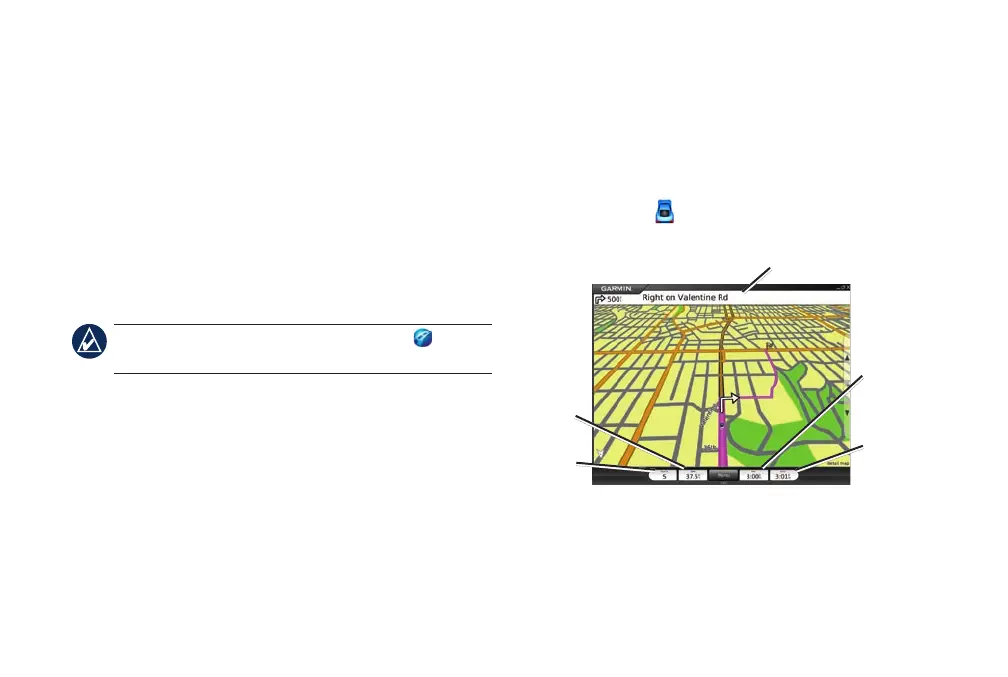
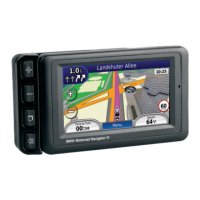
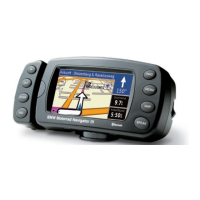
After you nd a location, click Go to navigate to it. The
map automatically opens with your route indicated by a
magenta line. The vehicle icon shows your position
on the map.
Direction bar
Heading
Speed
Time to
next turn
Arrival
time
•



 To Next Page