3
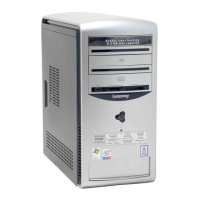
Front
www.gateway.com
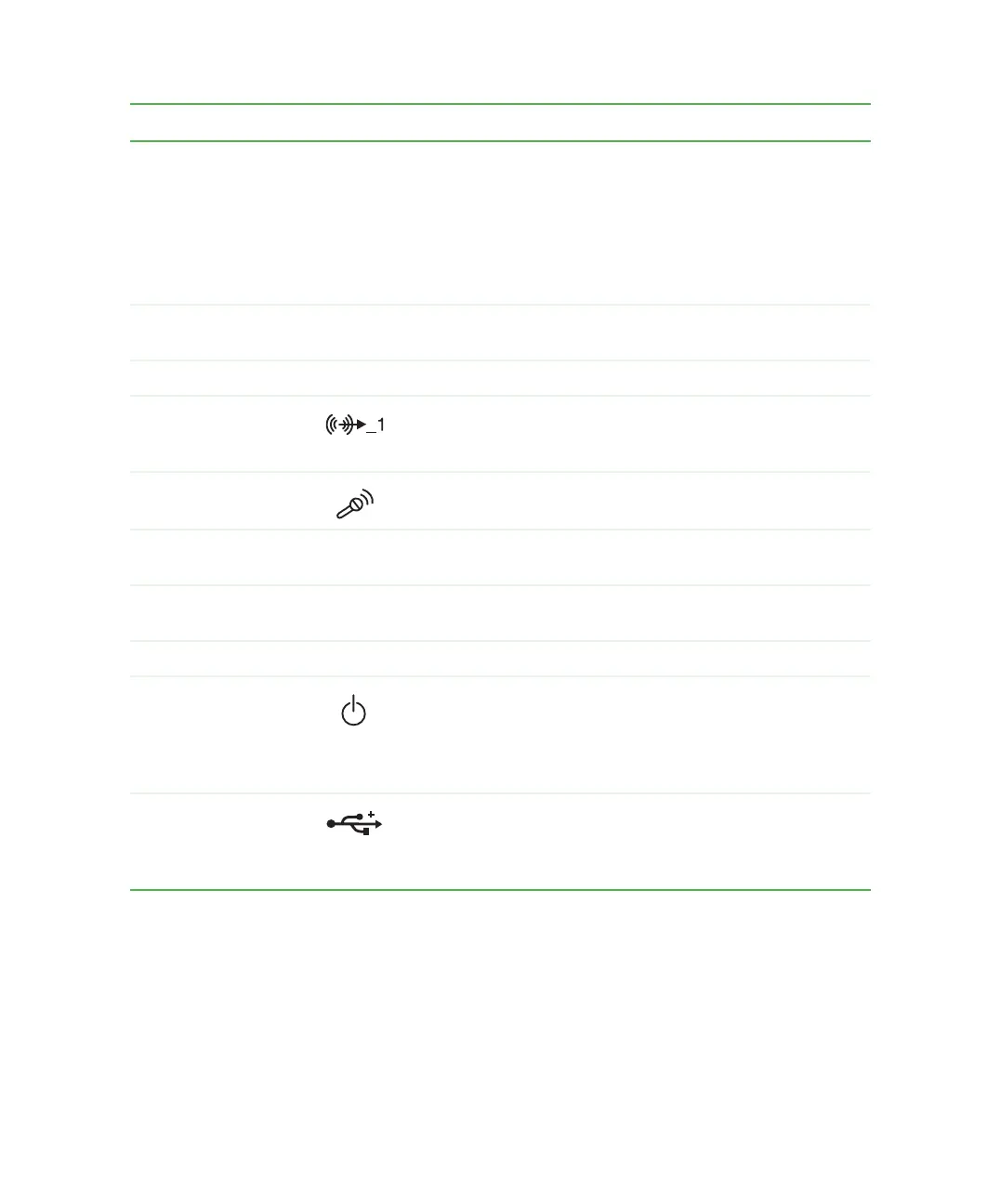
Component Icon Description
DVD/CD drive
(optional)
Use this drive to listen to audio CDs, install games and
programs, watch DVDs, and store large files onto recordable
CDs (depending on drive type). For more information, see
“Using the CD or DVD drive” on page 74.
This drive may be a CD, CD-RW, DVD, or DVD/CD-RW drive.
To identify your drive type and for more information about your
drive, see “Identifying drive types” on page 74.
Reset button Press this button to restart your computer if your computer
does not respond to mouse or keyboard input.
Hard drive indicator Turns on when the hard is accessed.
Headphone jack Plug powered, analog front speakers, an external amplifier,
or headphones into this jack. This jack is color-coded lime
green.
Microphone jack Plug a microphone into this jack. This jack is color-coded red
or pink.
CD/DVD eject button Press this button to open the CD or DVD drive tray. For more
information, see “Using the CD or DVD drive” on page 74.
3.5-inch drive bay
covers
Remove these covers to install additional 3.5-inch drives.
Power indicator Indicator turns on when computer power is on.
Power button Press this button to turn the power on or off. You can also
configure the power button to operate in Standby/Resume
mode or Hibernate mode. For more information on changing
the power button setting, see “Changing the power scheme”
on page 116.
USB ports Plug USB (Universal Serial Bus) devices (such as a USB
Iomega™ Zip™ drive, printer, scanner, camera, keyboard, or
mouse) into these ports. For more information, see “Installing
a printer, scanner, or other peripheral device” on page 23.



 To Next Page