144
Chapter 9: Maintaining Your Computer
www.gateway.com
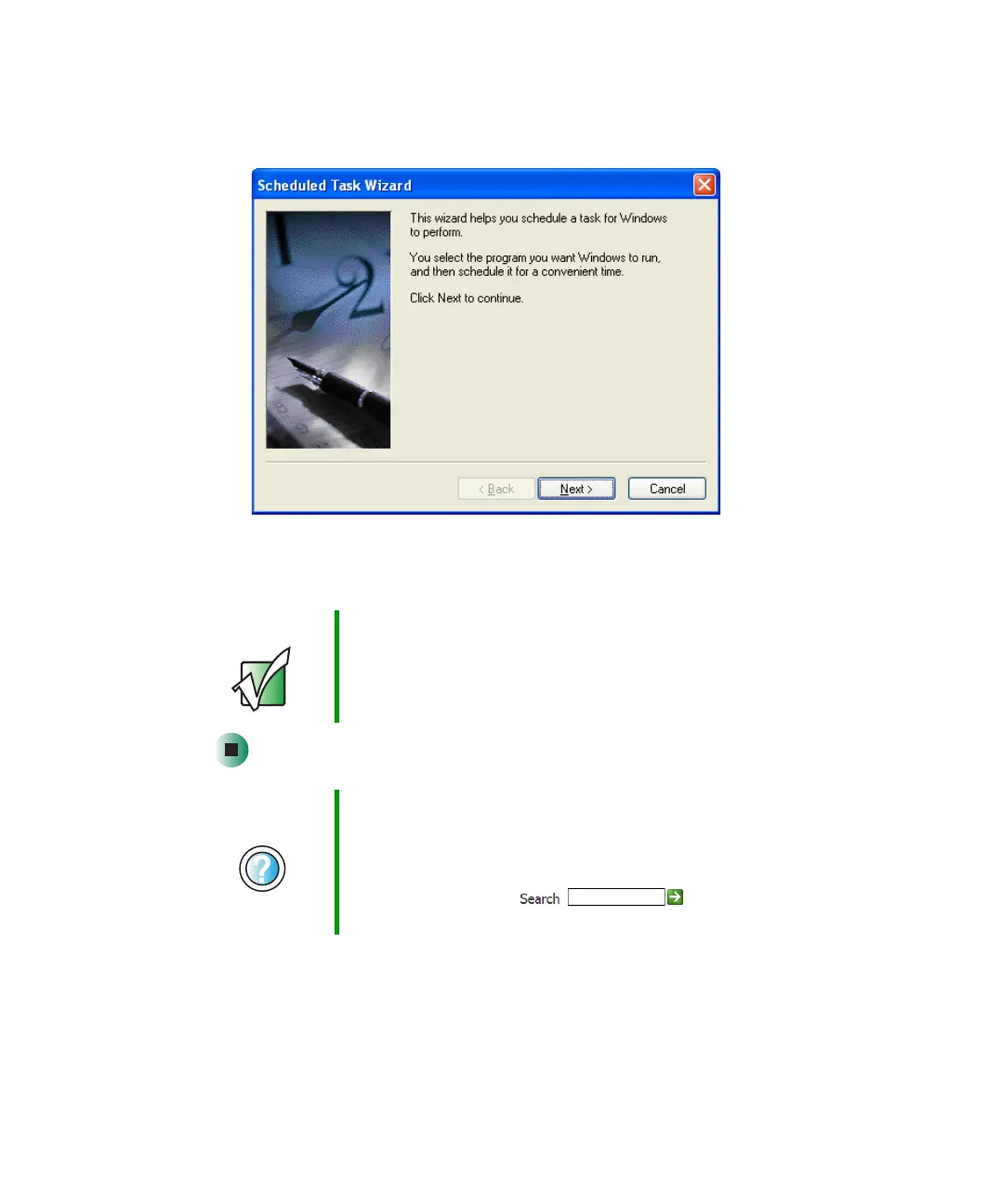
2 Double-click the Add Scheduled Task icon. The Scheduled Task Wizard
opens.
3 Click Next, then click the task or program you want to schedule and follow
the on-screen instructions to customize the task.
Important Your computer must be on during scheduled tasks. If your
computer is off, scheduled tasks will not run.
Help and
Support
For more information about using the Scheduled Tasks
Wizard in Windows XP, click Start, then click Help and
Support.
Type the keyword Scheduled Task Wizard in the
HelpSpot Search box , then click
the arrow.



 To Next Page