172
Chapter 11: Upgrading Your Computer
www.gateway.com
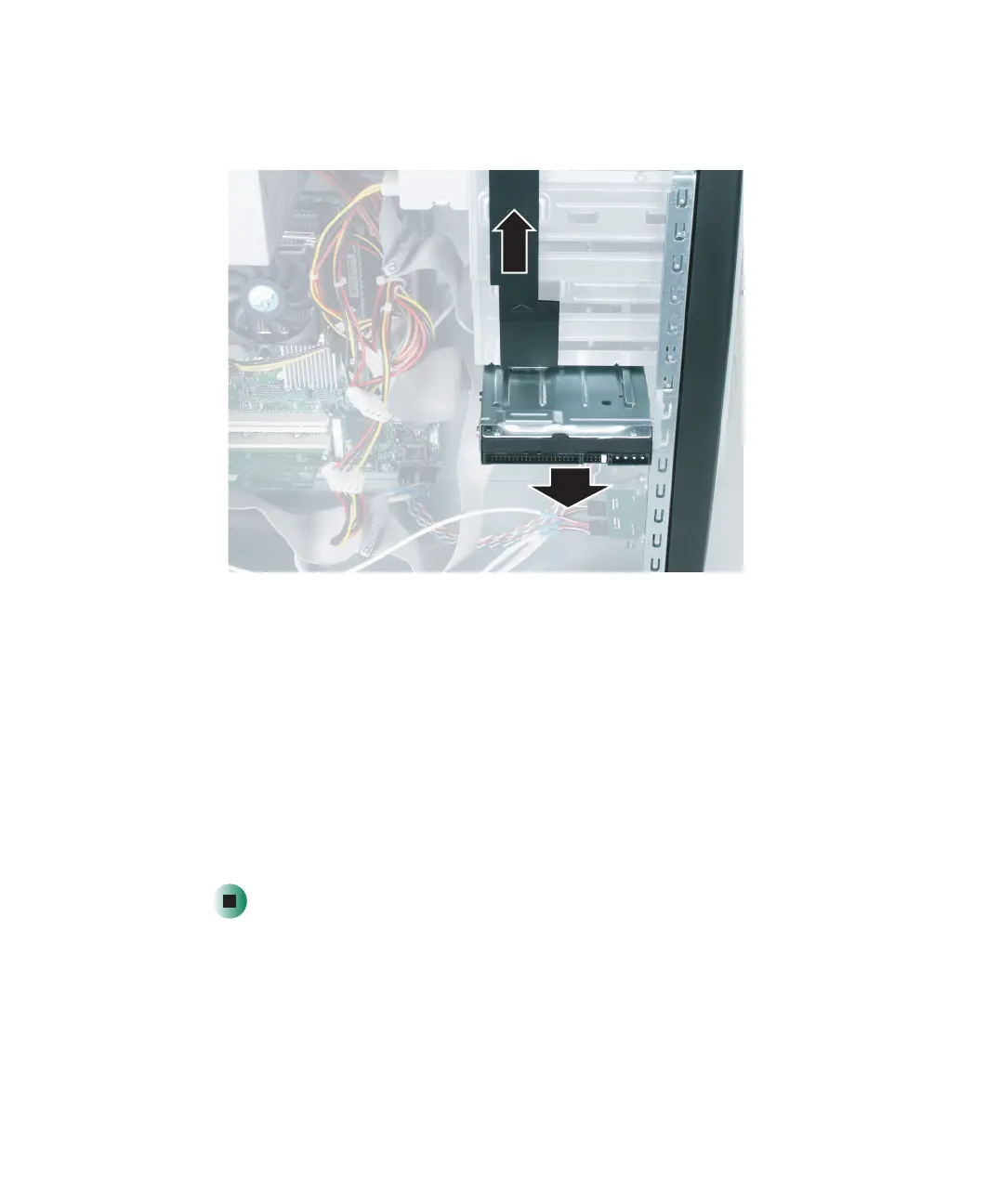
3 Lift the drive release latch up and slide the hard drive out of the hard drive
bay.
4 Set the jumpers on the drive. See the drive documentation for further
instructions.
5 Slide the new drive in the drive bay. Push firmly until the drive release
latch locks the hard drive into place.
6 Reconnect the drive cables using your notes from Step 2. The red-striped
edge of the data ribbon cable indicates Pin 1 and corresponds with Pin 1
on the drive (typically on the side closest to the power supply connection).
See the drive documentation for further instructions.
7 Replace the side panel following the instructions in “Replacing the side
panel” on page 166.



 To Next Page