CHAPTER 2: Using Windows
8
Adding icons to the desktop
You may want to add an icon (shortcut) to the desktop for a program that you use
frequently.
To add icons to the desktop:
1 Click (Start), then click All Programs.
2 Right-click (press the right touchpad button) the program that you want to add
to the desktop.
3 Click Send To, then click Desktop (create shortcut). A shortcut icon for that
program appears on the desktop.
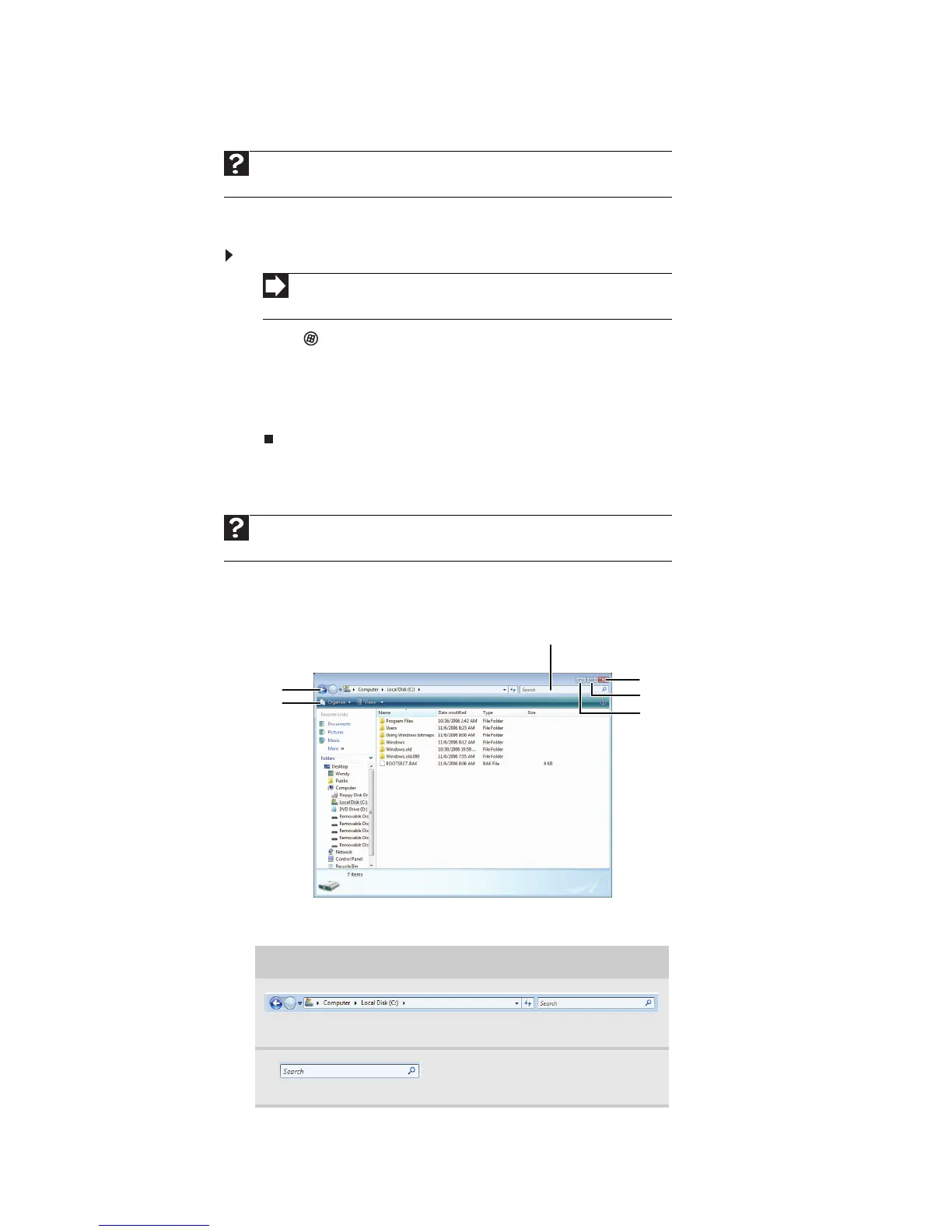
Identifying window items
When you double-click the icon for a drive, folder, file, or program, a
window
opens
on the desktop. This example shows the Local Disk (C:) window, which opens after
you double-click the Local Disk (C:)
icon in the
Computer
window.
Every program window looks a little different because each has its own menus, icons,
and controls. Most windows include these items:
Help
For more information about the desktop icons, click Start, then click
Help and Support. Type desktop icons in the Search Help box, then press E
NTER.
Shortcut
Start Á All Programs Á right-click program Á Send To Á
Desktop (create shortcut)
Help
For more information about windows, click Start, then click Help and
Support. Type window in the Search Help box, then press E
NTER.
Window item Description
The
title bar
is the horizontal bar at the top of a window that
shows the window title.
The Search box lets you search
for a word or phrase in the
current window.
Minimiz
Maximiz
Close
Title
Menu
Search box



 To Next Page