CHAPTER 2: Using Windows
18
Opening a document
To view, revise, or print an existing document, first you need to open it. Open the
document in the program that it was created in.
To open a document:
1 Start the program.
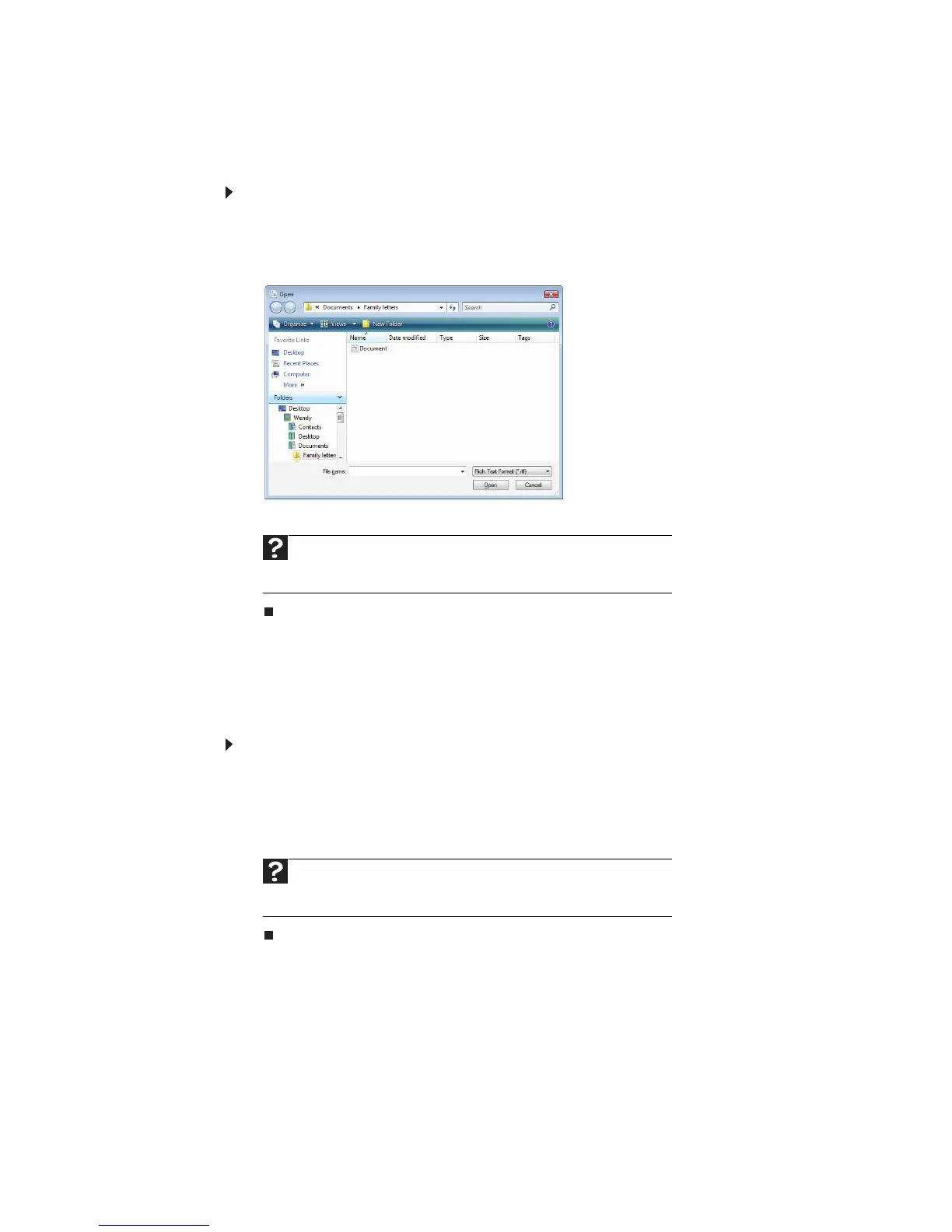
2 Click File, then click Open.
3 Click Folders to open the Folders list, then click the folder you want to open.
4 Double-click the document file name. The document opens.
Printing a document
To print a document, you must have a printer connected to your notebook or have
access to a network printer. For more information about installing or using your
printer, see the printer documentation.
To print a document:
1 Make sure that the printer is turned on and loaded with paper.
2 Start the program and open the document.
3 Click File, then click Print. The
Print
dialog box opens.
4 Set the print options, then click Print. The document prints.
Help
For more information about opening documents, click Start, then
click Help and Support. Type opening files in the Search Help box, then
press E
NTER.
Help
For more information about printing documents, click Start, then
click Help and Support. Type printing in the Search Help box, then press
E
NTER.



 To Next Page