www.gateway.com
75
Changing touchpad or pointing device settings
To change your touchpad or pointing device settings:
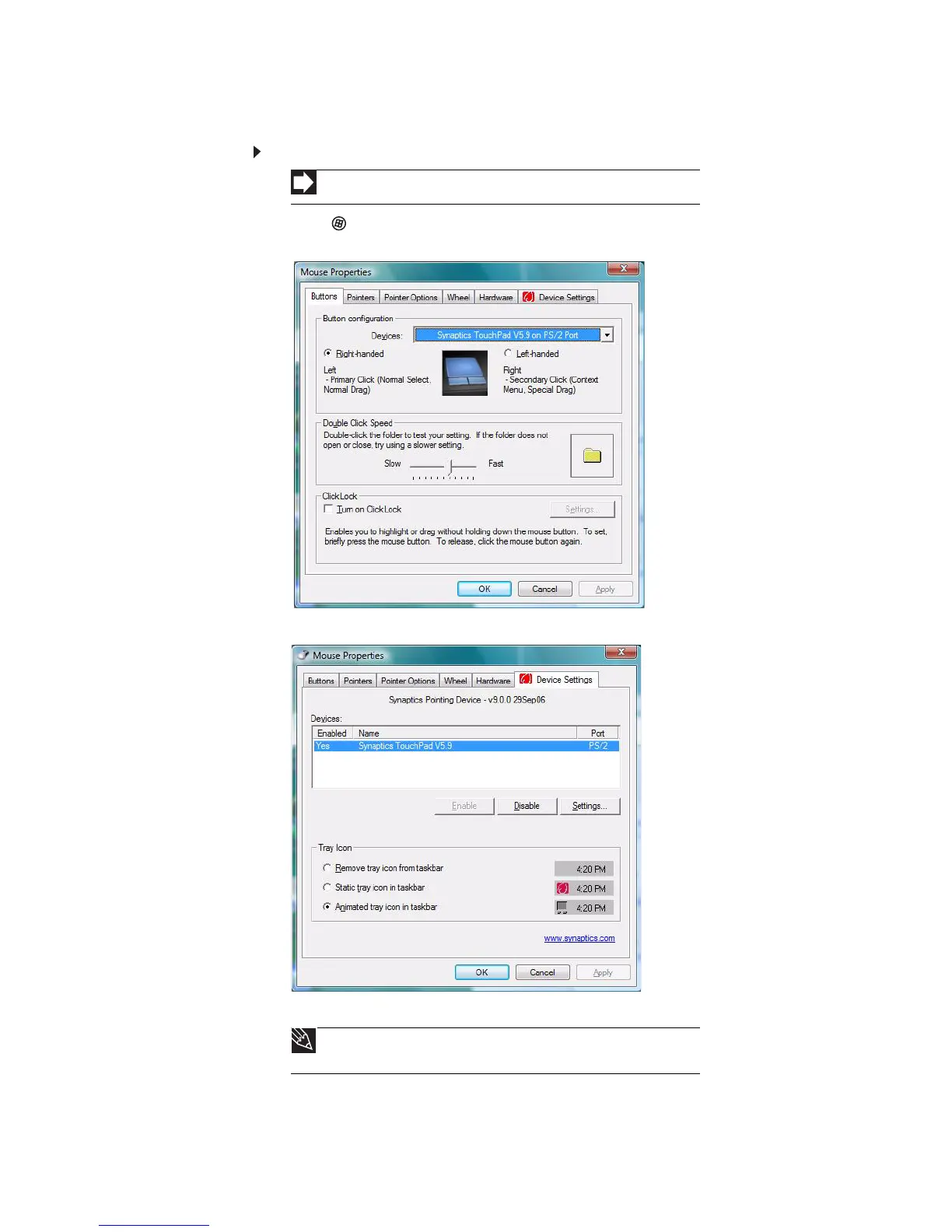
1 Click (Start), Control Panel, then under Hardware and Sound, click Mouse.
The
Mouse Properties
dialog box opens.
2 Click the Device Settings tab, then click the device you want to modify.
3 If you want to turn the device on or off, click Enable or Disable.
Shortcut
Start Á Control Panel Á Hardware and Sound Á Mouse
Tip
You can turn the touchpad and optional pointing device on or
off, depending on which device you prefer to use.



 To Next Page