CHAPTER 4: Playing and Creating Media Files
42
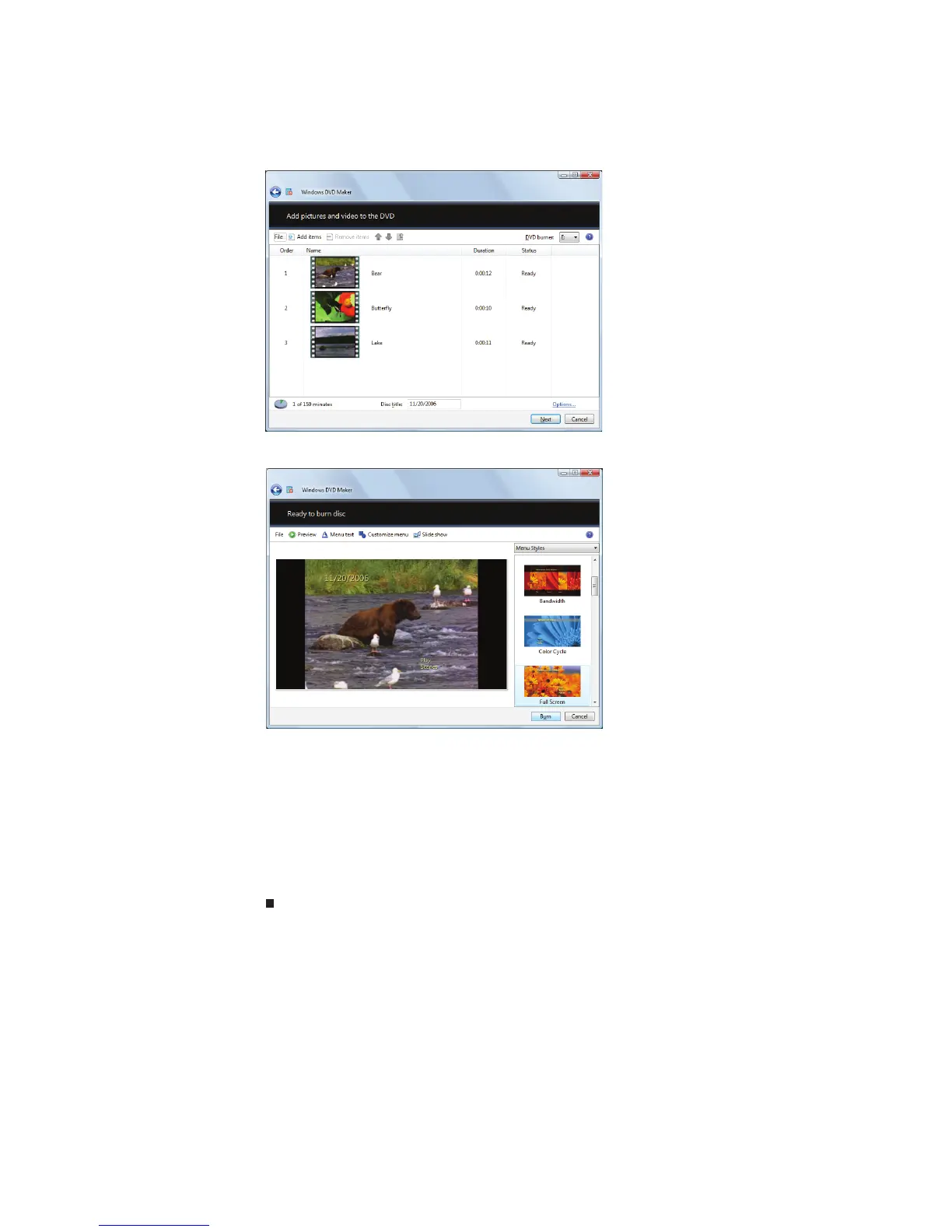
6 Find and select the videos you want to add to the video DVD, then click Add.
The videos are added to the video list, and a graphic in the lower left corner
of the window shows you how much disc capacity will be used.
7 Click Next. The
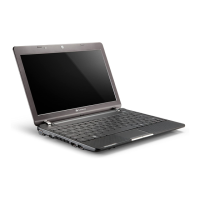
Ready to burn disc
dialog box opens.
8 Click any of the following options to customize your video disc:
• Preview shows how your DVD’s opening menu will look using the current
settings.
• Menu text changes the disc title, font, and button names.
• Customize menu changes the menu fonts, background and foreground
videos, audio track, and button styles.
• Slide show creates a slide show from photo files.
9 Click Burn. Your DVD is recorded.



 To Next Page