www.gateway.com
33
Setting a Password
Follow these steps as you set the user or the supervisor password:
1 Use the w andy keys to highlight the Set Supervisor Password parameter
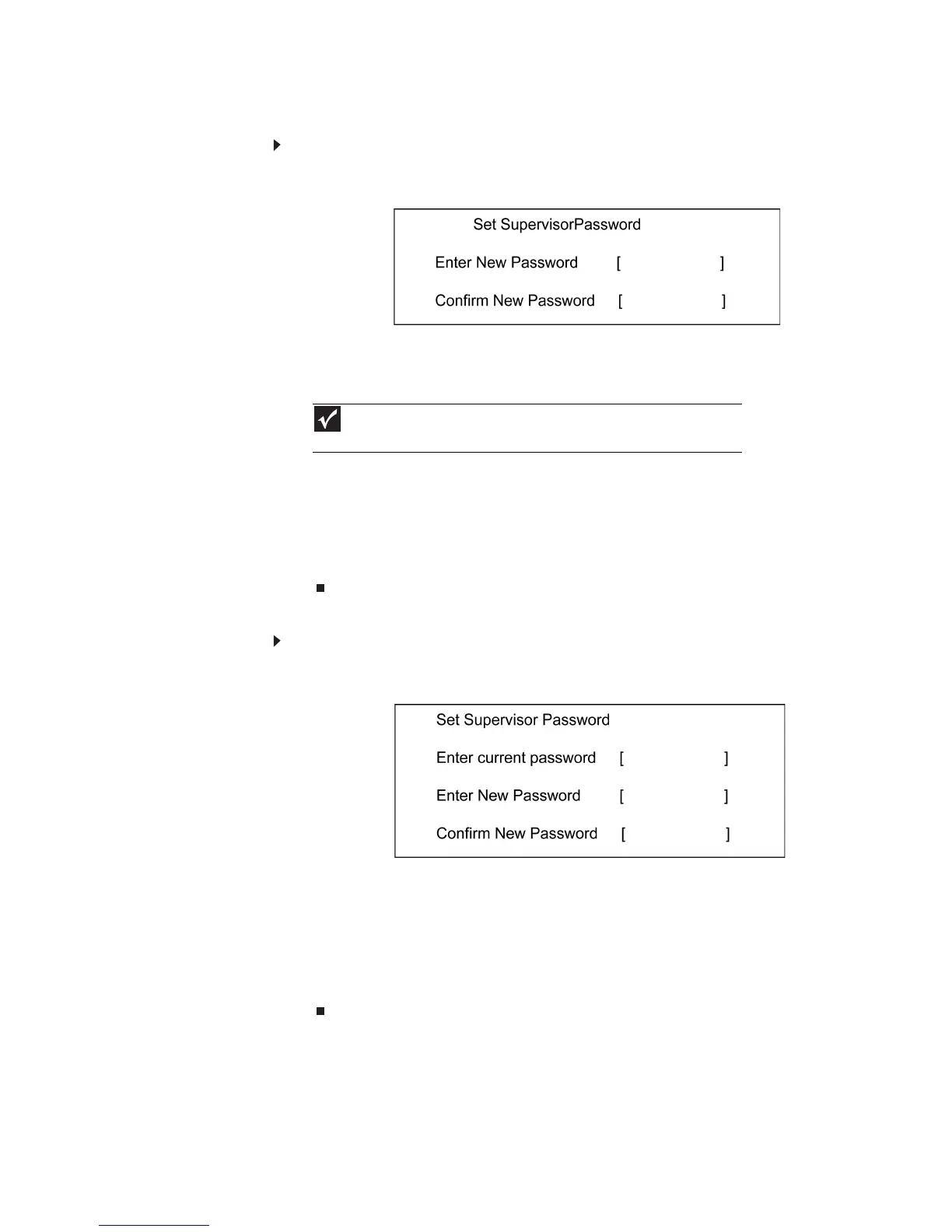
and press the e key. The Set Supervisor Password box appears:
2 Type a password in the Enter New Password field. The password length
cannot exceed 8 alphanumeric characters (A-Z, a-z, 0-9, not case
sensitive). Retype the password in the Confirm New Password field.
3 Press e.
After setting the password, the computer sets the User Password
parameter to “Set”.
4 If desired, you can opt to enable the Password on boot parameter.
5 When you are done, press u to save the changes and exit the BIOS Setup
Utility.
Removing a Password
Follow these steps:
1 Use the w and y keys to highlight the Set Supervisor Password parameter
and press the e key. The Set Password box appears:
2 Type the current password in the Enter Current Password field and press
e.
3 Press e twice without typing anything in the Enter New Password and
Confirm New Password fields. The computer then sets the Supervisor
Password parameter to “Clear”.
4 When you have changed the settings, press u to save the changes and
exit the BIOS Setup Utility.
Important
Be very careful when typing your password because the
characters do not appear on the screen.







 To Next Page