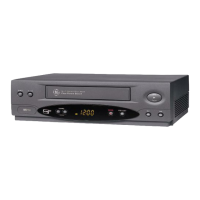
Using Two VCRs for Copying and
Editing Tapes
Use one VCR as the playback VCR and the other as the
recording VCR.
1. Turn on the "iV and VCRs.
2. Tune the TV to the VCR viewing channel (either 3, 4, or TV's
video input).
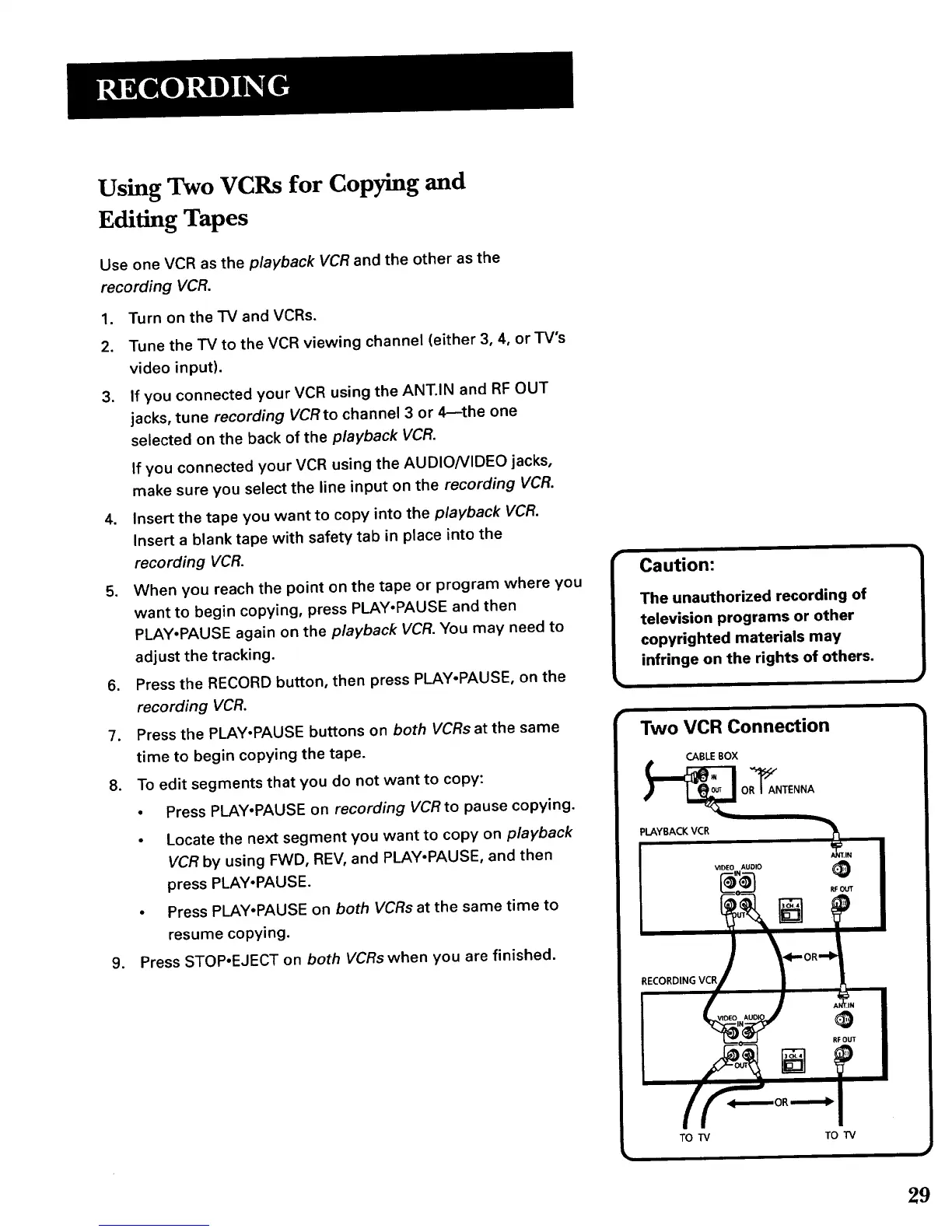
3. If you connected your VCR using the ANT.IN and RF OUT
jacks, tune recording VCR to channel 3 or 4--the one
selected on the back of the playback VCR.
If you connected your VCR using the AUDIO/VIDEO jacks,
make sure you select the line input on the recording VCR.
4. Insert the tape you want to copy into the playback VCR.
Insert a blank tape with safety tab in place into the
recording VCR.
5. When you reach the point on the tape or program where you
want to begin copying, press PLAY.PAUSE and then
PLAY.PAUSE again on the playback VCR. You may need to
adjust the tracking.
6. Press the RECORD button, then press PLAY-PAUSE, on the
recording VCR.
7. Press the PLAY-PAUSE buttons on both VCRs at the same
time to begin copying the tape.
8. To edit segments that you do not want to copy:
• Press PLAY.PAUSE on recording VCR to pause copying.
• Locate the next segment you want to copy on playback
VCR by using FWD, REV, and PLAY.PAUSE, and then
press PLAY.PAUSE.
• Press PLAY.PAUSE on both VCRs at the same time to
resume copying.
9. Press STOP.EJECT on both VCRs when you are finished.
Two VCR Connection
OR_AINTENNA
PLAYBACK VCR _._
7 j
I
TO "W TO TV
29


 To Next Page