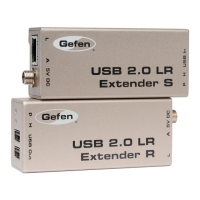
1. On the USB 2.0 S Extender send unit, check that the power in di ca tor is GREEN.
2. On the USB 2.0 S Extender send unit, check that the link indicator is GREEN.
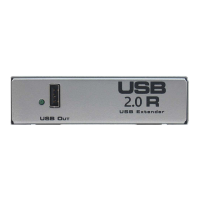
3. On the USB 2.0 R Extender receiver unit, check that the power in di ca tor is GREEN.
4. Once all LEDs are illuminated as suggested, the USB 2.0 Extender is ready to accept
a USB peripheral device at the USB port on the USB 2.0 R Extender receiver unit. Follow
the installation in struc tions as if one were installing the device directly into a com put er's
USB port.
5. On the host computer, check that a general purpose hub is visible in the Control Panel.
Once con nect ed, a USB peripheral device causes its host computer to automatically
enumerate it. This simply means that the computer must identify the new device, assign
it an ID, and ensure that the required software drivers are available for loading when the
device is to be used.
6. The USB 2.0 Extender is not an end device. Consequently, it does not have a software
component or driver to be loaded. Some peripheral devices that are to be at tached to
the USB 2.0 Extender will have a USB Driver diskette or CD-ROM which will need to be
inserted after initial connection to a USB port on the USB 2.0 Extender model.
CHECK LIST
8



 To Next Page