26
4.3 Importing digital pages
1 After you plug in the USB connector to your
PC, “Note Notifier” screen will comes
automatically. Press [OK] to confirm.
2 Use the dialog to select [Copy File(s)] or
[Moving File(s)].
3 Then your screen will display another new
screen to show the transferring status.
4 When the transfer finished, we can find a new
folder named “NoteFiles” in My Document.
27
4.4 Using the G-Note as a pen tablet
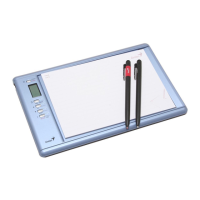
As soon as you have established a USB connection with your PC, the G-
Note will instantly double as a pen tablet. You can use the digital ink pen
as input styluses in a much the same way as the stylus of a traditional pen
tablet, a tablet PC, or hand-hold computer.
In pen tablet mode, you can hover the pen over the writing area to
navigate the cursor across the screen, tap and double-tap on program
icons to select and open them, and annotate your notes in the Digital
Organizer program as well as in mainstream applications that allow free-
hand pen input.
For a correct mapping of the screen you must turn the G-Note as the
same direction as USB connector showing on LCD display..
Avoid direct contact between the pen tip and the writing area
surface. Cover the writing area with a sheet of paper, or just use an
empty page of your notepad when using the G-Note in pen tablet
mode. This will avoid scratches or ink traces on the D-Note’s
surface.


 To Next Page