34
4.7 The annotate toolbar
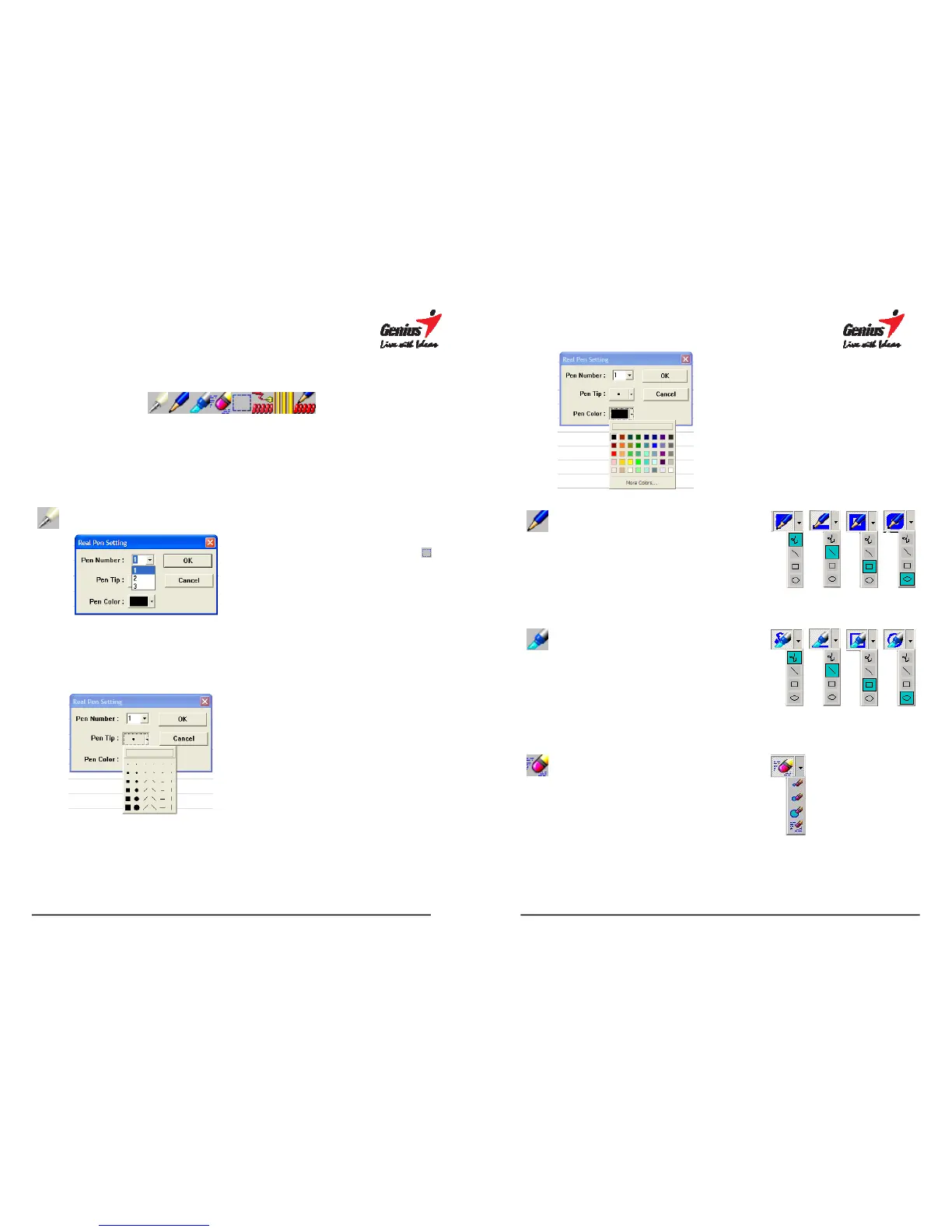
The Annotate toolbar lets you annotate your digital pages with pens and
highlighters in various colors and shapes. A built-in eraser function is provided
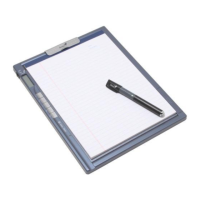
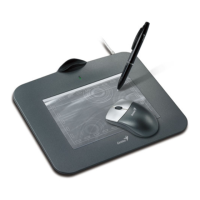
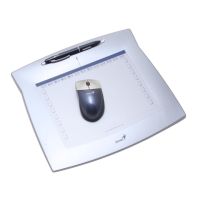
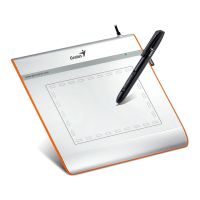
to easily make corrections. You can use the pen tablet functionality of the G-
Note (see section 4.4) to quickly and conveniently annotate
your digital pages.
D-Note pen properties
Use this dialog box to select the
pen type, and the color and
shape of the pen tip, and modify
the recorded notes in the
Notepad pane.
1. Start with selecting the objects you
want to modify with the Select tool
(see below). The selection will then
appear in a selection box. You can
now change pen tip colors and
shapes, and click the [OK] button to
confirm.
2. Select the pen-tip shape. Click the
[OK] button to confirm.
35
3. Select the pen color. Click on the
[More Colors…] button to expand the
color menu. Click the [OK] button to
confirm.
Pen
Select the Pen icon to
annotate the Notepad
pane with the pen tool.
There are 4 different
shapes (curve、line、
ellipse 、 rectangle) to
select.
Highlighter
Select the Highlighter
icon to highlight parts
of the Notepad pane
with transparent
highlighter ink. There
are 4 different shapes
(curve、line、ellipse、
rectangle) to select.
Erase stroke
Select the Erase
stroke icon to clear
pen strokes or objects
one by one by moving
the eraser cursor over
the stroke(s) you want
to delete. There are 4
different areas to
select.


 To Next Page