EasyManua.ls Logo

Genius G-NOTE 7000 - User Manual

Genius G-NOTE 7000
27 pages
Print Icon
To Next Page IconTo Next Page
Loading...
G-Note Series
~ Writing, Drawing or Annotating Anywhere ~
Digital Recorder
http://www.geniusnet.com/
1
Federal Communications Commission (FCC) Radio
Frequency Interference Statement
This equipment has been tested and found to comply within the limits of a Class B digital
device, pursuant to Part 15 of the FCC Rules. These limits are designed to provide
reasonable protection against harmful interference in a residential installation. This
equipment generates, uses, and can radiate radio frequency energy and, if not installed
and used in accordance with the instructions, may cause harmful interference to radio
communications. However, there is no guarantee that interference will not occur in a
particular installation. If this equipment does cause harmful interference to radio or
television reception, which can be determined by turning the equipment off and on, the
user is encouraged to try to correct the interference by one or more of the following
measures:
l Reorient or relocate the receiving antenna.
l Increase the separation between the equipment and receiver.
l Connect the equipment to an outlet on a circuit different from that to which the
receiver is connected.
l Consult the dealer or an experienced radio/TV technician for help.
Trademark Information
Genius and G-Note are registered trademarks of KYE SYSTEMS Corporation.
Microsoft and Windows are registered trademarks of Microsoft Corporation.
Pentium is a registered trademark of Intel Corporation.
Adobe and Acrobat are registered trademarks of Adobe Systems Inc.
All other trademarks are the property of their respective owners.
Copyright Notice
© 2005 KYE SYSTEMS Corp. All rights reserved. No part of this publication may be
reproduced, stored in a retrieval system, or transmitted, in any form or by any means
(electronic, mechanical, photocopying, recording, or otherwise), without the prior written
permission of the publisher.
Note: Specifications mentioned in this manual are subject to change without notice.

Questions and Answers

Summary

2.1 Install the batteries into the digital recorder

2.2 Install the batteries for Digital Pen

3. G-Note Operation Guide

3.2 Power Button

3.3 Build up and store a new page

3.4 Modify notes

3.5 Delete pages

3.6 MENU functions

3.6.2.2 FORMAT Flash Memory

3.6.2.4 Tablet Function

3.7 Testing for Digital Ink Pen

4. Introduction to Software Functions

4.1 Install Digital Organizer

Step-by-step guide to install the Digital Organizer software.

4.2 Transfer Data to Computer

4.3 Importing Digital Pages

4.4 Using G-Note as Tablet

Digital Organizer Operations

Save as PDF

Page Manipulation Tools

4.8 Drawing Toolbars - Support Tablet Function

Pen, Highlighter, and Eraser Tools

Tools for annotating, highlighting, and erasing with various options.

Advanced Digital Organizer Features

4.8.1 Modify the color and shape

4.9 Insert Backgrounds

4.9.2 Real Picture Model Backgrounds

6. Take Care of your G-Note

Q & A, Troubleshooting

Superimposed Digital Page Issues

How to avoid and fix superimposed digital pages.

Digital Pen and Device Problems

Troubleshooting common issues with the device and pen.

Power and Memory Issues

Solutions for power-on failures and full memory conditions.

Summary

2.1 Install the batteries into the digital recorder

2.2 Install the batteries for Digital Pen

3. G-Note Operation Guide

3.2 Power Button

3.3 Build up and store a new page

3.4 Modify notes

3.5 Delete pages

3.6 MENU functions

3.6.2.2 FORMAT Flash Memory

3.6.2.4 Tablet Function

3.7 Testing for Digital Ink Pen

4. Introduction to Software Functions

4.1 Install Digital Organizer

Step-by-step guide to install the Digital Organizer software.

4.2 Transfer Data to Computer

4.3 Importing Digital Pages

4.4 Using G-Note as Tablet

Digital Organizer Operations

Save as PDF

Page Manipulation Tools

4.8 Drawing Toolbars - Support Tablet Function

Pen, Highlighter, and Eraser Tools

Tools for annotating, highlighting, and erasing with various options.

Advanced Digital Organizer Features

4.8.1 Modify the color and shape

4.9 Insert Backgrounds

4.9.2 Real Picture Model Backgrounds

6. Take Care of your G-Note

Q & A, Troubleshooting

Superimposed Digital Page Issues

How to avoid and fix superimposed digital pages.

Digital Pen and Device Problems

Troubleshooting common issues with the device and pen.

Power and Memory Issues

Solutions for power-on failures and full memory conditions.

Overview

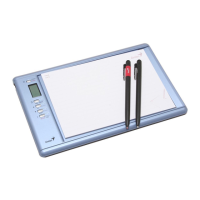
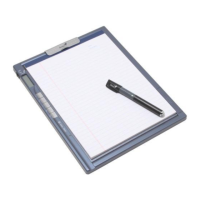
The Genius G-Note 7100 Series is a digital note recorder designed for capturing handwritten notes, drawings, and annotations on normal paper, then transferring them as digital data to a computer for viewing, editing, or sharing. It can also function as a tablet when connected to a computer.

Function Description:

The G-Note 7100 Series allows users to write or draw with an ink pen on regular paper placed on the device. The device's built-in memory stores these handwritten inputs digitally, even without a computer connection. Later, the data can be transferred to a Windows PC for further organization, editing, and sharing via email. The included "Digital Organizer" software facilitates these tasks, allowing files to be saved in various formats such as PDF, JPG, BMP, or DNT. The device is suitable for situations requiring both hardcopy and digitized softcopy, such as taking meeting minutes, lecture notes, or creating business presentations. Artists and writers can capture ideas instantly.

Important Technical Specifications (G-Note 7100):

  • Technology: Electromagnetic digitizer
  • Dimensions: 332(L) x 249(W) x 16(H) mm
  • Weight: 545g (not including batteries)
  • Paper Size: A4 size (210 x 297mm), Letter size (215.9 x 279.4 mm)
  • Working Area: 210 x 263mm
  • Thickness Notepad: Max. 5~7 mm
  • Storage Medium: Built-in 32MB flash memory
  • Power Source: Alkaline batteries AAA 1.5V x 4
  • Battery Life: Approximately 100 hours (continuous use)
  • Work Current: 3V / 20mA ± 5mA
  • Power Consumption: 60mW ± 15mW
  • Power Saving: Auto suspend after 15 min (default), idle time configurable
  • Interface: USB 1.1

Important Technical Specifications (Digital Ink Pen):

  • Dimensions and Weight: 152(L) x 16mm Ø, 12g including battery
  • Power Source: One 1.4V button cell battery (PR48)
  • Battery Life: Approximately 500 hours (continuous use)
  • Ink Cartridge: 67.16(L) x 2.3mm Ø
  • Refill Type: MiniStar D1 (or other brands with standard dimensions)
  • Available Ink Colors: Black, Blue, Red

System Requirements:

  • Operating System: Windows 2000/XP/Vista
  • CPU: Pentium III 500 MHz or Higher Level of PC
  • RAM (Memory): 128 MB or Higher
  • Equipment: One USB port, one CD/DVD ROM Drive
  • Hard Disk Space for Driver Installation: Minimum 32 MB

Package Content (G-Note 7000):

  • G-Note digital note recorder x 1
  • A4 size notepad x 1
  • Digital ink pen (Black) x 1, digital pen (Red) x 1 (becomes digital pen after connecting to computer)
  • 1.4V button cell battery x 2 (for digital pen)
  • Leather slipcover x 1
  • Three refills (Two Black, One Red) for digital pen
  • USB connecting cable x 1 (150 cm)
  • 1.5V AAA size x 4 (for digital note recorder)
  • CD x 1 (Includes Digital Organizer 1.03, My Script Notes FOR U 30 days Trial version + Electrical manual)
  • Quick Start Guide
  • Warranty Card
  • Mini Screwdriver

Usage Features:

  • Battery Installation: Separate instructions for installing AAA batteries in the digital recorder and button cell batteries in the digital pen. Warnings are provided regarding incorrect battery installation, mixing battery types, and removing batteries during extended non-use.
  • Notepad Setup: The paper notepad attaches to the G-Note pad standard, with a maximum size of 210mm x 263mm (A4/Letter). Users are advised not to exceed the recorder's size and to avoid tearing papers with excessive force.
  • Storage: The G-Note has 32MB of built-in FLASH memory, capable of saving approximately 75 digital pages. Users are warned not to save computer files directly to the G-Note's memory to prevent data damage.
  • Power On/Off: Pressing the POWER button for about 3 seconds turns the device on or off.
  • Page Management:
    • New Page: Press the NEW button to create a new page. It is recommended to number sheets and synchronize with the LCD display's page counter.
    • Modify Notes: Use Page Up/Down buttons to browse pages and make corrections or additions.
    • Delete Pages: Pages can be deleted directly from the device by pressing the DELETE button or via the Digital Organizer software on a computer.
  • MENU Functions:
    • Rotate: Adjusts paper orientation (portrait, landscape, upside down). This function only supports new, unwritten pages.
    • Book Settings: Allows starting a new workbook, formatting the flash memory (erasing all content), and viewing the firmware version.
    • Tablet Function Selection: Enables/disables tablet functionality when connected to a PC.
    • Suspend-Timer: Configures automatic power-off after a period of inactivity (3 to 60 minutes).
    • Space/Power Display: Shows remaining disk space and battery capacity.
  • Digital Pen Testing: The LCD displays a pen icon (black or white) to indicate if the digital pen is working correctly. If no icon appears during writing, the pen's battery or installation should be checked.
  • Software Functions (Digital Organizer):
    • Installation: Standard Windows installation process from the provided CD.
    • Data Transfer: Connect the G-Note to a PC via USB. The "Note Notifier" screen will appear, allowing users to copy or move digital pages to the hard disk. Transferred files are saved in a "Note Files" folder in My Documents.
    • Tablet Mode: When connected to a PC, the G-Note functions as a tablet, allowing the digital ink pen to be used as an input device. Users are advised to cover the writing area with paper to prevent scratches or ink traces.
    • Digital Organizer Interface: Features standard toolbars for file management (New, Open, Save, Save As, Save Selected Area, Rename, Delete, E-Mail, Save as PDF), page navigation (Page Up, Page Down, Digital Pen), and editing tools.
    • Page Editing:
      • Untangle Superimposed Pages: Helps separate notes written on the same digital page due to forgetting to press "New Page."
      • Combine Files: Merges two digital pages.
      • Drawing Toolbars (Tablet Function Support): Offers tools for selecting drawing tools (pen, highlighter), modifying pen tip color and shape, erasing strokes, and selecting objects.
      • Insert Text: Adds text to digital pages.
      • Select Font: Changes font, size, style, color, and effects.
      • Mode Select: Adjusts actual paper size and monitor size for 1:1 display, and allows resetting the notepad's direction.
      • Pen Point and Shape: Offers various handwriting styles (round, square, marker pen) in 6 sizes.
      • Insert Background Colors/Pictures: Allows inserting pictures, colors, or line templates as backgrounds (supports JPG and BMP).

Maintenance Features:

  • Battery Removal: Remove batteries from both the G-Note and the digital pen if not used for long periods to prevent liquid leakage and corrosion.
  • Cleaning: Clean the pen and housing with a soft cloth lightly dampened with water or a neutral detergent.
  • Handling: Avoid dropping the digital pen or recorder, as strong shocks or vibration can cause malfunction.
  • Surface Protection: Avoid cutting or scratching the G-Note's surface.
  • Liquid Exposure: Never immerse the pen or recorder in liquid.
  • Environmental Conditions: Avoid operating or storing in extremely hot/cold temperatures or high humidity.
  • Disassembly: Do not disassemble the G-Note or pen, as this voids the warranty. Service should be performed by qualified technicians.
  • Electromagnetic Interference: Avoid using or storing near equipment generating strong electromagnetic radiation or magnetic fields.
  • Pen Cap: When not in use, replace the pen point cap to save energy and prevent external influences.
  • Ink Cartridge Replacement: Detailed steps are provided for pulling out the old refill and installing a new one using the pen trough.

Genius G-NOTE 7000 Specifications

General IconGeneral
BrandGenius
ModelG-NOTE 7000
CategoryTablet
LanguageEnglish

Related product manuals