offered by Busse-Yachtshop.com
••••••••••••••••••••••••••••••••••••••••••••••••••••••••••••••••••••••••••••••••••••••••••••••••••••••••••••••••••••••••••••••••••••••••••••••••••••••••••••••••••••••••••••••••••••••••••••••••••••••
3736
1
2
3
4
5
6
ROUTE
The GEONAV allows managing and saving
navigation data.
The GOTO key allows plotting a route. The
figure shows a route made up of three
waypoints.
1 - Boat’s position
The boat’s position is displayed according
to the data received from the GPS receiver.
2 - Leg
Route segment between two waypoints.
3 - Track
Displayed as a dashed line, it allows recording the boat’s actual track.
4 - Waypoint
All waypoints are identified by a circle and a number.
The GEONAV will display the “PROXIMITY TO WAYPOINT” message to
warn the user that, in approximately 25 seconds, he is about to ap-
proach the next target waypoint.
The “END OF TRIP” message is displayed when the user is about to
reach the last waypoint of the route.
The first waypoint is identified by the “X” symbol. The target waypoint
(the next point the boat is navigating to) is identified by a black circle
with the relevant number displayed in reverse.
5 - Heading vector
This vector shows the boat’s current route. If the boat is steady, the
heading vector indication is meaningless.
6 - Cursor
It allows moving the manual cursor across the screen; the relevant geo-
graphical coordinates (latitude and longitude) are displayed in two small
windows.
When the GEONAV switches to Navigation mode, the manual cursor
disappears.
Route
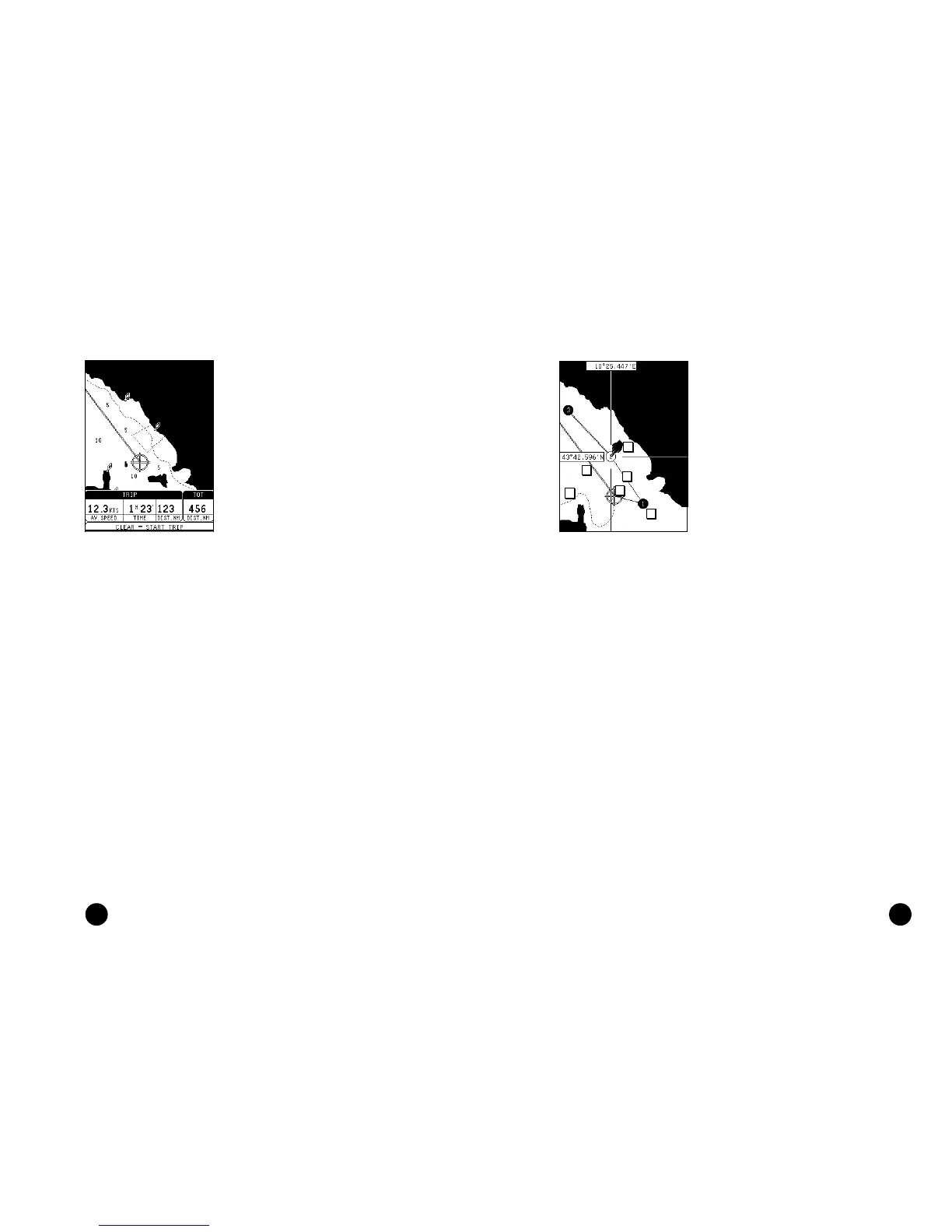
TRIP WINDOW
The trip window shows the data relating to
the route followed and, in particular:
• Average speed
• Time elapsed from departure
• Partial distance covered
• Total distance covered
To reset partial counters before starting a
new journey, press CLR.
Trip Window


 To Next Page