allows the client device to obtain an IP that is in the same
subnet as the AirConsole. Alternatively, reconnecting to
the AirConsole Wifi can resolve this problem. This will
only work provided that the AirConsole IP and the DHCP
assigned IP are in the same subnet.
AP Client “connects” but
cannot pass traffic on
802.11N dual channel
networks.
On 802.11N networks, this problem can happen when
operating in mixed 20/40mhz mode. In the basic WLAN
Settings page, set the “Channel Bandwidth” under HT
Physical Mode to be “20” rather than 20/40
11 Technical Information
11.1.1 Airconsole Connectors
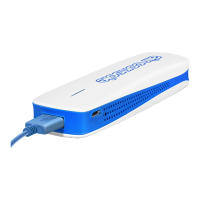
For connecting the supplied USB-Serial Cable, or for
connection directly to Cisco USB Console ports, a USB-
mini USB cable.
The USB port also accepts FAT formatted thumb drives
for performing firmware upgrades
Use this port for connecting
a) to LAN switches to bridge the Airconsole WIFI
network into a local LAN or;
b) to Ethernet based management ports on field
equipment
The port has Auto-MDIX detection so can accept normal
or crossed-over Ethernet cables.
For charging up the Airconsole via the supplied micro-
USB charging cable.
For resetting Airconsole back to its factory settings.
Turn off Airconsole, press and hold the recessed reset
button via a paperclip while turning on Airconsole. Wait
until Red light stops blinking and turns solid Blue. Turn off
Airconsole, remove paperclip, and then turn Airconsole
back on. Airconsole will now have factory settings.
11.1.2 Airconsole Indicator Lights
Indicates the Operational status of Airconsole
a) Solid red – Airconsole booting, however if remains on
for more than 20 seconds, indicates firmware error
b) Red blinking – seen during Airconsole firmware


 To Next Page