Connecting a Parallel Device
Your computer has a parallel port for connecting a parallel device such as
printer. The port supports ECP (Extended Capabilities Port) and EPP
(Enhanced Parallel Port) modes that turn the standard parallel port into a
high-speed bi-directional peripheral port.
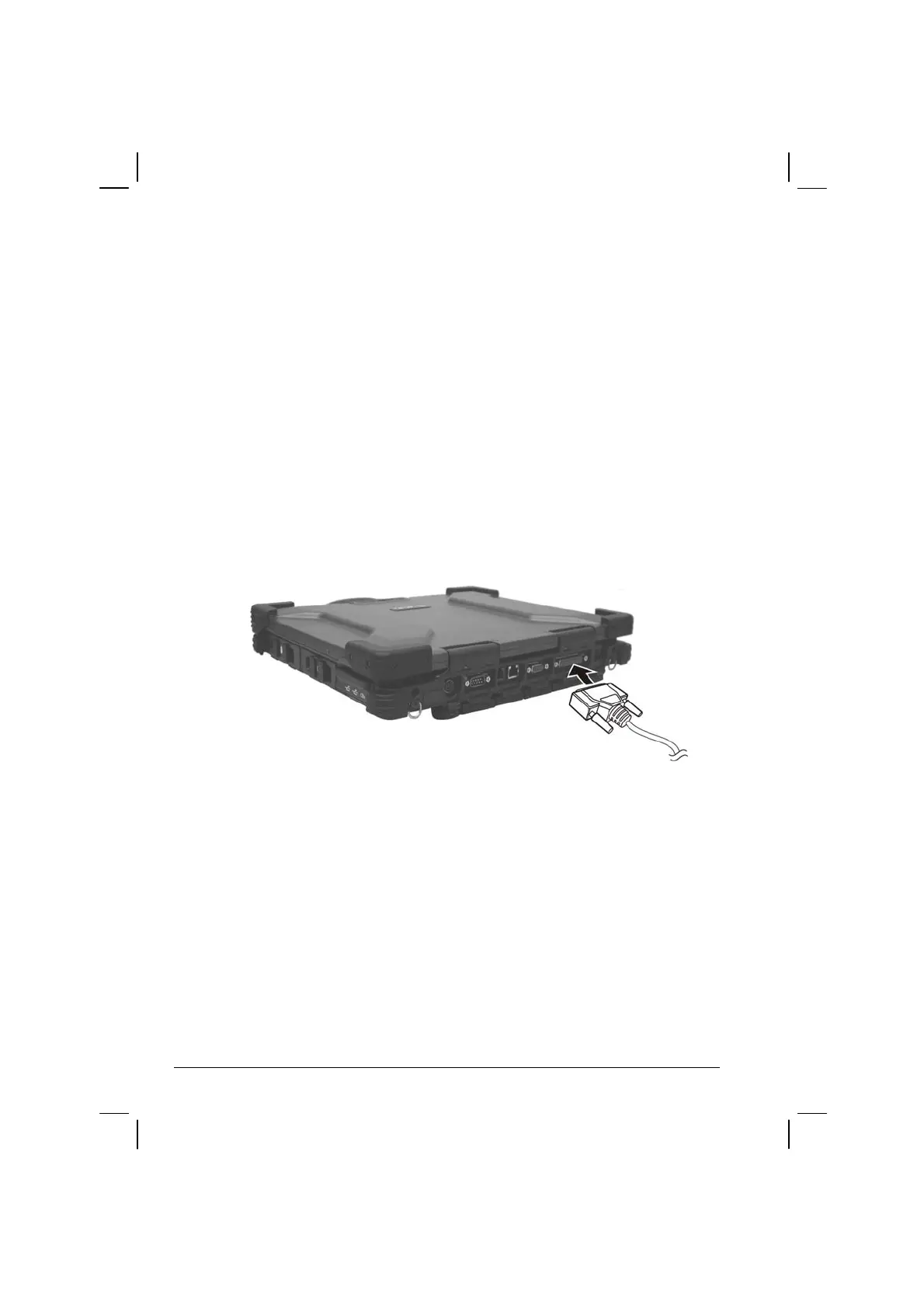
Follow this procedure to connect a parallel device:
1. Make sure that the “Parallel Port” item is set properly in the BIOS
Setup program. (See “Advanced Menu” in Chapter 5 for
information.)
2. Make sure the computer is not turned on.
3. Plug the parallel device’s cable to the computer’s parallel port.
4. If the parallel device has independent power, plug its power cord into
an electrical outlet.
5. If the parallel device has its own power switch, turn on the device
before turning on the computer.
4-4 Expanding Your Computer


 To Next Page